> ## Documentation Index
> Fetch the complete documentation index at: https://www.1password.dev/llms.txt
> Use this file to discover all available pages before exploring further.

# Secret reference syntax

export const CodeResult = ({children, resultLang, wrap, expandable}) => {
  const parseChildren = () => {
    let language = "text";
    let codeContent = "";
    const extractText = node => {
      if (typeof node === "string") {
        return node;
      }
      if (Array.isArray(node)) {
        return node.map(extractText).join("");
      }
      if (node?.props?.children) {
        return extractText(node.props.children);
      }
      return "";
    };
    const extractLanguage = node => {
      if (!node) return null;
      if (node.props?.className) {
        const className = node.props.className;
        const langMatch = className.match(/language-(\w+)/);
        if (langMatch) {
          return langMatch[1];
        }
      }
      if (node.props?.["data-language"]) {
        return node.props["data-language"];
      }
      if (node.props?.language) {
        return node.props.language;
      }
      return null;
    };
    if (typeof children === "string") {
      codeContent = children;
    } else if (Array.isArray(children)) {
      codeContent = extractText(children);
      for (const child of children) {
        const detectedLang = extractLanguage(child);
        if (detectedLang) {
          language = detectedLang;
          break;
        }
      }
    } else if (children?.props) {
      const detectedLang = extractLanguage(children);
      if (detectedLang) {
        language = detectedLang;
      }
      codeContent = extractText(children);
    }
    const parts = codeContent.split("#code-result");
    if (parts.length < 2) {
      return {
        command: codeContent.trim(),
        result: null,
        language,
        defaultOpen: false
      };
    }
    const resultText = parts[1].trim();
    const defaultOpen = resultText.startsWith("open");
    const cleanResult = defaultOpen ? resultText.slice(4).trim() : resultText;
    return {
      command: parts[0].trim(),
      result: cleanResult,
      language,
      defaultOpen
    };
  };
  const {command, result, language, defaultOpen} = parseChildren();
  const [isOpen, setIsOpen] = useState(defaultOpen);
  if (!result) {
    return children;
  }
  return <div className="codeblock_accordion not-prose mb-4">
      {}
      <div className="[&>*]:!mb-0 [&>*]:!rounded-b-none">
        <CodeBlock language={language} children={command} wrap={wrap} expandable={expandable} />
      </div>

      {}
      <div className="see_results_container border-t-0 bg-gray-100/80 dark:bg-gray-800/80 overflow-hidden" style={{
    marginTop: "-0.25rem"
  }}>
        <button onClick={() => setIsOpen(!isOpen)} className="w-full px-4 py-2.5 flex items-center gap-1 text-left text-[14px] font-medium text-gray-600 dark:text-gray-400 hover:text-gray-800 dark:hover:text-gray-200 hover:bg-gray-200/60 dark:hover:bg-gray-700/60 transition-all duration-150" aria-expanded={isOpen}>
          {isOpen ? <Icon icon="caret-down" size="14" iconType="solid" /> : <Icon icon="caret-right" size="14" iconType="solid" />}

          <span>See result...</span>
        </button>

        {isOpen && <div className="[&>*]:!mt-0 [&>*]:!rounded-t-none border-t border-[var(--op-border-ui)] dark:border-[var(--op-border-ui-dark)]">
            <CodeBlock language={resultLang || language} children={result} wrap={wrap} expandable={expandable} />
          </div>}
      </div>
    </div>;
};

export const HighlightCard = ({title, preheader, link, src, darkSrc, children, useButton = true}) => {
  return <div className="op-card-surface bg-white dark:bg-[var(--op-surface-card-dark)] rounded-xl shadow-sm flex flex-col h-full not-prose overflow-hidden mb-4">
      {preheader && <div className="bg-gray-50 dark:bg-white/5 border-b border-[var(--op-border-card-light)] dark:border-[var(--op-border-card-dark)] px-6 py-3">
          <span className="text-sm font-medium text-gray-600 dark:text-gray-400 block">{preheader}</span>
        </div>}
      <div className="p-6 flex flex-col flex-grow">
        <h3 className="text-lg font-bold text-gray-900 dark:text-white mb-2 mt-0 flex items-center gap-2">
          {src && <>
              {darkSrc ? <>
                  <span className="dark:hidden">
                    <Icon icon={src} size={32} />
                  </span>
                  <span className="hidden dark:inline">
                    <Icon icon={darkSrc} size={32} />
                  </span>
                </> : <Icon icon={src} size={32} />}
            </>}
          {title}
        </h3>
        <div className="text-gray-600 dark:text-gray-300 mb-6 flex-grow leading-relaxed">{children}</div>
        {link && <div className="mt-auto">
            {useButton ? <a href={link.to} className="inline-flex items-center justify-center bg-[var(--op-secure-blue)] hover:bg-[var(--op-secure-blue-hover)] text-[var(--op-white)] font-medium py-2 px-4 rounded-lg transition-colors no-underline text-sm">
                {link.text || "Learn more"}
              </a> : <a href={link.to} className="highlight-card-link font-medium hover:underline inline-flex items-center gap-1 group text-sm">
                {link.text || "Learn more"}
                <Icon icon="arrow-right" className="text-inherit" />
              </a>}
          </div>}
      </div>
    </div>;
};

<Frame>
  <img alt="An environment file using a plaintext secret and the same file using a secret reference." src="https://mintcdn.com/ab-634991b8/pfc4yDcmGyZA8XDs/static/img/cli/use-case-secret-reference.png?fit=max&auto=format&n=pfc4yDcmGyZA8XDs&q=85&s=9ad2bc030d00e90b6ca9dd46c607cb44" width="2615" height="951" data-path="static/img/cli/use-case-secret-reference.png" />
</Frame>

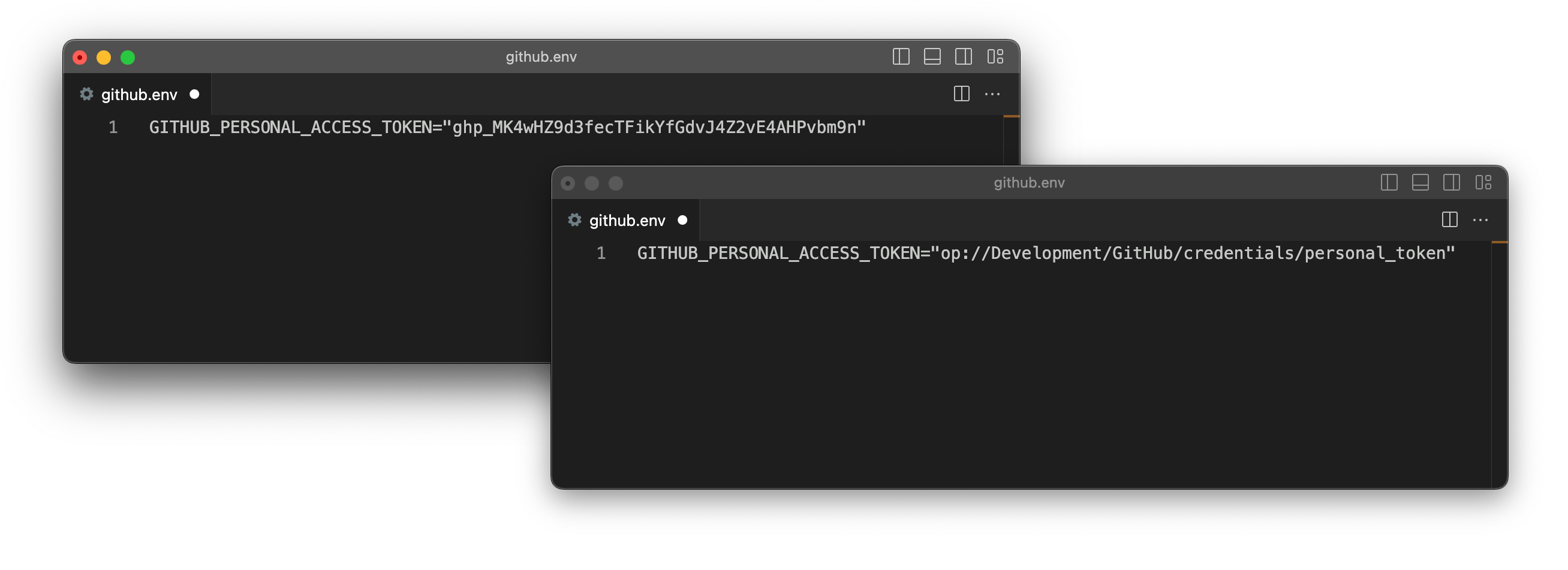
Secret reference URIs point to where a secret is saved in your 1Password account using the names (or [unique identifiers](/cli/reference/#unique-identifiers-ids)) of the vault, item, section, and field where the information is stored.

```shell theme={null}
op://<vault-name>/<item-name>/[section-name/]<field-name>
```

Secret references remove the risk of exposing plaintext secrets in your code and reflect changes you make in your 1Password account, so when you run a script you get the latest value.

You can use secret references with:

<Columns cols={3}>
  <HighlightCard title="1Password CLI" link={{ to: "/cli/secret-references/", text: "Learn more" }} preheader="" useButton={false}>
    <p>Load secrets into environment variables, configuration files, and scripts.</p>
  </HighlightCard>

  <HighlightCard title="1Password SDKs" link={{ to: "/sdks/", text: "Learn more" }} preheader="" useButton={false}>
    <p>Programmatically access your secrets with Go, JavaScript, and Python.</p>
  </HighlightCard>

  <HighlightCard title="Secrets Automation" link={{ to: "/secrets-automation/", text: "Learn more" }} preheader="" useButton={false}>
    <p>Use secret references to secure your secrets management workflows.</p>
  </HighlightCard>

  <HighlightCard title="VS Code" link={{ to: "/vscode/", text: "Learn more" }} preheader="" useButton={false}>
    <p>Create, preview, and read secret references in your code.</p>
  </HighlightCard>

  <HighlightCard title="1Password integrations" link={{ to: "/ci-cd/", text: "Learn more" }} preheader="" useButton={false}>
    <p>Securely access your secrets in Kubernetes, CircleCI, GitHub Actions, Jenkins, Terraform, Pulumi, Postman, and more.</p>
  </HighlightCard>
</Columns>

## Get secret references

### With the 1Password desktop app

<CardGroup cols={2}>
  <div>
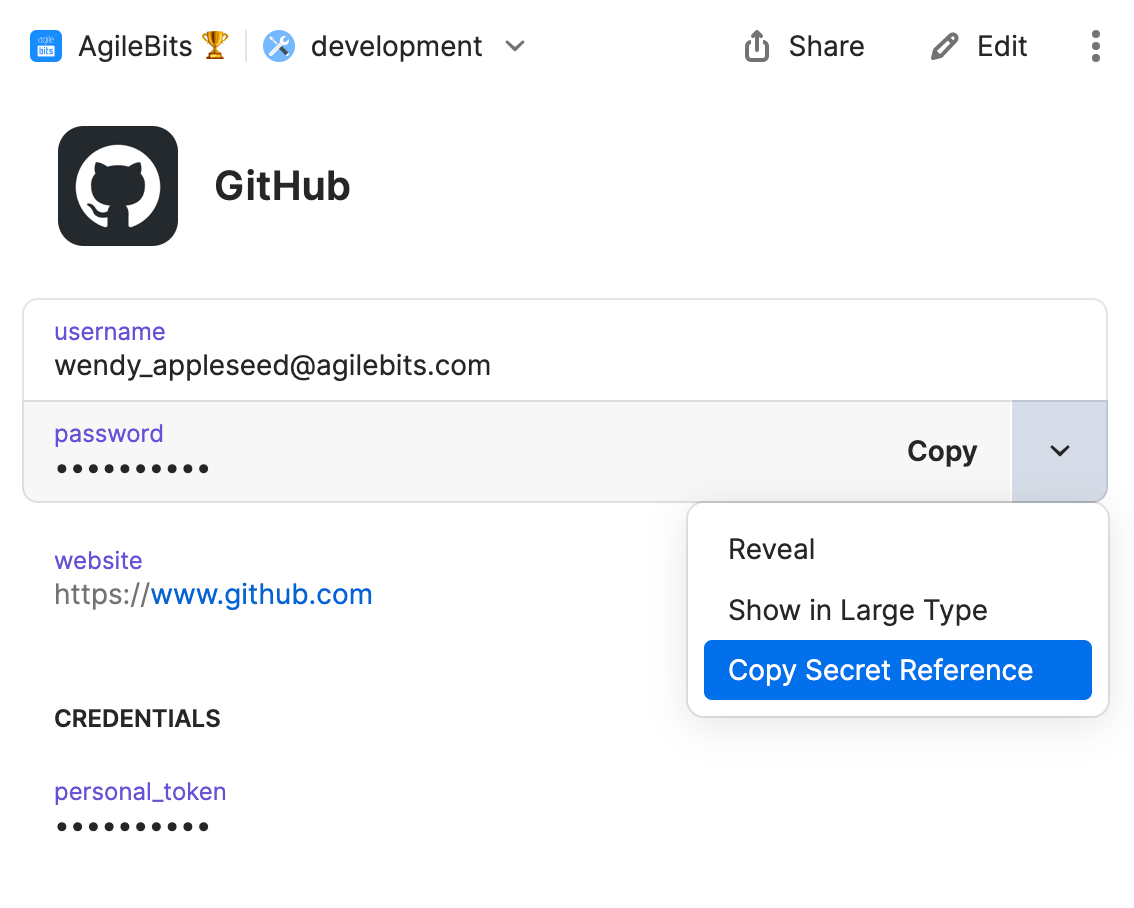
    To see the option to copy secret references in the 1Password desktop app, first turn on the [integration with 1Password CLI](/cli/app-integration). Then:

    1. Open the item where the secret you want to reference is stored.
    2. Select <Icon icon="angle-down" /> next to the field that contains the secret you want to reference, then select <strong>Copy Secret Reference</strong>.
  </div>

  <div>
    <Frame>
      <img alt="An item in 1Password with the Copy Secret Reference option selected." src="https://mintcdn.com/ab-634991b8/pfc4yDcmGyZA8XDs/static/img/cli/copy-secret-reference.png?fit=max&auto=format&n=pfc4yDcmGyZA8XDs&q=85&s=88384960f087feec95adb596a0a0c33c" width="1134" height="908" data-path="static/img/cli/copy-secret-reference.png" />
    </Frame>

    <>
      {props.img && (
            <div style={{ textAlign: 'center' }}>
              <Frame>
                <img alt="An item in 1Password with the Copy Secret Reference option selected." width="350" />
              </Frame>
            </div>
            )}
    </>
  </div>
</CardGroup>

### With 1Password for VS Code

You can use 1Password for VS Code to [insert secret references](/vscode/#get-values) from 1Password as you edit your code. First, [install the extension](/vscode/). Then:

1. Open the **[Command Palette <Icon icon="arrow-up-right-from-square" />](https://code.visualstudio.com/api/ux-guidelines/command-palette)**.
2. Enter `1Password: Get from 1Password`.
3. Enter the item name or ID.
4. Select the field to use.

### With 1Password CLI

To get a secret reference with 1Password CLI, run [`op item get`](/cli/reference/management-commands/item/#item-get) with the `--format json` flag and include the `--fields` flag to specify a field label. Then use [jq <Icon icon="arrow-up-right-from-square" />](https://jqlang.github.io/jq/) to retrieve the secret reference from the JSON output. For example:

<CodeResult>
  ```shell theme={null}
  op item get GitHub --format json --fields username | jq .reference
  #code-result
  "op://development/GitHub/username"
  ```
</CodeResult>

To get secret references for every field on an item, use [`op item get`](/cli/reference/management-commands/item/#item-get) with the `--format json` flag without specifying a field.

<Accordion title="Example JSON output">
  ```shell theme={null}
  op item get GitHub --format json
  ```

  Each field object will include a `reference` key that contains its secret reference. For the example `GitHub` item, the output looks like this:

  ```json highlight={8,17,29,40} theme={null}
    "fields": [
      {
        "id": "username",
        "type": "STRING",
        "purpose": "USERNAME",
        "label": "username",
        "value": "wendy_appleseed@agilebits.com",
        "reference": "op://development/GitHub/username"
      },
      {
        "id": "password",
        "type": "CONCEALED",
        "purpose": "PASSWORD",
        "label": "password",
        "value": "GADbhK6MjNZrRftGMqto",
        "entropy": 115.5291519165039,
        "reference": "op://development/GitHub/password",
        "password_details": {
          "entropy": 115,
          "generated": true,
          "strength": "FANTASTIC"
        }
      },
      {
        "id": "notesPlain",
        "type": "STRING",
        "purpose": "NOTES",
        "label": "notesPlain",
        "reference": "op://development/GitHub/notesPlain"
      },
      {
        "id": "5ni6bw735myujqe4elwbzuf2ee",
        "section": {
          "id": "hv46kvrohfj75q6g45km2uultq",
          "label": "credentials"
        },
        "type": "CONCEALED",
        "label": "personal_token",
        "value": "ghp_WzgPAEutsFRZH9uxWYtw",
        "reference": "op://development/GitHub/credentials/personal_token"
      }
    ]
  }
  ```
</Accordion>

## Syntax rules

### Supported characters

Secret references are case-insensitive and support the following characters:

* alphanumeric characters (`a-z`, `A-Z`, `0-9`)
* `-`, `_`, `.` and the whitespace character

If a secret reference includes a whitespace, enclose the secret reference in quotation marks. For example:

```shell theme={null}
op read "op://development/aws/Access Keys/access_key_id"
```

Any part of a secret reference that includes an unsupported character must be referred to by its [unique identifier (ID)](/cli/reference/#unique-identifiers-ids) instead of its name.

To get an ID, run [`op item get`](/cli/reference/management-commands/item#item-get) with the output set to JSON. For example, to get the ID for a custom text field named `test/`:

<CodeResult>
  ```
  op item get PagerDuty --fields label=test/ --format json
  #code-result
  {
    "id": "hu4vwo3bjkawq2uw2fkn5pkjzu",
    "section": {
      "id": "add more"
    },
    "type": "STRING",
    "label": "text/",
    "value": "t",
    "reference": "op://Management/PagerDuty/add more/hu4vwo3bjkawq2uw2fkn5pkjzu"
  }
  ```
</CodeResult>

### File attachments

To reference a file attachment, use the file name in place of a field name:

```shell theme={null}
op://vault-name/item-name/[section-name/]file-name
```

### Externally-set variables

If you use different sets of secrets in different environments, you can include variables within secret references and then set the variable to switch between secrets.

For example, the `APP_ENV` variable in the example below can be set to `dev` to load development credentials or `prod` to load production credentials, assuming the credentials are stored in 1Password vaults named `dev` and `prod`.

```shell app.env theme={null}
MYSQL_DATABASE = "op://$APP_ENV/mysql/database"
MYSQL_USERNAME = "op://$APP_ENV/mysql/username"
MYSQL_PASSWORD = "op://$APP_ENV/mysql/password"
```

Learn how to use variables to switch between sets of secrets in [environment files](/cli/secrets-environment-variables#optional-differentiate-between-environments) and [config files](/cli/secrets-config-files#step-3-differentiate-between-environments).

### Field and file metadata attributes

You can use secret references with query parameters to get more information about an item.

#### Attribute parameter

To get information about item fields and file attachments, use the
`attribute` (or `attr`) query parameter.

```html Fields theme={null}
op://<vault>/<item>[/<section>]/<field-name>?attribute=<attribute-value>
```

```html File attachments theme={null}
op://<vault>/<item>[/<section>]/<file-name>?attribute=<attribute-value>
```

<CardGroup cols={2}>
  <div>
    Field attributes:

    | Attribute | Definition                                                                      |
    | --------- | ------------------------------------------------------------------------------- |
    | `type`    | The field's type                                                                |
    | `value`   | The field's content                                                             |
    | `id`      | The field's unique identifier                                                   |
    | `purpose` | The designation of a built-in field (can be "username", "password", or "notes") |
    | `otp`     | Use with one-time password fields to generate a one-time password code          |
  </div>

  <div>
    File attachment attributes:

    | Attribute | Definition                              |
    | --------- | --------------------------------------- |
    | `type`    | The field's type                        |
    | `content` | The file attachment's content           |
    | `size`    | The size of the file attachment         |
    | `id`      | The file attachment's unique identifier |
    | `name`    | The name of the file attachment         |
  </div>
</CardGroup>

For example, to retrieve an item's one-time password code:

<CodeResult>
  ```shell theme={null}
  op read "op://development/GitHub/Security/one-time password?attribute=otp"
  #code-result
  359836
  ```
</CodeResult>

To retrieve a field's type:

<CodeResult>
  ```shell theme={null}
  op read "op://Personal/aws/access credentials/username?attribute=type"
  #code-result
  string
  ```
</CodeResult>

To retrieve the name of a file attachment:

<CodeResult>
  ```shell theme={null}
  op read "op://app-infra/ssh/key.pem?attribute=name"
  #code-result
  key.pem
  ```
</CodeResult>

#### SSH format parameter

To get an SSH private key in the OpenSSH format, include the `ssh-format` query parameter with the value `openssh` on a secret reference for the SSH key's `private key` field.

<CodeResult>
  ```shell theme={null}
  op read "op://Private/ssh keys/ssh key/private key?ssh-format=openssh"
  #code-result
  -----BEGIN OPENSSH PRIVATE KEY-----
  b3BlbnNzaC1rZXktdjEAAAAACmFlczI1Ni1jdHIAAAAGYmNyeXB0AAAAGAAAABD3rRrf8J
  ruD0CxZTYfpbTYAAAAEAAAAAEAAAAzAAAAC3NzaC1lZDI1NTE5AAAAIJ5B/GnxX6t9jMwQ
  G7QE7r5daJLkMKTZhNZhWfvzK2y+AAAAkLgQAivYu/+12/YrZhK5keIAZf4ZgsZsZ2JI2q
  qbx23PqgO93oGy1iCxXe3kngQL4cM6lwOZPsZPKCinkN6KxEr6RnXqFRHJbMpOiGeZhTuD
  rjeo77HqFdxDqDeckB77XCKL0Ew28H5JlM/WO31XR3Z4VBAgTe+BQLjrFV8WU5UX38hpBJ
  PMJyRsK72ZUDDaGQ==
  -----END OPENSSH PRIVATE KEY-----
  ```
</CodeResult>

## Secret reference examples

### A field inside a section

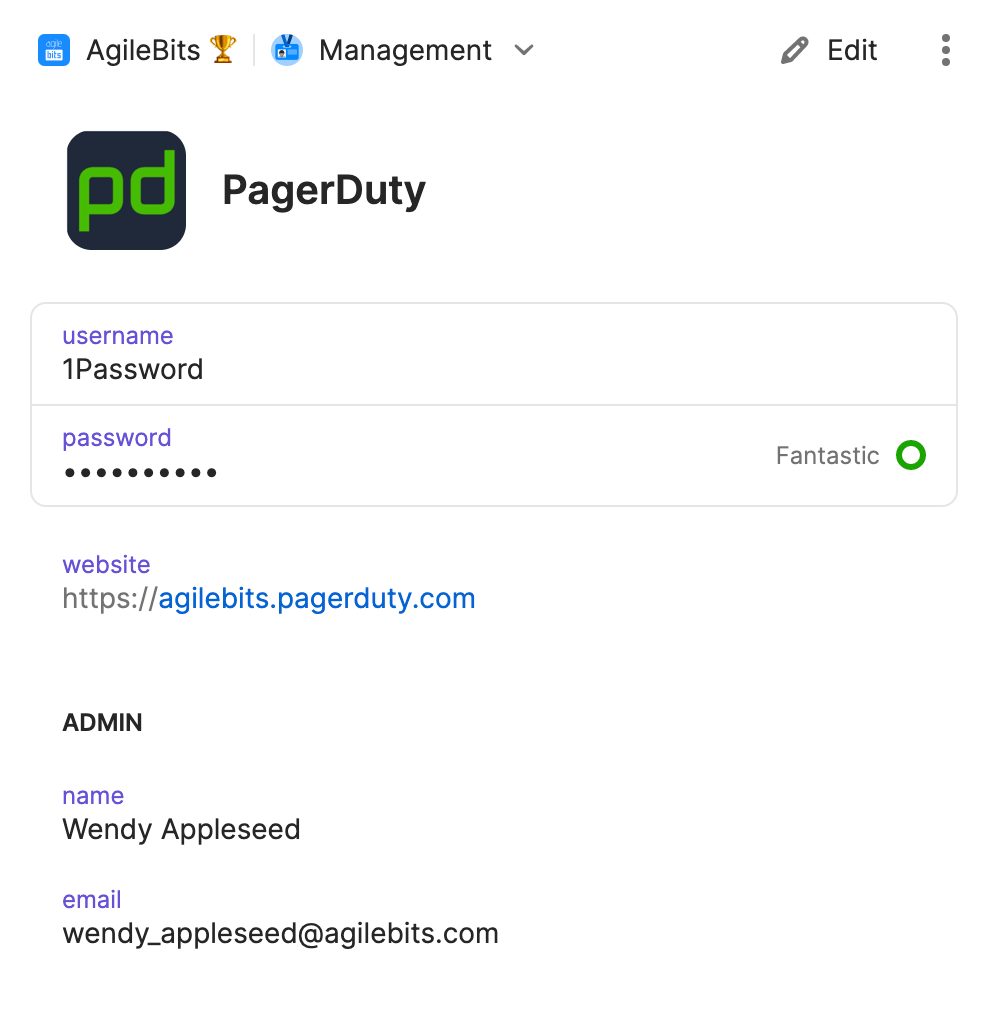
To create a secret reference that refers to the PagerDuty email field, which is within the Admin section, use:

```shell theme={null}
op://Management/PagerDuty/Admin/email
```

<CardGroup cols={2}>
  <div>
    * `Management` refers to the vault where the item is saved
    * `PagerDuty` refers to the item
    * `Admin` refers to the section where the field is a part of
    * `email` refers to the field where the secret you want to reference is located
  </div>

  <div>
    <Frame>
      <img alt="PagerDuty 1Password item" width="550px" src="https://mintcdn.com/ab-634991b8/pfc4yDcmGyZA8XDs/static/img/cli/pagerduty-light.png?fit=max&auto=format&n=pfc4yDcmGyZA8XDs&q=85&s=349008a4a1887c011958f5c582955742" data-path="static/img/cli/pagerduty-light.png" />
    </Frame>
  </div>
</CardGroup>

### A field without a section

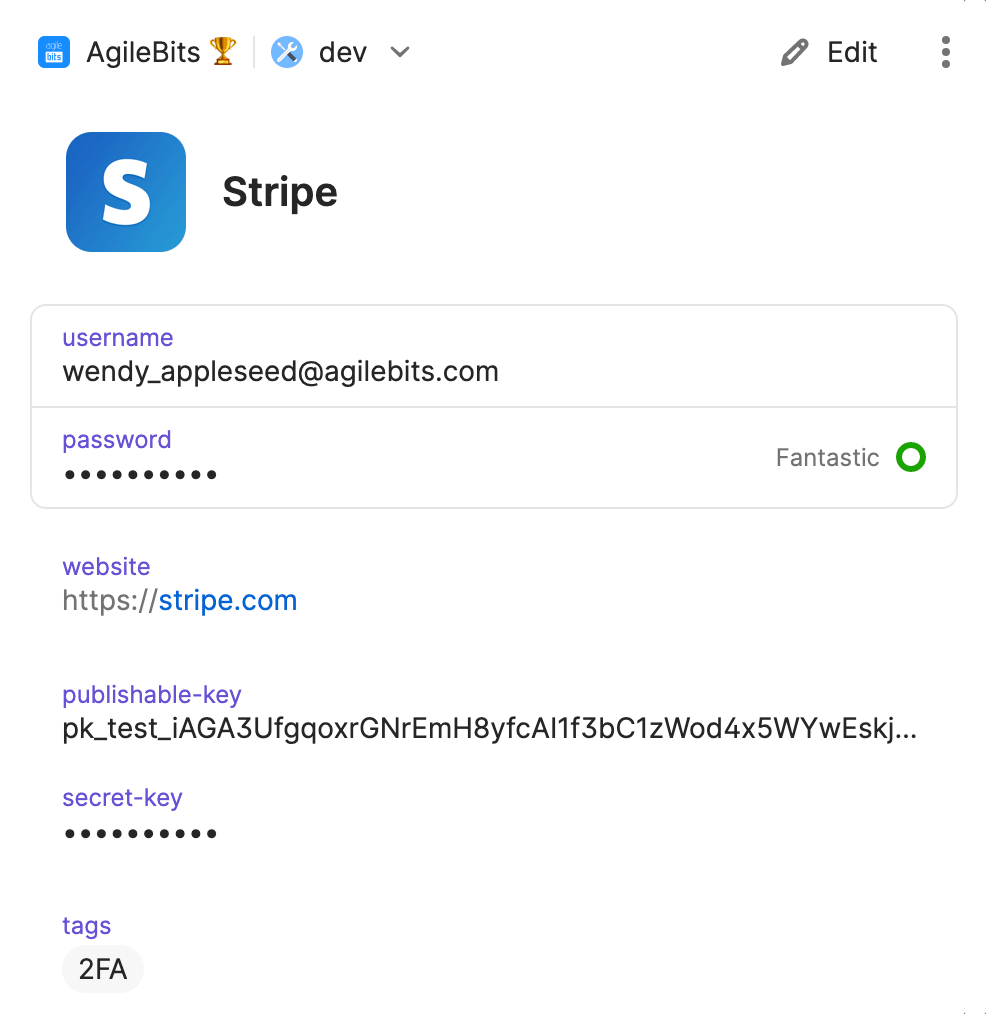
To create a secret reference for the Stripe publishable-key field, which is not part of a section, use:

```shell theme={null}
op://dev/Stripe/publishable-key
```

<CardGroup cols={2}>
  <div>
    * `dev` refers to the vault where the item is saved
    * `Stripe` refers to the item
    * `publishable-key` refers to the field where the secret you want to reference is located
  </div>

  <div>
    <Frame>
      <img alt="Stripe 1Password item" width="350px" src="https://mintcdn.com/ab-634991b8/pfc4yDcmGyZA8XDs/static/img/cli/stripe-light.png?fit=max&auto=format&n=pfc4yDcmGyZA8XDs&q=85&s=71cdeba8ecfb5b84f6a4a006fb6349db" data-path="static/img/cli/stripe-light.png" />
    </Frame>
  </div>
</CardGroup>

## Learn more

* [Use secret references with 1Password CLI](/cli/secret-references/)
* [Get started with 1Password SDKs](/sdks/)
* [Load secrets into config files](/cli/secrets-config-files/)
* [Load secrets into the environment](/cli/secrets-environment-variables/)
* [Template syntax](/cli/secrets-template-syntax/)
* [Workflow: Secure your developer secrets](/get-started/secure-developer-secrets)
