> ## Documentation Index
> Fetch the complete documentation index at: https://www.1password.dev/llms.txt
> Use this file to discover all available pages before exploring further.
# Use secret references with 1Password CLI
export const CodeResult = ({children, resultLang, wrap, expandable}) => {
const parseChildren = () => {
let language = "text";
let codeContent = "";
const extractText = node => {
if (typeof node === "string") {
return node;
}
if (Array.isArray(node)) {
return node.map(extractText).join("");
}
if (node?.props?.children) {
return extractText(node.props.children);
}
return "";
};
const extractLanguage = node => {
if (!node) return null;
if (node.props?.className) {
const className = node.props.className;
const langMatch = className.match(/language-(\w+)/);
if (langMatch) {
return langMatch[1];
}
}
if (node.props?.["data-language"]) {
return node.props["data-language"];
}
if (node.props?.language) {
return node.props.language;
}
return null;
};
if (typeof children === "string") {
codeContent = children;
} else if (Array.isArray(children)) {
codeContent = extractText(children);
for (const child of children) {
const detectedLang = extractLanguage(child);
if (detectedLang) {
language = detectedLang;
break;
}
}
} else if (children?.props) {
const detectedLang = extractLanguage(children);
if (detectedLang) {
language = detectedLang;
}
codeContent = extractText(children);
}
const parts = codeContent.split("#code-result");
if (parts.length < 2) {
return {
command: codeContent.trim(),
result: null,
language,
defaultOpen: false
};
}
const resultText = parts[1].trim();
const defaultOpen = resultText.startsWith("open");
const cleanResult = defaultOpen ? resultText.slice(4).trim() : resultText;
return {
command: parts[0].trim(),
result: cleanResult,
language,
defaultOpen
};
};
const {command, result, language, defaultOpen} = parseChildren();
const [isOpen, setIsOpen] = useState(defaultOpen);
if (!result) {
return children;
}
return
{}
{}
{isOpen &&
}
;
};
**New beta feature**
You can now [pass secrets as environment variables](/cli/secrets-environment-variables) to applications or scripts from [1Password Environments](/environments). This allows you to more easily access project secrets from 1Password without the need to create secret references.
With 1Password CLI, you can use [secret references](/cli/secret-reference-syntax) to securely load information saved in 1Password into environment variables, configuration files, and scripts without exposing any secrets in plaintext.
A secret reference URI includes the names (or [unique identifiers](/cli/reference/#unique-identifiers-ids)) of the vault, item, section, and field where a secret is stored in your 1Password account:
```shell theme={null}
op:////[section-name/]
```
To replace secret references with the secrets they refer to at runtime, use [`op read`](#with-op-read), [`op run`](#with-op-run), or [`op inject`](#with-op-inject).
We recommend using [1Password Service Accounts](/service-accounts/) to follow the [principle of least privilege](/cli/best-practices/). Service accounts support restricting 1Password CLI to specific vaults, so that processes in your authorized terminal session can only access items required for a given purpose.
## Requirements
Before you can use secret references to securely load your secrets with 1Password CLI, you'll need to:
1. [Sign up for 1Password.](https://1password.com/pricing/password-manager)
2. [Install 1Password CLI.](/cli/get-started/#step-1-install-1password-cli)
3. Save the secrets you want to reference in your 1Password account.
## Step 1: Get secret references
You can get secret references in several ways:
* [With the 1Password desktop app](/cli/secret-reference-syntax/#with-the-1password-desktop-app): Copy secret references from the app.
* [With 1Password for VS Code](/vscode/#get-values): Insert secret references from 1Password as you edit code.
* [With 1Password CLI](/cli/secret-reference-syntax/#with-1password-cli): Get secret references for one or multiple fields with `op item get`.
* [With the secret reference syntax](/cli/secret-reference-syntax/#syntax-rules): Write secret references manually.
## Step 2: Replace plaintext secrets with secret references
After you create secret references, use them in place of plaintext secrets in your code.
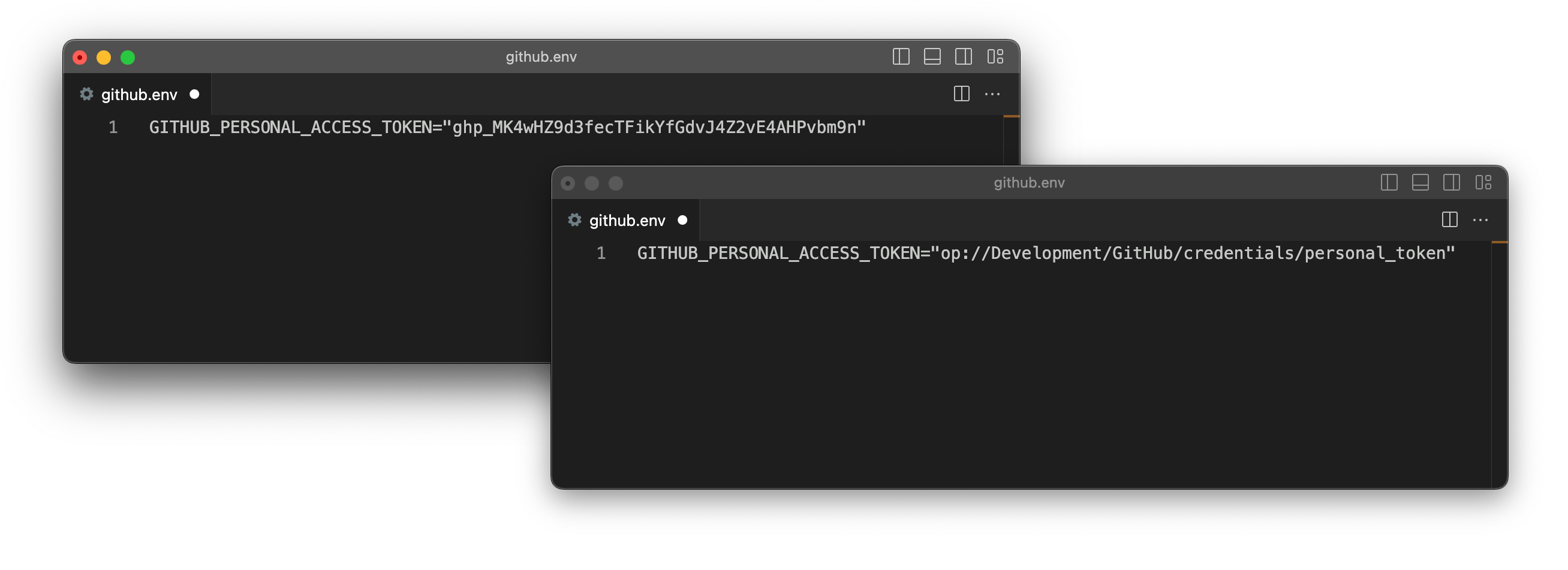
The example below shows a GitHub environment file with a secret reference pointing to where the GitHub Personal Access Token is stored in 1Password rather than a plaintext token.
## Step 3: Resolve secret references
There are three ways you can replace secret references with the actual secrets they reference at runtime:
* [Use `op read` to write secrets to `stdout` or to a file.](#with-op-read)
* [Use `op run` to pass secrets as environment variables to a process.](#with-op-run)
* [Use `op inject` to inject secrets into configuration files or scripts.](#with-op-inject)
### With `op read`
You can use [`op read`](/cli/reference/commands/read/) with a secret reference to print the secret to `stdout`.
```shell theme={null}
op read op://development/GitHub/credentials/personal_token
#code-result
ghp_WzgPAEutsFRZH9uxWYtw
```
To write the secret to a file instead of `stdout`, include the `--out-file` flag (or `-o`) with the path to the new file. For example, to create a file `token.txt` that contains the GitHub personal access token:
```shell theme={null}
op read --out-file token.txt op://development/GitHub/credentials/personal_token
```
```shell token.txt theme={null}
ghp_WzgPAEutsFRZH9uxWYtw
```
You can also use `op read` with secret references to [load secrets into scripts](/cli/secrets-scripts/). For example, to use secret references in place of your Docker username and password with the `docker login` command:
```shell myscript.sh theme={null}
#!/bin/bash
docker login -u "$(op read op://prod/docker/username)" -p "$(op read op://prod/docker/password)"
```
#### Query parameters
You can use secret references with [query parameters](/cli/secret-reference-syntax/#field-and-file-metadata-attributes) to get more information about an item.
To get information about item fields or file attachments, include the `attribute` (or `attr`) query parameter with the attribute you want to get.
```shell theme={null}
op:///[/]/?attribute=
```
You can query the following attributes for fields:
`type`, `value`, `title`, `id`, `purpose`, `otp`
And the following attributes for file attachments:
`content`, `size`, `id`, `name`, `type`.
For example, to retrieve a one-time password from the one-time password field on a GitHub item:
```shell theme={null}
op read "op://development/GitHub/Security/one-time password?attribute=otp"
#code-result
359836
```
To get an SSH key's private key in the OpenSSH format, include the `ssh-format` query parameter with the value `openssh` on a secret reference for the SSH key's `private key` field.
```shell theme={null}
op read "op://Private/ssh keys/ssh key/private key?ssh-format=openssh"
#code-result
-----BEGIN OPENSSH PRIVATE KEY-----
b3BlbnNzaC1rZXktdjEAAAAACmFlczI1Ni1jdHIAAAAGYmNyeXB0AAAAGAAAABD3rRrf8J
ruD0CxZTYfpbTYAAAAEAAAAAEAAAAzAAAAC3NzaC1lZDI1NTE5AAAAIJ5B/GnxX6t9jMwQ
G7QE7r5daJLkMKTZhNZhWfvzK2y+AAAAkLgQAivYu/+12/YrZhK5keIAZf4ZgsZsZ2JI2q
qbx23PqgO93oGy1iCxXe3kngQL4cM6lwOZPsZPKCinkN6KxEr6RnXqFRHJbMpOiGeZhTuD
rjeo77HqFdxDqDeckB77XCKL0Ew28H5JlM/WO31XR3Z4VBAgTe+BQLjrFV8WU5UX38hpBJ
PMJyRsK72ZUDDaGQ==
-----END OPENSSH PRIVATE KEY-----
```
**Next step**
Learn more about [securely loading secrets into scripts](/cli/secrets-scripts/).
### With `op run`
You can set environment variables to secret references, then use [`op run`](/cli/reference/commands/run/) to pass secrets to an application or script at runtime.
`op run` scans environment variables for secret references, loads the corresponding values from 1Password, then runs the provided command in a subprocess with the secrets made available as environment variables for the duration of the subprocess.
When you reference a variable like `$MY_VAR` in the **same command** where you call `op run`, your shell expands `$MY_VAR` before `op run` can substitute the secret reference. To make sure `op run` substitutes the secret before the variable expands, you can either:
* **Export the variable** as a secret reference before calling `op run`, or
* Set the variable in the same command as `op run`, then **run the command to expand the variable in a subshell**. For example:
```shell theme={null}
MY_VAR=op://vault/item/field op run --no-masking -- sh -c 'echo "$MY_VAR"'
```
#### Pass the secrets to an application or script
To pass secrets to your script or application at runtime, wrap the command with `op run`.
For example, here's a Node.js app that needs credentials to connect to a database:
```shell theme={null}
$ node app.js
[INFO] Launching Node.js app...
[ERROR] Missing credentials DB_USER and DB_PASSWORD
[INFO] Exiting with code 1
```
You can set the `DB_USER` and `DB_PASSWORD` environment variables to secret references:
```shell theme={null}
export DB_USER="op://app-dev/db/user"
export DB_PASSWORD="op://app-dev/db/password"
```
```shell theme={null}
set -x DB_USER="op://app-dev/db/user"
set -x DB_PASSWORD="op://app-dev/db/password"
```
```powershell theme={null}
$Env:DB_USER = "DB_USER=op://app-dev/db/user"
$Env:DB_PASSWORD = "DB_PASSWORD=op://app-dev/db/password"
```
Then use `op run` to pass the secrets to the `node app.js` command:
```shell theme={null}
op run -- node app.js
[INFO] Launching Node.js app...
[DEBUG] ✔ Connected to db as user 'mydbuser' with password ''
```
#### Use with environment files
You can also use `op run` with environment files. To do this, use secret references instead of plaintext secrets in your environment file:
```html node.env theme={null}
DB_USER="op://app-dev/db/user"
DB_PASSWORD="op://app-dev/db/password"
```
Then use `op run` with the `--env-file` flag:
```shell theme={null}
op run --env-file="./node.env" -- node app.js
```
#### Print a secret with or without masking
If a subprocess used with `op run` prints a secret to `stdout`, the secret will be concealed by default. You can include the `--no-masking` flag to print the value.
To export an example environment variable `DB_PASSWORD` to a secret reference:
```shell theme={null}
export DB_PASSWORD=op://app-prod/db/password
```
Use `op run` with the `printenv` command to print the concealed secret:
```shell theme={null}
op run -- printenv DB_PASSWORD
#code-result
```
Include the `--no-masking` flag to print the actual secret:
```shell theme={null}
op run --no-masking -- printenv DB_PASSWORD
#code-result
fX6nWkhANeyGE27SQGhYQ
```
To export an example environment variable `DB_PASSWORD` to a secret reference:
```shell theme={null}
set -x DB_PASSWORD=op://app-prod/db/password
```
Use `op run` with the `printenv` command to print the concealed secret:
```shell theme={null}
op run -- printenv DB_PASSWORD
#code-result
```
Include the `--no-masking` flag to print the actual secret:
```shell theme={null}
op run --no-masking -- printenv DB_PASSWORD
#code-result
fX6nWkhANeyGE27SQGhYQ
```
To export an example environment variable `DB_PASSWORD` to a secret reference:
```powershell theme={null}
$Env:DB_PASSWORD = "DB_PASSWORD=op://app-prod/db/password"
```
To print the concealed secret:
```powershell theme={null}
op run -- powershell -c '$env:DB_PASSWORD'
#code-result
```
Include the `--no-masking` flag to print the actual secret:
```powershell theme={null}
op run --no-masking -- powershell -c '$env:DB_PASSWORD'
#code-result
fX6nWkhANeyGE27SQGhYQ
```
**Next step**
Learn more about [loading secrets into the environment](/cli/secrets-environment-variables/) with `op run`, including how to use template variables to switch between different sets of secrets for different environments.
### With `op inject`
You can use [`op inject`](/cli/reference/commands/inject/) to replace secret references in a script or file with the secrets they reference.
By default, `op inject` accepts input on `stdin` and outputs on `stdout`. You can use the `--in-file` flag (or `-i`) to read the input from a file instead, and the `--out-file` flag (or `-o`) to specify where the ouput should be written.
To use `op inject` to resolve a secret in a simple command:
```shell theme={null}
echo "here is my GitHub token: op://development/GitHub/credentials/personal_token" | op inject
#code-result
here is my GitHub token: ghp_WzgPAEutsFRZH9uxWYtw
```
To write the output to a file `token.txt` in the current directory:
```shell theme={null}
echo "here is my GitHub token: op://development/GitHub/credentials/personal_token" >> token.txt | op inject --out-file token.txt
```
```shell token.txt theme={null}
here is my GitHub token: ghp_WzgPAEutsFRZH9uxWYtw
```
#### Use with configuration files
You can use `op inject` to pass in a configuration file templated with secret references and output a configuration file that contains resolved secrets. Configuration files that use secret references instead of plaintext secrets can be safely checked into Git.
```yaml config.yml.tpl theme={null}
database:
host: http://localhost
port: 5432
username: op://prod/mysql/username
password: op://prod/mysql/password
```
```shell theme={null}
op inject --in-file config.yml.tpl --out-file config.yml
```
**Next step**
Learn more about [loading secrets into configuration files](/cli/secrets-config-files/) with `op inject`, including how to use template variables to switch between different sets of secrets for different environments.
## Learn more
* [Secret reference syntax](/cli/secret-reference-syntax/)
* [Load secrets into the environment](/cli/secrets-environment-variables/)
* [Load secrets into config files](/cli/secrets-config-files/)
* [Load secrets into scripts](/cli/secrets-scripts/)
* [Use service accounts with 1Password CLI](/service-accounts/use-with-1password-cli)
* [Workflow: Secure your developer secrets](/get-started/secure-developer-secrets)
 ## Step 3: Resolve secret references
There are three ways you can replace secret references with the actual secrets they reference at runtime:
* [Use `op read` to write secrets to `stdout` or to a file.](#with-op-read)
* [Use `op run` to pass secrets as environment variables to a process.](#with-op-run)
* [Use `op inject` to inject secrets into configuration files or scripts.](#with-op-inject)
### With `op read`
You can use [`op read`](/cli/reference/commands/read/) with a secret reference to print the secret to `stdout`.
## Step 3: Resolve secret references
There are three ways you can replace secret references with the actual secrets they reference at runtime:
* [Use `op read` to write secrets to `stdout` or to a file.](#with-op-read)
* [Use `op run` to pass secrets as environment variables to a process.](#with-op-run)
* [Use `op inject` to inject secrets into configuration files or scripts.](#with-op-inject)
### With `op read`
You can use [`op read`](/cli/reference/commands/read/) with a secret reference to print the secret to `stdout`.