> ## Documentation Index
> Fetch the complete documentation index at: https://www.1password.dev/llms.txt
> Use this file to discover all available pages before exploring further.
# Verify the authenticity of 1Password CLI
export const CodeResult = ({children, resultLang, wrap, expandable}) => {
const parseChildren = () => {
let language = "text";
let codeContent = "";
const extractText = node => {
if (typeof node === "string") {
return node;
}
if (Array.isArray(node)) {
return node.map(extractText).join("");
}
if (node?.props?.children) {
return extractText(node.props.children);
}
return "";
};
const extractLanguage = node => {
if (!node) return null;
if (node.props?.className) {
const className = node.props.className;
const langMatch = className.match(/language-(\w+)/);
if (langMatch) {
return langMatch[1];
}
}
if (node.props?.["data-language"]) {
return node.props["data-language"];
}
if (node.props?.language) {
return node.props.language;
}
return null;
};
if (typeof children === "string") {
codeContent = children;
} else if (Array.isArray(children)) {
codeContent = extractText(children);
for (const child of children) {
const detectedLang = extractLanguage(child);
if (detectedLang) {
language = detectedLang;
break;
}
}
} else if (children?.props) {
const detectedLang = extractLanguage(children);
if (detectedLang) {
language = detectedLang;
}
codeContent = extractText(children);
}
const parts = codeContent.split("#code-result");
if (parts.length < 2) {
return {
command: codeContent.trim(),
result: null,
language,
defaultOpen: false
};
}
const resultText = parts[1].trim();
const defaultOpen = resultText.startsWith("open");
const cleanResult = defaultOpen ? resultText.slice(4).trim() : resultText;
return {
command: parts[0].trim(),
result: cleanResult,
language,
defaultOpen
};
};
const {command, result, language, defaultOpen} = parseChildren();
const [isOpen, setIsOpen] = useState(defaultOpen);
if (!result) {
return children;
}
return
{}
{}
{isOpen &&
}
;
};
To confirm the authenticity of 1Password CLI, the tool and all its updates are digitally signed and offered exclusively by 1Password. Always get updates directly from 1Password, and always [check to make sure that you have the latest version](/cli/reference/update/).
### ZIP file
To confirm that the contents of the 1Password CLI ZIP file are authentic, unzip the file, then run the following command in the unzipped folder:
```shell theme={null}
gpg --keyserver keyserver.ubuntu.com --receive-keys 3FEF9748469ADBE15DA7CA80AC2D62742012EA22
gpg --verify op.sig op
```
### Package file
To confirm the 1Password CLI installer file is authentic, you can verify the digital signature before installation.
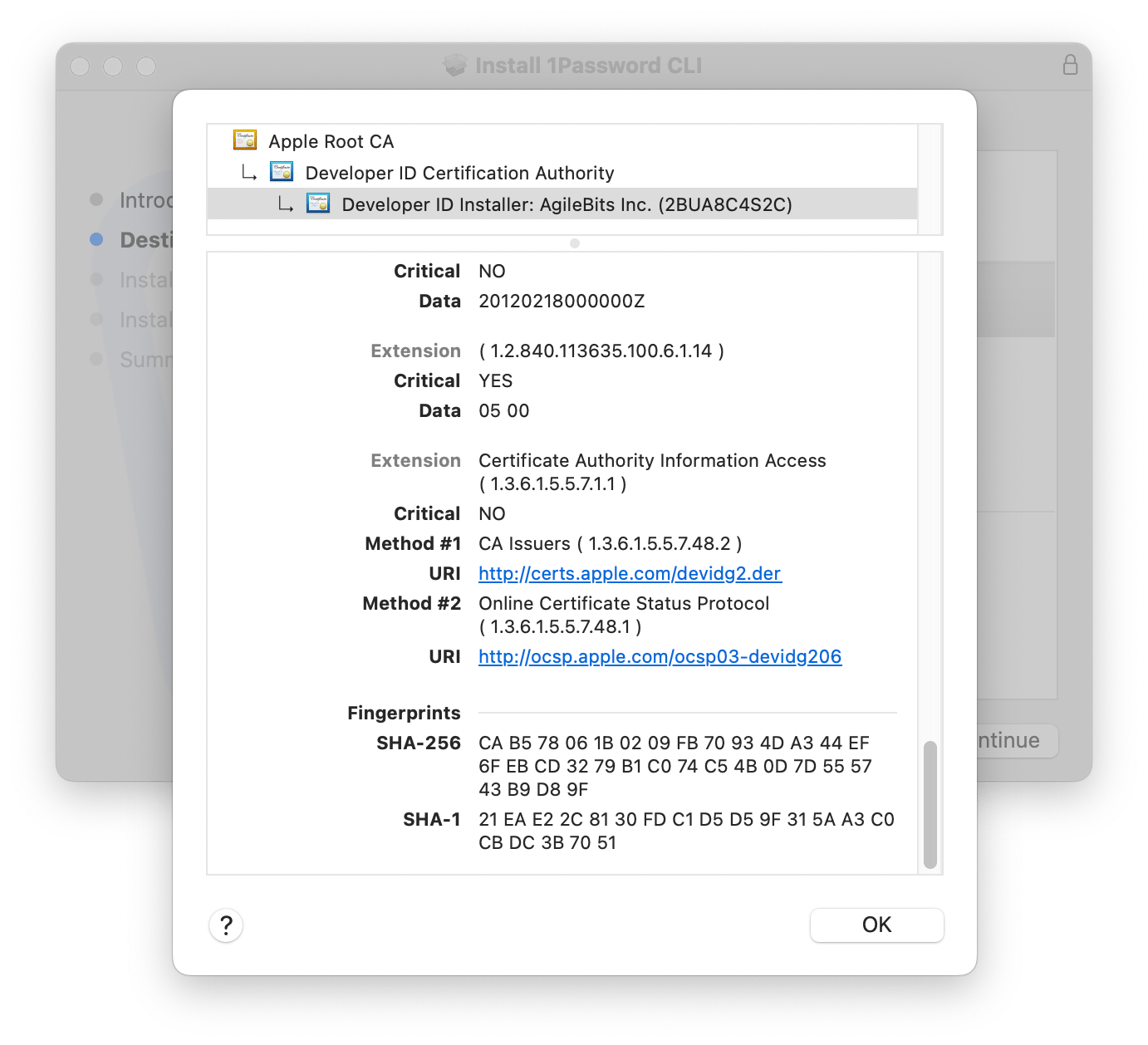
1. Open the 1Password CLI installer. If you see "This package will run a program to determine if the software can be installed", select **Continue**. This will not begin the installation.
2. Select the lock icon in the top right corner of the installer window. If you don't see the lock icon, the package is unsigned, and you shouldn't install it.
3. Select **Developer ID Installer: AgileBits Inc. (2BUA8C4S2C)**. If you see a different developer ID, or the certificate doesn't have a green checkmark indicating that it's valid, don't install the package.
4. Select the triangle next to Details and scroll down.
5. Make sure that the SHA-256 fingerprint in the installer matches one of the following fingerprints. If they match, the signature is verified. Select **OK** and continue installation.
| Hash | Fingerprint |
| ------- | ----------------------------------------------------------------------------------------------- |
| SHA‑256 | CA B5 78 06 1B 02 09 FB 70 93 4D A3 44 EF 6F EB CD 32 79 B1 C0 74 C5 4B 0D 7D 55 57 43 B9 D8 9F |
| SHA‑256 | 14 1D D8 7B 2B 23 12 11 F1 44 08 49 79 80 07 DF 62 1D E6 EB 3D AB 98 5B C9 64 EE 97 04 C4 A1 C1 |
The installer automatically verifies the files in the package. If any file has an issue, installation stops without changes to your system, and you'll see a message that the installer encountered an error.
To confirm the 1Password CLI installer for Windows is authentic, verify that the signing certificate for `op.exe` was issued to AgileBits by Microsoft Corporation, and that the [Extended Key Usage (EKU)](https://learn.microsoft.com/azure/artifact-signing/concept-certificate-management#subscriber-identity-validation-eku) is correct.
1. Open PowerShell as an Administrator.
2. Verify that the certificate was issued to AgileBits:
```powershell theme={null}
Get-AuthenticodeSignature -FilePath .\op.exe | Select-Object -ExpandProperty SignerCertificate | Select-Object Subject
#code-result open
Subject
-------
CN=Agilebits, O=Agilebits, L=Toronto, S=Ontario, C=CA
```
3. Verify the certificate was issued by Microsoft Corporation:
```powershell theme={null}
Get-AuthenticodeSignature -FilePath .\op.exe | Select-Object -ExpandProperty SignerCertificate | Select-Object Issuer
#code-result open
Issuer
------
CN=Microsoft ID Verified CS AOC CA 02, O=Microsoft Corporation, C=US
```
4. Verify the EKU matches 1Password's EKU of `1.3.6.1.4.1.311.97.661420558.769123285.207353056.500447802`:
```powershell theme={null}
Get-AuthenticodeSignature -FilePath .\op.exe | Select-Object -ExpandProperty SignerCertificate | Select-Object -ExpandProperty EnhancedKeyUsageList
#code-result open
FriendlyName ObjectId
------------ --------
1.3.6.1.4.1.311.97.1.0
Code Signing 1.3.6.1.5.5.7.3.3
1.3.6.1.4.1.311.97.661420558.769123285.207353056.500447802
```