> ## Documentation Index
> Fetch the complete documentation index at: https://www.1password.dev/llms.txt
> Use this file to discover all available pages before exploring further.

# Manage Connect servers

<Note>
  As of Feb 27, 2025, all 1Password customers have unlimited access to Connect.
</Note>

<CardGroup cols={2}>
  <div>
    <p>A Connect server is a type of [Secrets Automation workflow](/secrets-automation/) that allows you to securely access your 1Password items and vaults in your company's apps and cloud infrastructure using a private REST API provided by 1Password Connect Server.</p>

    <p>You can use 1Password.com or the [Connect REST API](/connect/api-reference/) to:</p>

    <ul>
      <li>Control which team members and applications have <a href="#manage-access">access to which Connect server access tokens</a>.</li>
      <li>Monitor and audit <a href="#vault-access">access</a> and <a href="#monitor-item-usage">item usage</a>.</li>
      <li>Secure applications by choosing when Connect server access tokens expire. </li>
      <li><a href="#create-a-token">Create</a> and <a href="#revoke-a-token">revoke</a> Connect server access tokens.</li>
    </ul>
  </div>

  <div>
    <img src="https://mintcdn.com/ab-634991b8/Ul-COtb5ywadNlrP/static/img/secrets-automation-billing.png?fit=max&auto=format&n=Ul-COtb5ywadNlrP&q=85&s=a4958e6eb56c21f24e882c9947a68c67" alt="" width="250" data-path="static/img/secrets-automation-billing.png" />
  </div>
</CardGroup>

## Manage permissions

With 1Password Business or 1Password Teams, you can manage Connect server permissions with [groups](#manage-global-permissions), or more granularly, with [environments](#manage-environment-permissions). This allows for enforcement of security best practices. [Learn more about Connect security.](/connect/security/)

<Tip>
  You can also manage group access using [automated provisioning](https://support.1password.com/scim/).
</Tip>

<CardGroup cols={2}>
  <div>
    ### Manage global permissions

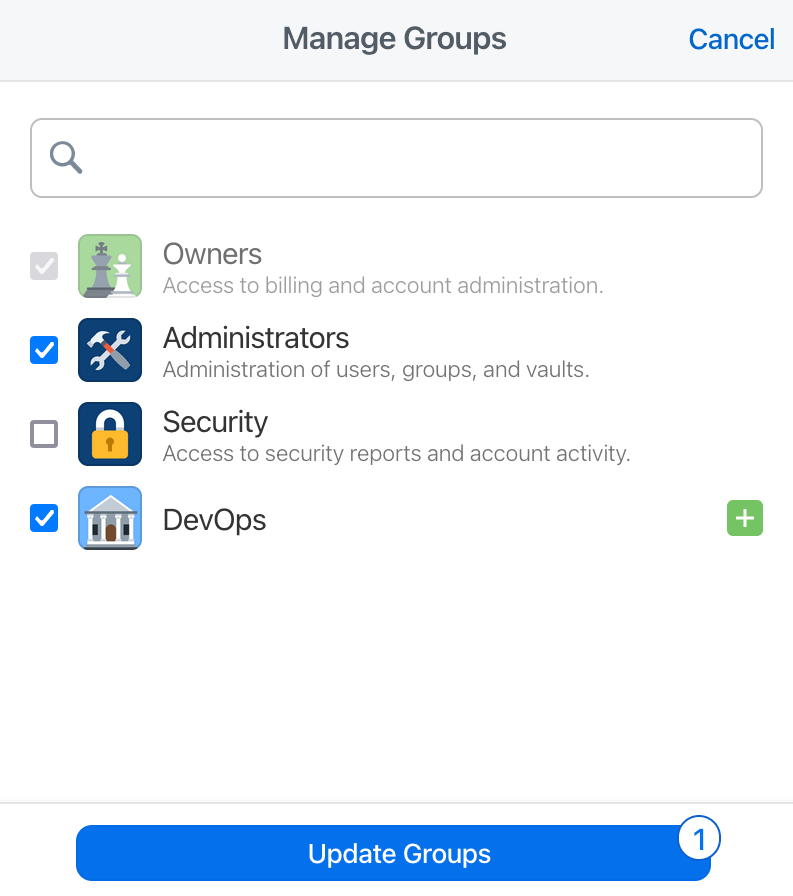
    <p>Groups allow you to specify one or more users who can access Connect servers.</p>

    <p>To assign groups (such as Owners and Administrators) to manage Connect servers:</p>

    1. [Sign in](https://start.1password.com/signin) to your account on 1Password.com.
    2. Select [**Developer**](https://start.1password.com/developer-tools/active) in the sidebar.
    3. Select [**Permissions**](https://start.1password.com/developer-tools/permissions) at the top of the page, then select [**Secrets Automation**](https://start.1password.com/developer-tools/permissions/C).
    4. In the Managers section, select **Manage**, then choose the groups you want to manage Connect servers.
    5. Select **Update Groups**.
  </div>

  <div className="mt-12">
    <Frame>
      <img src="https://mintcdn.com/ab-634991b8/9g9fZmRyYnb5i5sQ/static/img/manage-managers.png?fit=max&auto=format&n=9g9fZmRyYnb5i5sQ&q=85&s=cf84a1831180bcfa09f302caa301efc0" alt="Manage Secrets Automation managers" width="397" data-path="static/img/manage-managers.png" />
    </Frame>
  </div>
</CardGroup>

### Manage environment permissions

Environments allow you to override global permissions (with groups) for a specific Connect server environment.

To assign groups (such as Owners and Administrators) to manage a specific Connect server:

1. [Sign in](https://start.1password.com/signin) to your account on 1Password.com.
2. Select [**Developer**](https://start.1password.com/developer-tools/) in the sidebar.
3. Select [**Permissions**](https://start.1password.com/developer-tools/permissions) at the top of the page, then select [**Secrets Automation**](https://start.1password.com/developer-tools/permissions/C).
4. In the Environments section, select **Manage**.
5. In the Permissions section, select **Manage**, then choose the groups you want to manage Connect servers in the environment.
6. Select **Update Groups**.

## Manage access tokens

You can use [Connect server access tokens](/connect/concepts#connect-server-access-token) to authenticate with your Connect server in your applications and services.

* [Create an access token.](#create-a-token)
* [Set an access token expiration.](#set-a-token-expiration)
* [Revoke an access token.](#revoke-a-token)
* [Rename an access token.](#rename-a-token)

### Create a token

To create a Connect server access token:

1. [Sign in](https://start.1password.com/signin) to your account on 1Password.com.
2. Select [**Developer**](https://start.1password.com/developer-tools/active) in the sidebar.
3. Select **Connect servers** at the top of the page, then choose the Secrets Automation environment where you want to create an access token.
4. Select **New Token**.
5. Follow the onscreen instructions to issue the token.

<Warning>
  You can't edit the vaults a token can access after you create it. If you want to change the vaults a token can access, you must revoke the token and create a new one.
</Warning>

Connect server access tokens support up to 100 vaults each. If you grant a Connect token access to more than 100 vaults, the server may reject requests.

### Set a token expiration

When you create a Connect server access token, you can set the token's expiration time to 30, 90, or 180 days. When the expiration time elapses, 1Password revokes the token.

To create a token with an expiration date:

1. [Sign in](https://start.1password.com/signin) to your account on 1Password.com.
2. Select [**Developer**](https://start.1password.com/developer-tools/active) in the sidebar.
3. Select **Connect servers** at the top of the page, then choose the Secrets Automation environment where you want to create an access token.
4. Select **New Token**.
5. Set the "Expires After" to **30 days**, **90 days**, or **180 days**.
6. Follow the onscreen instructions.

### Revoke a token

To revoke a Connect server access token:

1. [Sign in](https://start.1password.com/signin) to your account on 1Password.com.
2. Select [**Developer**](https://start.1password.com/developer-tools/active) in the sidebar.
3. Select **Connect servers** at the top of the page, then choose the Secrets Automation environment where you want to manage access tokens.
4. Select <Icon icon="cog" /> next to the token you want to revoke, then select **Revoke**.

### Rename a token

To rename a Connect server access token:

1. [Sign in](https://start.1password.com/signin) to your account on 1Password.com.
2. Select [**Developer**](https://start.1password.com/developer-tools/active/) in the sidebar.
3. Select **Connect servers** at the top of the page, then choose the Secrets Automation environment where you want to manage access tokens.
4. Select <Icon icon="cog" /> next to the token you want to rename, then select **Rename** and enter a new name.

## Grant or revoke access to vaults

<CardGroup cols={2}>
  <div>
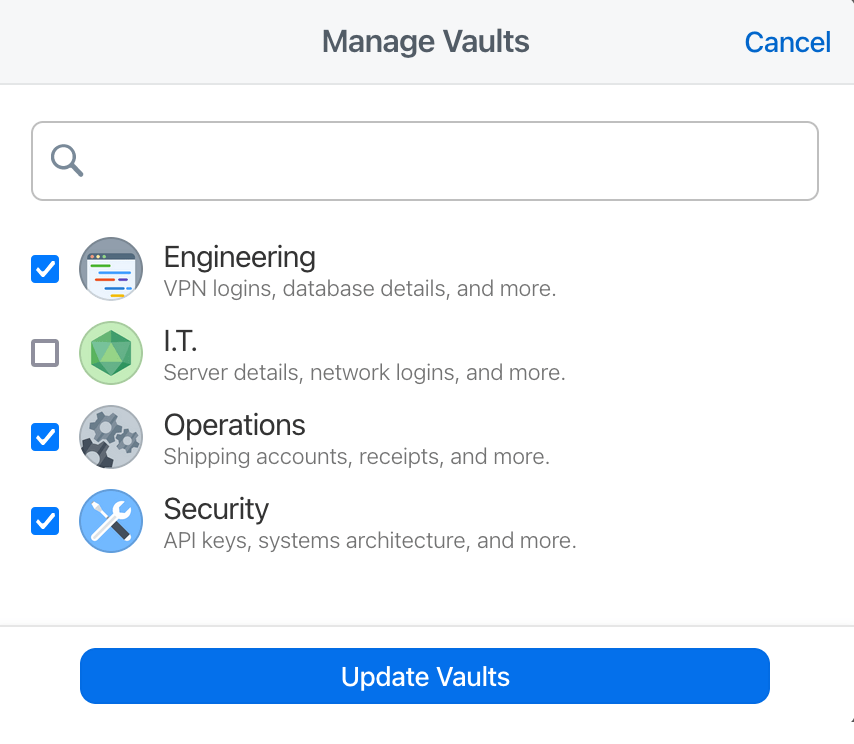
    To grant or revoke access to vaults:

    1. [Sign in](https://start.1password.com/signin) to your account on 1Password.com.
    2. Select [**Developer**](https://start.1password.com/developer-tools/active) in the sidebar.
    3. Select **Connect servers** at the top of the page, then choose the Secrets Automation environment where you want to grant or revoke access to vaults.
    4. In the Vaults section, select **Manage** and choose the vaults you want to add or remove.
    5. Select **Update Vaults**.

    You can't grant Connect servers access to your built-in [Personal](https://support.1password.com/1password-glossary/#personal-vault), [Private](https://support.1password.com/1password-glossary/#private-vault), or [Employee](https://support.1password.com/1password-glossary/#employee-vault) vault, or your default [Shared](https://support.1password.com/1password-glossary/#shared-vault) vault.
  </div>

  <div>
    <Frame>
      <img src="https://mintcdn.com/ab-634991b8/9g9fZmRyYnb5i5sQ/static/img/manage-vault-access.png?fit=max&auto=format&n=9g9fZmRyYnb5i5sQ&q=85&s=852bd667f2913c7ae4ac9505dac3bd49" alt="Manage which vaults have access to each token" width="427" data-path="static/img/manage-vault-access.png" />
    </Frame>
  </div>
</CardGroup>

## Monitor item usage

Connect servers send [reports about item usage](https://support.1password.com/reports/#create-a-usage-report-for-a-team-member-service-account-or-vault) to the 1Password server every time an item is accessed so you can monitor item usage.

<Note>
  Item usage information might take a few hours to sync with 1Password.com.
</Note>

To view item usage for a Connect server:

1. [Sign in](https://start.1password.com/signin) to your account on 1Password.com.
2. Select [**Developer**](https://start.1password.com/developer-tools/active) in the sidebar.
3. Select **Connect servers** at the top of the page, then choose the Secrets Automation environment (Connect server) you want to monitor.
4. Under Version, select **More Actions** > **View Item Usage Report**.

For more information, visit [Create reports in 1Password Business](https://support.1password.com/reports/).

### About Connect server item usage

Items accessed through a Connect server update specific fields in the following manner:

* The **Action** field in the report always shows Display.
* The **Used by** field always includes the name of the Connect server (not the Connect server access token).

Connect servers only report item usage when they have a working connection to the 1Password server. If a Connect server can't reach the 1Password server (for example, when it updates or restarts), it might lose item usage information from that time period.

Item usage reporting continues when the Connect server has a working connection to the 1Password server again.