> ## Documentation Index
> Fetch the complete documentation index at: https://www.1password.dev/llms.txt
> Use this file to discover all available pages before exploring further.
# Access secrets from 1Password through local .env files (beta)
export const BetaBadge = ({content}) => {
if (content) {
return
Beta
;
}
return <>
Beta
;
};
Locally mounted `.env` files allow secure access to the secrets you've stored in [1Password Environments](/environments) from your device, without needing to keep them in a plaintext `.env` file on your local device. By creating a local `.env` file [destination](/environments#destinations), your secrets become both safe and simple to access.
This feature is currently in beta and is only supported in 1Password for Mac and Linux at this time.
## Mount your `.env` file
To configure a local `.env` file destination, you'll need to use the 1Password desktop app to create a new [Environment](/environments#create-an-environment) or navigate to an existing one to configure the destination for. Within your Environment:
1. Select the **Destinations** tab, then select **Configure destination** for a "Local `.env` file".
2. Select **Choose file path** and choose the path on your device where you want to create your local `.env` file.
3. Select **Mount .env file**.
You can disable a local `.env` file to remove it from your device. In the Destinations tab of your environment, toggle the **Enabled** option on or off as needed. You can have up to ten enabled local `.env` files per device.
If you have an existing `.env` file tracked by Git at the path you want to mount a new `.env` file at, you'll first need to delete the existing file and commit the change. After this is done you can safely mount your new `.env` file at the desired path.
If you don’t delete and commit the existing file, Git operations may fail and indicate that the mounted `.env` file generated by 1Password is being tracked. In practice, the file can’t actually be committed and its contents will never enter the staging area, so your secrets remain safe. However, commands like `git status` may still show it as a change until you’ve committed the removal of the original file.
## Verify with your terminal
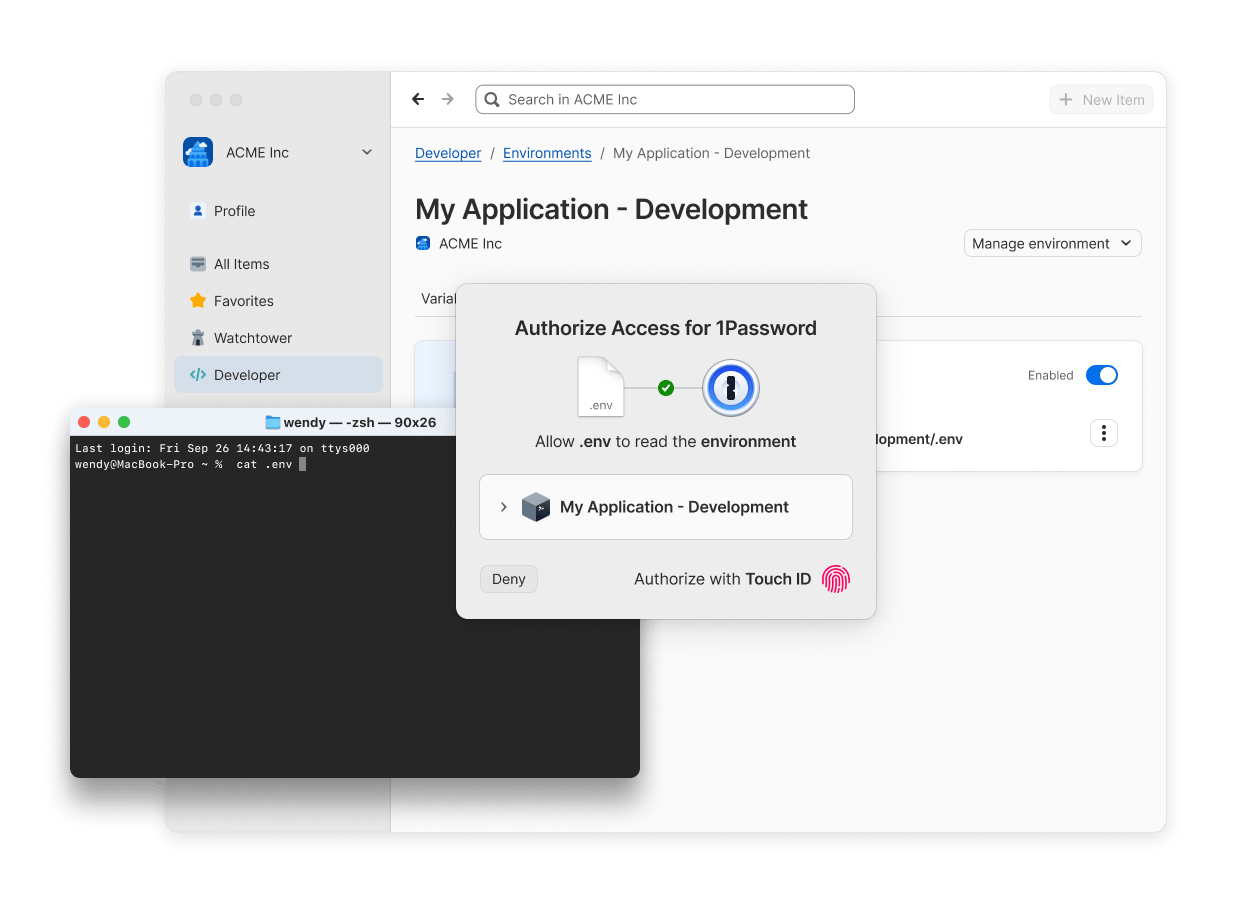
To confirm that you can access your environment variables on your device, you can read your secrets using the `cat` shell command.
1. From your terminal, navigate to the directory where your `.env` file is saved. Run the following command, replacing `.env` with the name you've given your file:
```shell theme={null}
cat .env
```
2. Select **Authorize** in the authorization prompt that pops up.
Upon approval, your Environment's contents will be returned. Your terminal only reads your environment variables one time, and doesn't write them to disk. Authorization lasts until 1Password locks so you won't have to re-approve additional read requests while 1Password remains unlocked.
### Dotenv library compatibility
You can use your language's supported `.env` libraries to load secrets into your projects and work with your environment variables.
Use of local `.env` files with 1Password Environments is compatible with the following libraries:
export const IconGood = () => ;
export const IconWarning = () => ;
| Language / Tool | Library | Compatible |
| -------------------- | ------------------------------------------------------------------------------------------------------------------------------------------------------------------------ | --------------------------------------------------------------------------------------------------- |
| C# | [`DotNetEnv` ](https://github.com/tonerdo/dotnet-env) | Yes |
| Docker Compose | [Built-in support for `.env` files ](https://docs.docker.com/compose/how-tos/environment-variables/set-environment-variables/) | Yes |
| Go | [`godotenv` ](https://github.com/joho/godotenv) | Yes |
| Java | [`dotenv-java` ](https://github.com/cdimascio/dotenv-java) | Yes |
| JavaScript / Node.js | [`dotenv` ](https://github.com/motdotla/dotenv) | Yes |
| PHP | [`phpdotenv` ](https://github.com/vlucas/phpdotenv) | Yes |
| Python | [`python-dotenv` ](https://github.com/theskumar/python-dotenv) | Yes, as of `v1.1.2` |
| Ruby | [`dotenv` ](https://github.com/bkeepers/dotenv) | Yes |
| Rust | [`dotenvy` (main) ](https://github.com/allan2/dotenvy) | Yes |
| Rust | [`dotenvy` (v0.15.7) ](https://github.com/allan2/dotenvy/tree/v0.15.7) | Yes, but requires that you pass in the `.env` filename, path, or contents directly. |
## How it works
1Password makes your environment variables available as a `.env` file without actually storing the plaintext contents on your device. Instead, the file contents are passed directly to the reader process on demand through a UNIX-named pipe. 1Password mounts the `.env` file at the path you've specified on your device and automatically remounts it whenever 1Password restarts. This means that as long as 1Password is running, even if locked, the file is there and 1Password is ready to respond when you need to access your secrets.
When your application tries to read the file, you'll receive an authorization prompt asking for approval to populate the `.env` file. The file will lock again [when 1Password locks](https://support.1password.com/auto-lock/). There's no distinction made between different processes reading the file. Once the file is unlocked, every process can read it until you lock 1Password or disable the `.env` file in 1Password.
Although 1Password creates this file on your device, locally mounted `.env` files aren't tracked by Git and therefore your secrets aren't exposed by your version control system. The contents of these files are never stored on disk and are only available at the moment you access them, provided you've authenticated. Once read, the information is no longer available until you access it again.
 ## Limitations
* Local `.env` file destinations are only supported in 1Password for Mac and Linux at this time.
* Local `.env` file destinations aren't designed for concurrent access. If multiple processes try to read your local `.env` file at the same time, you may encounter delays or unexpected behaviors. For example, if you have the file open in an IDE while another application attempts to read it, this may result in conflicts. The first process to access the file will succeed in reading the secrets, while others may fail to read the contents. If you have the `.env` file open in an IDE or another application that is actively accessing it, you may need to close that session to allow other applications or terminal instances to read the file without interference.
* When you're offline, you'll only be able to access the most recent contents synced to your device or local changes you've made. When you're back online, your Environment will update to reflect the latest changes you've saved in 1Password.
* Some toolchains that aggressively watch `.env` files, such as Vite, can trigger a full dev server restart whenever a filesystem change event is detected and may not be compatible with local file mounts from 1Password Environments. Because FIFO mounts can emit filesystem events during open, close, or read operations, even when the underlying secret values haven't changed, these tools may incorrectly interpret this activity as a `.env` modification. This can cause an infinite restart loop.
If your project does not rely on reloading or reacting to changes in `.env` files during development, configure your tool to avoid watching the mounted `.env` file for changes.
For example, in Vite, add the following to your `vite.config.ts`. This prevents unnecessary dev server restarts while preserving normal HMR behavior for source files.
```typescript theme={null}
import { defineConfig } from 'vite'
export default defineConfig({
server: {
watch: {
ignored: ['**/.env'], // Replace with the name of your mounted env file
},
},
})
```
## Learn more
* [1Password Environments (beta)](/environments)
* [Use 1Password's agent hook to validate local .env files from 1Password Environments](/environments/agent-hook-validate)
* [Sync secrets between 1Password and AWS Secrets Manager (beta)](/environments/aws-secrets-manager)
* [Workflow: Secure your developer secrets](/get-started/secure-developer-secrets)
## Limitations
* Local `.env` file destinations are only supported in 1Password for Mac and Linux at this time.
* Local `.env` file destinations aren't designed for concurrent access. If multiple processes try to read your local `.env` file at the same time, you may encounter delays or unexpected behaviors. For example, if you have the file open in an IDE while another application attempts to read it, this may result in conflicts. The first process to access the file will succeed in reading the secrets, while others may fail to read the contents. If you have the `.env` file open in an IDE or another application that is actively accessing it, you may need to close that session to allow other applications or terminal instances to read the file without interference.
* When you're offline, you'll only be able to access the most recent contents synced to your device or local changes you've made. When you're back online, your Environment will update to reflect the latest changes you've saved in 1Password.
* Some toolchains that aggressively watch `.env` files, such as Vite, can trigger a full dev server restart whenever a filesystem change event is detected and may not be compatible with local file mounts from 1Password Environments. Because FIFO mounts can emit filesystem events during open, close, or read operations, even when the underlying secret values haven't changed, these tools may incorrectly interpret this activity as a `.env` modification. This can cause an infinite restart loop.
If your project does not rely on reloading or reacting to changes in `.env` files during development, configure your tool to avoid watching the mounted `.env` file for changes.
For example, in Vite, add the following to your `vite.config.ts`. This prevents unnecessary dev server restarts while preserving normal HMR behavior for source files.
```typescript theme={null}
import { defineConfig } from 'vite'
export default defineConfig({
server: {
watch: {
ignored: ['**/.env'], // Replace with the name of your mounted env file
},
},
})
```
## Learn more
* [1Password Environments (beta)](/environments)
* [Use 1Password's agent hook to validate local .env files from 1Password Environments](/environments/agent-hook-validate)
* [Sync secrets between 1Password and AWS Secrets Manager (beta)](/environments/aws-secrets-manager)
* [Workflow: Secure your developer secrets](/get-started/secure-developer-secrets)