> ## Documentation Index
> Fetch the complete documentation index at: https://www.1password.dev/llms.txt
> Use this file to discover all available pages before exploring further.
# Developer quickstart
> Learn how to set up 1Password developer tools and try your first secure workflow.
By the end of this guide, you’ll:
* Install and configure the 1Password app and CLI.
* Load project secrets from 1Password instead of plaintext `.env` files.
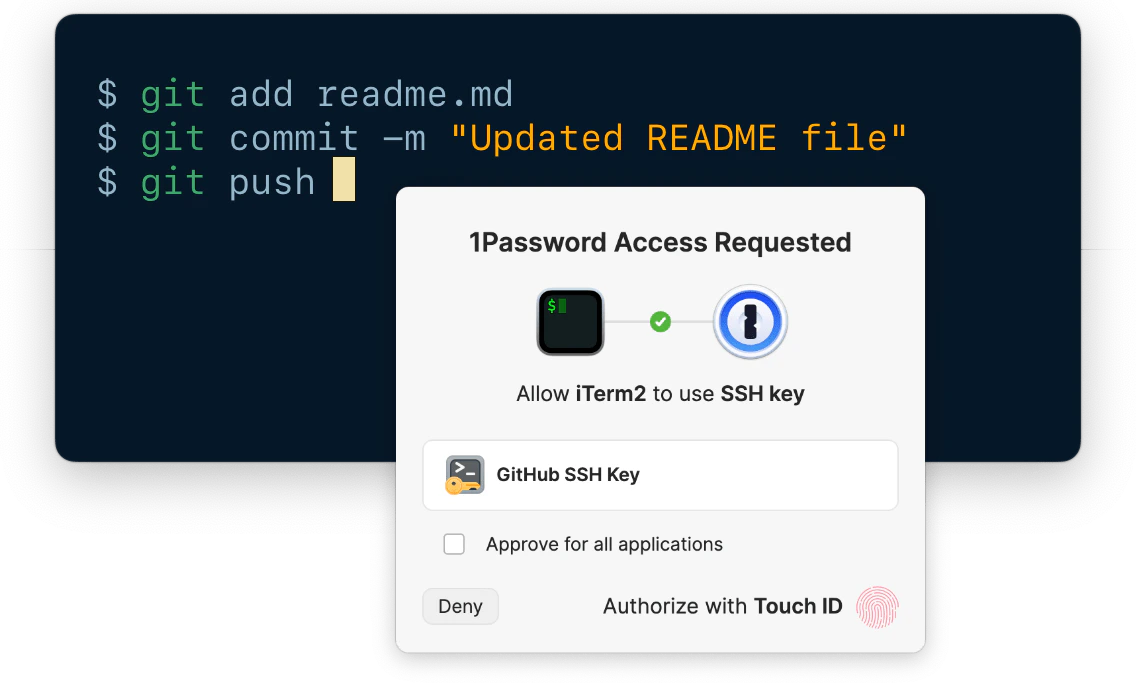
* Use 1Password to approve SSH and Git requests with your fingerprint.
## Before you begin
You can authenticate 1Password developer tools in two ways:
* **Local development:** Use the 1Password desktop app for fast setup and human-in-the-loop approval with biometrics.
* **Automation and production:** Use service accounts for automated workflows with least privilege access.
This guide focuses on local development. For CI/CD, containers, and production workflows, see [Secure your deployments](/get-started/secure-deployment).
## Step 1: Install the 1Password app
If you haven't already, [sign up for a 1Password account](https://1password.com/pricing/password-manager). Then install 1Password for [Mac](https://1password.com/downloads/mac), [Windows](https://1password.com/downloads/windows), or [Linux](https://1password.com/downloads/linux).
After you install the app:
1. Open the 1Password app and select your account or collection at the top of the sidebar.
2. Navigate to **Settings** > **Security**.
3. Turn on the setting to unlock the app using [Touch ID](https://support.1password.com/touch-id-mac/), [Windows Hello](https://support.1password.com/windows-hello/), or [Linux system authentication](https://support.1password.com/system-authentication-linux/). This allows you to authenticate most developer tools with your fingerprint.
## Step 2: Install 1Password CLI
1Password CLI (`op`) lets you access secrets and manage your account from your terminal and scripts. It's the fastest way to start experimenting with 1Password developer tools.
To install [1Password CLI](/cli), use one of the following package managers, or [download the latest release](https://app-updates.agilebits.com/product_history/CLI2).
```shell theme={null}
brew install 1password-cli
```
```shell theme={null}
winget install 1password-cli
```
See the [full CLI installation guide](/cli/get-started) for requirements and additional Windows, Linux, and manual installation options.
Then turn on the app integration to sign in with the accounts you've added to the app and authenticate commands using your fingerprint.
1. Open the 1Password app and select your account or collection at the top of the sidebar.
2. Navigate to **Settings** > **[Developer](onepassword://settings/developers)**.
3. Select **Integrate with 1Password CLI**.
Enter any 1Password CLI command to trigger the authentication prompt to sign in. For example, `op vault list` lists all the vaults in the authenticated account.
```shell theme={null}
op vault list
```
## Step 3: Create an Environment (beta)
[Environments](/environments) (beta) are like vaults for your developer credentials. You can manage your project's environment variables together in an Environment, then securely load each set of secrets directly from 1Password when you need them.
Start by creating an Environment for a specific project or development context, like `iOS App Staging`.
1. In the 1Password app, select **Developer** in the sidebar, then select **Environments**.
2. Select **New environment**, enter a name, and select **Save**.
3. Open the Environment, then select **Import .env file** to import project secrets from an existing environment file or **New variable** to add variables manually.
After you create the Environment, you can select **Manage environment** > **Manage access** to share it with other people on your team.
## Step 4: Choose your first workflow
Start with one of these:
Load your project secrets directly from 1Password when you need them, without exposing your secrets in plaintext. Store SSH keys in 1Password and approve Git and SSH requests with biometrics.
### Securely load developer secrets from 1Password
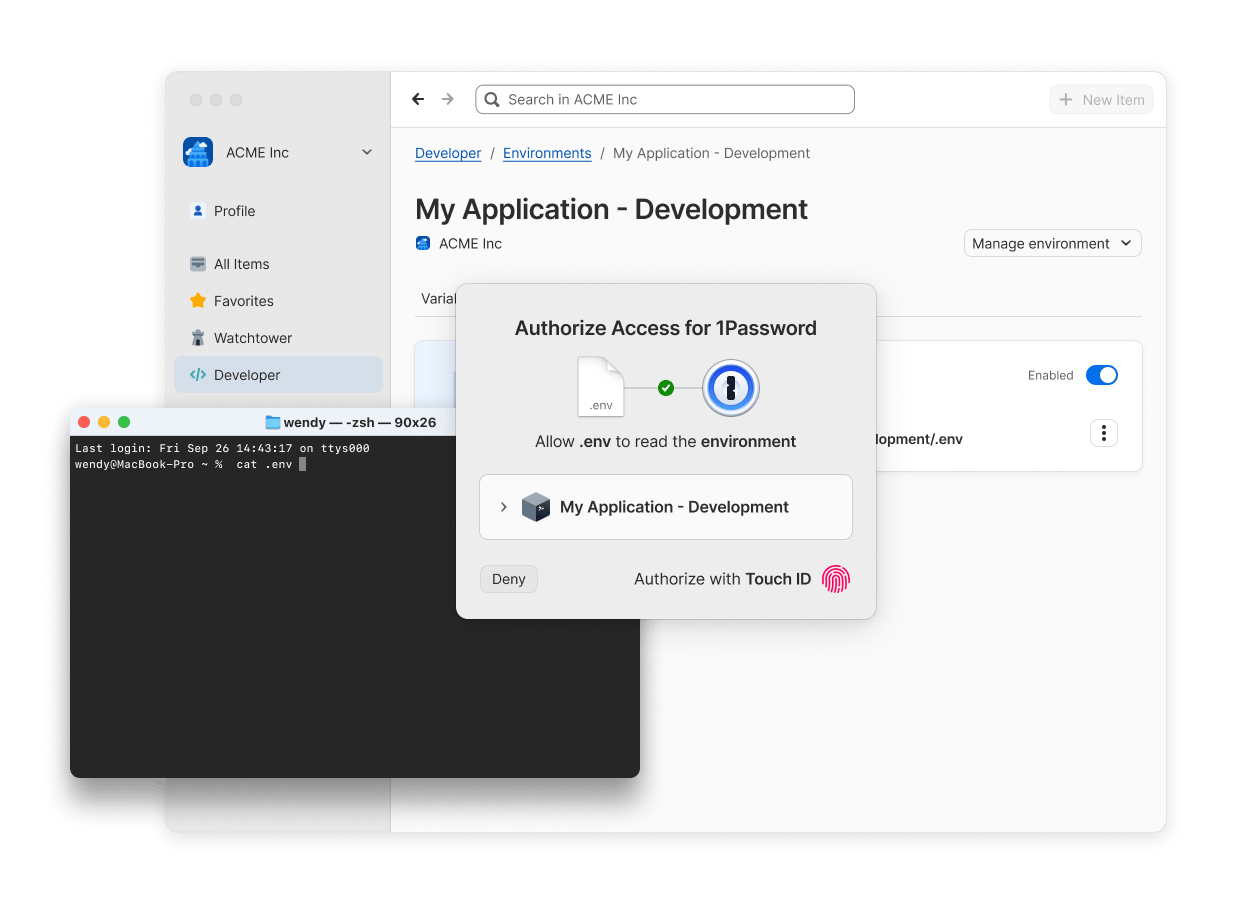
You can access the project secrets stored in an Environment directly from 1Password using a [locally mounted `.env` file](/environments/local-env-file) on Mac or Linux. The contents of this file aren't tracked by Git or stored on disk, and are only available at the moment you access it.
1. In the 1Password app, go to **Developer** > **Environments** and open the Environment you created [in step 3](#step-3-create-an-environment-beta).
2. Select the **Destinations** tab, then select **Configure destination** for local `.env` file.
3. Select **Choose file path** and choose the path on your device where you want to create your local `.env` file, then select **Mount .env file**.
To confirm you can access your environment variables, open your terminal and navigate to the directory where your local `.env` file is saved. Then run the following command with the name of your file.
```shell theme={null}
cat .env
```
You can also [programmatically read project secrets](/environments/read-environment-variables) from Environments on any platform using the latest beta version of the CLI or SDKs.
### Simplify your SSH and Git workflows
1Password's SSH agent secures your SSH keys by keeping them encrypted and off disk, and also brings biometric authentication to your SSH and Git workflows.
#### Step 1: Generate or import an SSH key
First generate a new SSH key in 1Password in your Personal, Private, or Employee vault. You can also [import an existing key](/ssh/manage-keys).
1. Select **New Item** > **SSH Key**.
2. Select **Add Private Key** > **Generate a New Key**.
3. Select an SSH key type, **Ed25519** or **RSA**, then select **Generate**.
4. Select **Save**.
After you generate or import an SSH key, [add the public key to your preferred Git service](/ssh/get-started#step-2-upload-your-public-key), like GitHub or GitLab.
#### Step 2: Set up the SSH agent
1. Open the 1Password app and select your account or collection at the top of the sidebar.
2. Navigate to **Settings** > **[Developer](onepassword://settings/developers)**.
3. Select **Use the SSH Agent**. Turn on the option to display key names to see which key 1Password is requesting access to.
4. [Follow the steps to configure your SSH or Git client](/ssh/get-started#step-4-configure-your-ssh-or-git-client).
On Windows, the 1Password SSH agent only works with SSH clients that support [Microsoft OpenSSH](https://docs.microsoft.com/en-us/windows-server/administration/openssh/openssh_overview). Learn how to check if the [OpenSSH Authentication Agent service is installed and running](/ssh/get-started#check-if-the-openssh-authentication-agent-service-is-installed-and-running).
After your client is set up, run a Git or SSH command to test your setup. For example:
```shell theme={null}
ssh -T git@github.com
```
#### Step 3: Set up Git commit signing
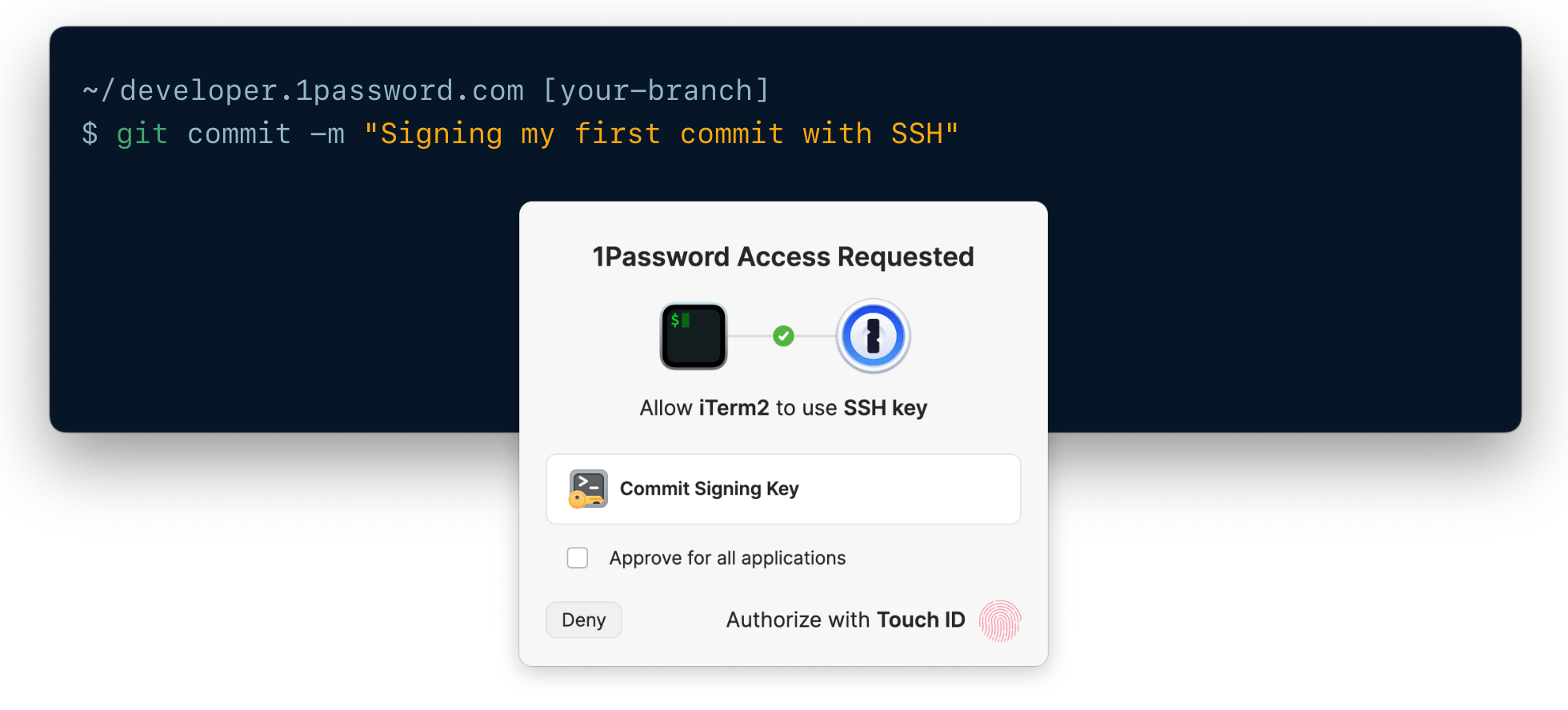
You can also use your SSH keys in 1Password to [sign Git commits](/ssh/git-commit-signing) and verify authorship on platforms like GitHub.
1. Open the SSH key you want to use in your 1Password desktop app.
2. Select > **Configure Commit Signing**.
3. In the next window, select **Edit Automatically** to add the key to your `~/.gitconfig` file.
4. [Register your public key](/ssh/git-commit-signing#step-2-register-your-public-key) as a **signing key** in your preferred Git service (such as GitHub or GitLab).
5. Commit some code. 1Password will prompt you to authenticate the same way you unlock your device, like with your fingerprint.
## Next steps
Choose what you want to do next:
Use CLI, SDKs, service accounts, or Connect server.Provide credentials to AI agents and tools without exposing them in prompts, LLM context, or config files. Learn more about specific configurations for securely loading secrets. Set up CI/CD, containers, and production runtime access. Learn more about setting up 1Password for SSH & Git.