> ## Documentation Index
> Fetch the complete documentation index at: https://www.1password.dev/llms.txt
> Use this file to discover all available pages before exploring further.
# Manage SSH Bookmarks in 1Password (beta)
export const Small = ({children}) => {
return {children};
};
SSH Bookmarks in 1Password allow you to:
* Connect to SSH hosts directly from 1Password, without manually entering commands in the terminal.
* Match your SSH keys to specific hosts to make sure the correct key is used for each connection.
* Avoid [server key limitations](/ssh/agent/advanced#ssh-server-six-key-limit) when managing multiple SSH keys.
You can add bookmarks from the [SSH activity log](#from-the-activity-log) or by adding `ssh://` URLs to your SSH Key items.
## Requirements
1. [Sign up for 1Password.](https://1password.com/pricing/password-manager)
2. Install and sign in to 1Password for [Mac](https://1password.com/downloads/mac), [Windows](https://1password.com/downloads/windows), or [Linux](https://1password.com/downloads/linux).
3. [Import or generate SSH keys in 1Password.](/ssh/manage-keys/)
4. [Set up the 1Password SSH Agent.](/ssh/get-started/#step-3-turn-on-the-1password-ssh-agent)
## Manage your SSH Bookmarks
You can use and manage SSH Bookmarks for hosts that use keys [available to the 1Password SSH agent](/ssh/agent/#eligible-keys).
If you're signed in to [multiple accounts](https://support.1password.com/multiple-accounts/) in the 1Password desktop app, make sure to unlock the accounts where you've stored the keys for your SSH hosts.
### Create a bookmark
Create bookmarks for your frequently used SSH hosts from the [SSH activity log](#from-the-activity-log) or in an [SSH Key item](#in-an-ssh-key-item).
#### From the activity log
The quickest way to create a bookmark is to use the Bookmark option in the [SSH activity log](/ssh/manage-keys#view-ssh-activity). You'll see a **Bookmark** button next to any `ssh` commands you've run from the terminal (like `ssh user@hostname`).
1. Open the 1Password desktop app. Select **Developer** in the sidebar, then select **View SSH agent**.
2. Navigate to the Activity section and find the entry for the SSH host you want to bookmark.
3. Select **Bookmark** in the Actions column.
1Password will add the SSH host URL to the associated SSH Key item, then add the bookmark to the Bookmarks section of the SSH Agent developer page.
#### In an SSH Key item
If you want to create a bookmark for an SSH host that you haven't connected to recently, you can manually add a custom URL field to an SSH Key item.
In 1Password, find the SSH Key item for the host you want to bookmark, then edit the item to add a [custom field](https://support.1password.com/custom-fields/#add-a-custom-field) with the SSH host URL (a field label isn't required). The bookmark will be added to the Bookmarks section of the SSH Agent developer page.
SSH host URLs must start with `ssh://` and can use the hostname or IP address of the SSH host. If you've defined a `Host` block in your `~/.ssh/config` file with a custom alias (for example, `Host my-host-alias`), you can also bookmark the alias instead of the actual hostname or IP address. Examples of different types of bookmarks:
* **Hostname**: `ssh://user@example.org`, `ssh://test-server.example.com`
* **IP address**: `ssh://admin@192.0.2.255`, (IPv4), `ssh://user@2001:DB8:a8b0:5678::200c` (IPv6)
* **Host alias**: `ssh://my-host-alias`
### Connect to a bookmarked host
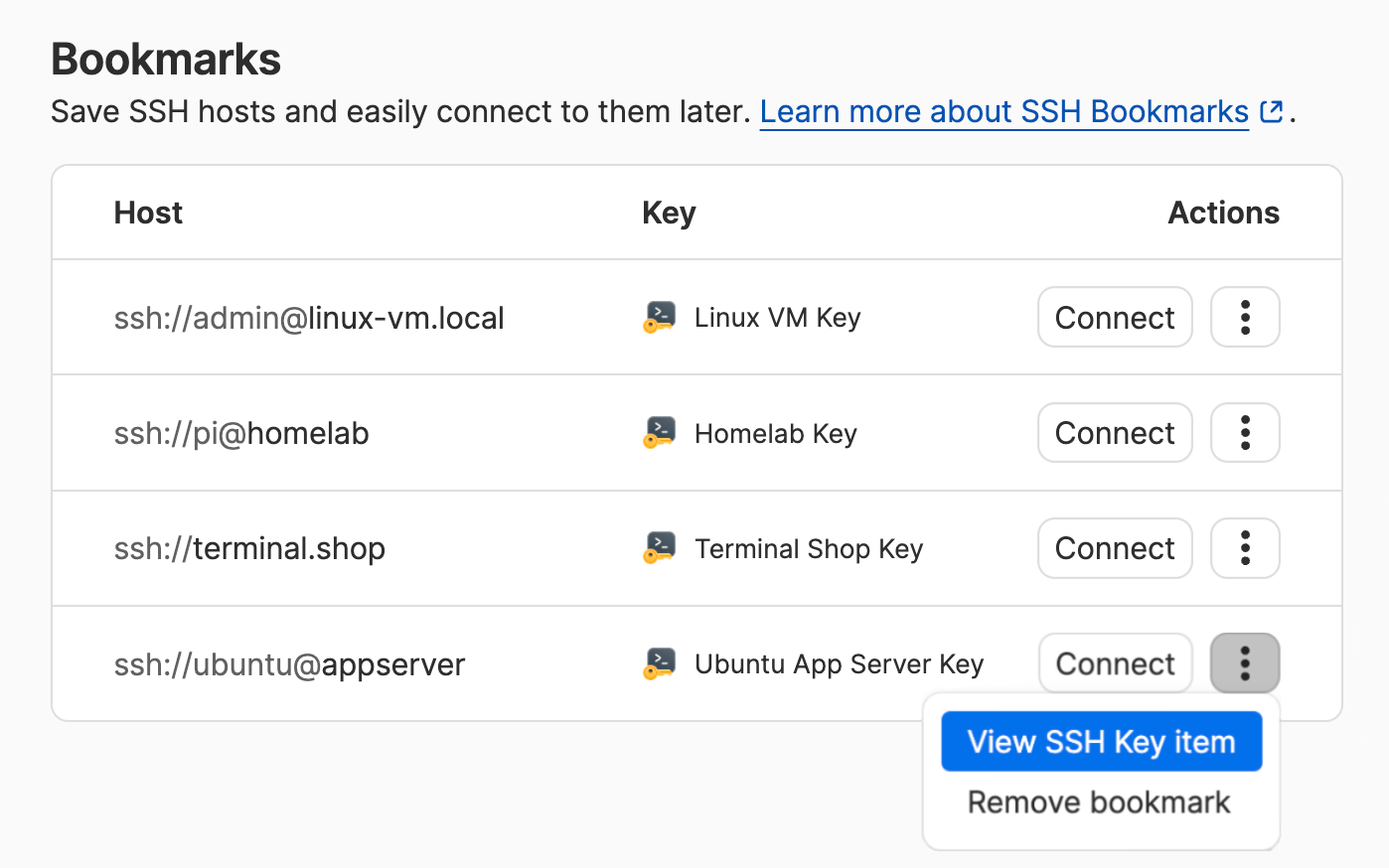
Connect to any of your bookmarked SSH hosts directly from the Bookmarks section of the SSH Agent developer page.
To use a bookmark from the list, select **Connect**. 1Password will launch the terminal, which initiates a connection to the SSH host. Then [authorize the connection](/ssh/get-started#step-6-authorize-the-ssh-request), if prompted.
1Password uses the [terminal application](#terminal-for-ssh-connections) set for SSH URLs to connect to the host.
### Edit a bookmark
From the Bookmarks section of the SSH Agent developer page:
1. Select > **View SSH Key item** in the bookmark's Actions menu.
2. Select **Edit**, then update the host URL field.
3. Save your changes.
Your saved changes will automatically update in your Bookmarks list.
### Remove a bookmark
From the Bookmarks section of the SSH Agent page, select > **Remove bookmark** in the bookmark's Actions menu.
You can also remove a bookmark by editing the SSH Key item. Remove the SSH host URL from the item, or delete the item if you no longer need the SSH key.
Using either method removes an SSH Bookmark from your Bookmarks list, the SSH Key item, and the [1Password SSH configuration file](#ssh-bookmarks-config-file), if you turned on that feature.
## SSH Bookmarks config file
1Password can automatically manage an SSH config file (`~/.ssh/1Password/config`) that matches bookmarked SSH hosts with the corresponding SSH key. You can include this file in your main SSH config file (`~/.ssh/config`). This also prevents you from running into the [six-key server limit](/ssh/agent/advanced#ssh-server-six-key-limit).
Note that generating SSH configuration files will store your unencrypted SSH host URLs and SSH public keys for your bookmarks on disk. Your private keys will remain safe in 1Password.
### Generate the 1Password config file
This feature is turned off by default, so you'll need to turn on the setting in 1Password:
1. Open the 1Password desktop app and navigate to **Settings** > [**Developer**](onepassword://settings/developers).
2. Go to the Advanced section for the SSH Agent (you may need to select the section to expand it).
3. Select **Generate SSH config files from 1Password SSH bookmarks**.
If you see a message that says "Managed by administrator", the setting is managed by your team's [app usage policy](https://support.1password.com/team-policies/#app-usage). Contact your team administrator to learn more.
1Password will generate a directory at `~/.ssh/1Password/` that includes:
* `~/.ssh/1Password/config` file: An SSH configuration file that maps SSH hosts to their corresponding keys.
* `*.pub` files: Individual public key files for each bookmarked host, named using the SSH key's public fingerprint.
### Use the configuration file
To start using the 1Password configuration file, you'll need to include it in your main SSH config file.
Add the following line to the top of your `~/.ssh/config` file:
```toml theme={null}
Include ~/.ssh/1Password/config
```
Then save your changes to the file.
1Password manages changes to the `~/.ssh/1Password/config` file. Any time you create, edit, or remove an SSH Bookmark, 1Password automatically updates the configuration file.
If you want to override any of the rules from the 1Password configuration file, you can do so by editing your SSH configuration file. Copy the relevant `Match Host` block from the 1Password-generated `~/.ssh/1Password/config` file into your `~/.ssh/config` file. Then edit the configuration values in the block to your preferred values.
If you turn off the setting to generate configuration files, 1Password will remove the `~/.ssh/1Password` directory and all generated files.
**Do not manually edit the 1Password-generated files**
Manual edits made to the 1Password-generated files won't be saved. If you need to make changes, [edit your SSH Bookmarks](#edit-a-bookmark) in 1Password or make the changes in your main `~/.ssh/config` file.
## Terminal for SSH connections
1Password will use your system's default terminal application to launch SSH connections without additional setup, or you can choose your preferred terminal option in the settings.
#### Choose a terminal option for SSH Bookmarks
1. Open the 1Password desktop app and navigate to **Settings** > [**Developer**](onepassword://settings/developers).
2. Go to the Advanced section for the SSH Agent and locate the **Open SSH URLs with** setting.
3. Select your preferred terminal application from the available options.
#### Choose a terminal option for SSH Bookmarks
1. Open the 1Password desktop app and navigate to **Settings** > [**Developer**](onepassword://settings/developers).
2. Go to the Advanced section for the SSH Agent and locate the **Open SSH URLs with** setting.
3. Select the option you want 1Password to use to open SSH connections: Windows Terminal or a [custom terminal command](#set-custom-command-windows).
Set a custom terminal command
The custom terminal command option allows you to provide your own shell command to open `ssh://` URLs.
Terminal commands are executed using the `cmd.exe /c start` process and can only contain simple command-line arguments. For more complex arguments that use environment variables or interpolation, you can create a script file and use the script's file path in your command.
A basic command structure could include the terminal application, with any options and flags you want to use to specify the terminal's behavior, followed by the SSH command and [URL option(s)](#url-options-windows).
For example, if you want 1Password to use the Windows Terminal to open an SSH URL in a maximized window with a vertical, split-pane, you could use a command like:
```
wt.exe --maximized split-pane -V ssh %s
```
If your terminal app isn't in your `PATH`, use the full path of the app in your command. For example:
```
"C:\Program Files (x86)\My Terminal App\MyTerminalApp.exe" ssh %s
```
For more complex arguments, you can create a custom script and use the full path of the script in your command. For example:
```
"C:\Scripts\MyScript.ps1" %s
```
For more examples of Windows command-line arguments, see [Microsoft's documentation. ](https://learn.microsoft.com/en-us/windows/terminal/command-line-arguments?tabs=windows)
SSH URL options and variables
You can use one or more of the following options in your command to reference all or part of the SSH URL in your bookmark:
* `%s`: the full SSH URL in your bookmark (for example: `ssh://admin@example.com:9999`)
* `%u`: the user (`admin`)
* `%h`: the host (`example.com`)
* `%p`: the port (`9999`)
If you want 1Password to use the full SSH URL syntax from your bookmark, use the `%s` option in your custom command:
```
my-command %s
```
If your SSH client doesn't support the SSH URL syntax, use the `%u` and `%h` options to pass the host and user variables separately when 1Password invokes your custom command:
```
my-command --user %u --host %h --port %p
```
The `--port %p` variable is optional. You don't need to include port information in your bookmark or custom command unless you need to use a port other than the default SSH port (`22`).
If you don't want 1Password to replace an SSH URL option with a variable, add a backslash (`\`) before the option to escape it so it's treated as a literal string. For example:
```
my-command \%s
```
#### Choose a terminal option for SSH Bookmarks
1. Open the 1Password desktop app and navigate to **Settings** > [**Developer**](onepassword://settings/developers).
2. Go to the Advanced section for the SSH Agent and locate the **Open SSH URLs with** setting.
3. Select the option you want 1Password to use to open SSH connections: your preferred terminal application from the available options, a [custom terminal command](#set-custom-command-linux), or [xdg-open](#configure-xdg-open).
If you want 1Password to handle your bookmarks separately from the rest of your system, you can choose your preferred terminal or a custom command in 1Password and configure `xdg-open` for your system.
Set a custom terminal command
The custom terminal command option allows you to provide your own shell command to open `ssh://` URLs.
Terminal commands are executed using the `systemd-run` process and can only contain [simple command-line arguments. ](https://linux.die.net/man/1/bash) For more complex arguments that use environment variables or interpolation, you can create a script file and use the script's file path in your command.
A basic command structure could include the terminal application, with any options and flags you want to use to specify the terminal's behavior, followed by the SSH command and [URL option(s)](#url-options-linux).
For example, if you want 1Password to use the WezTerm terminal app to open an SSH URL in a new `tmux` session on a remote server, you could use a custom command like:
```
wezterm -e ssh %s tmux new -A
```
If your terminal app isn't in your `PATH`, use the full path of the app in your command. For example:
```
/home/my-apps/my-terminal-app ssh %s
```
For more complex arguments, you can create a custom script and use the full path of the script in your command. For example:
```
/home/user/scripts/my-custom-script.sh %s
```
SSH URL options and variables
You can use one or more of the following options in your command to reference all or part of the SSH URL in your bookmark:
* `%s`: the full SSH URL in your bookmark (for example: `ssh://admin@example.com:9999`)
* `%u`: the user (`admin`)
* `%h`: the host (`example.com`)
* `%p`: the port (`9999`)
If you want 1Password to use the full SSH URL syntax from your bookmark, use the `%s` option in your custom command:
```
my-command %s
```
If your SSH client doesn't support the SSH URL syntax, use the `%u` and `%h` options to pass the host and user variables separately when 1Password invokes your custom command:
```
my-command --user %u --host %h --port %p
```
The `--port %p` variable is optional. You don't need to include port information in your bookmark or custom command unless you need to use a port other than the default SSH port (`22`).
If you don't want 1Password to replace an SSH URL option with a variable, add a backslash (`\`) before the option to escape it so it's treated as a literal string. For example:
```
my-command \%s
```
#### Configure `xdg-open`
You can use `xdg-open` to open `ssh://` URLs with the application that registers the `x-scheme-handler/ssh` MIME type.
To customize how `xdg-open` launches `ssh://` URLs, you can create a `.desktop` file:
1. Create a file called `1password-ssh-handler.desktop` in `~/.local/share/applications` with the following content:
```file 1password-ssh-handler.desktop highlight={3} theme={null}
[Desktop Entry]
Name=1Password SSH Handler
Exec=gnome-terminal -- ssh %u
Terminal=false
Type=Application
MimeType=x-scheme-handler/ssh;
```
You can edit the `Exec` command to use your preferred terminal.
2. Run the following command in your terminal to register the SSH handler:
```shell theme={null}
update-desktop-database ~/.local/share/applications
```
## Learn more
* [Advanced use cases](/ssh/agent/advanced/)
* [SSH agent config file](/ssh/agent/config/)
* [Sign Git commits with SSH](/ssh/git-commit-signing/)
* [Workflow: Secure your SSH & Git workflows](/get-started/secure-ssh-git-workflows)