> ## Documentation Index
> Fetch the complete documentation index at: https://www.1password.dev/llms.txt
> Use this file to discover all available pages before exploring further.

# Sign Git commits with SSH

export const Image = ({src, darkSrc, alt, width, border, height, round}) => {
  const classNames = ["mint-mx-4"];
  if (border) {
    classNames.push("mint-rounded-sm");
  }
  if (round) {
    classNames.push("mint-rounded-lg");
  }
  const style = {};
  if (width) style.width = typeof width === "number" ? `${width}px` : width;
  if (height) style.height = typeof height === "number" ? `${height}px` : height;
  return darkSrc ? <>
      <img src={src} alt={alt} className={[...classNames, "dark:hidden"].join(" ")} style={Object.keys(style).length > 0 ? style : undefined} />
      <img src={darkSrc} alt={alt} className={[...classNames, "hidden dark:block"].join(" ")} style={Object.keys(style).length > 0 ? style : undefined} onError={e => {
    e.target.src = src;
  }} />
    </> : <img src={src} alt={alt} className={classNames.join(" ")} style={Object.keys(style).length > 0 ? style : undefined} />;
};

export const Small = ({children}) => {
  return <small>{children}</small>;
};

Git version 2.34 and later supports signing commits and tags with SSH keys — no GPG key needed.

This means you can use the [1Password SSH integration](/ssh/) to create new Git signing keys in seconds, and use them with your terminal apps and other [Git clients](/ssh/agent/compatibility/) without the private key ever leaving 1Password. You can also automatically configure Git commit signing with SSH in the 1Password app.

When you sign your commits, they can be cryptographically verified using the SSH public keys associated with your [GitHub <Icon icon="arrow-up-right-from-square" />](https://docs.github.com/en/authentication/managing-commit-signature-verification/about-commit-signature-verification), [GitLab <Icon icon="arrow-up-right-from-square" />](https://docs.gitlab.com/user/project/repository/signed_commits/ssh/#configure-git-to-sign-commits-with-your-ssh-key), or [Bitbucket <Icon icon="arrow-up-right-from-square" />](https://support.atlassian.com/bitbucket-cloud/docs/use-ssh-keys-to-sign-commits/) account. This ensures other people can verify that the changes were actually made by you. This is important because anyone with push rights to your repository can push new commits as any author, allowing them to impersonate others if commits aren't signed.

[Learn how easy it is to use 1Password to sign your Git commits.](https://blog.1password.com/git-commit-signing/)

## Requirements

Before you get started, you'll need to:

1. [Sign up for 1Password.](https://1password.com/pricing/password-manager)
2. Install and sign in to 1Password for [Mac](https://1password.com/downloads/mac), [Windows](https://1password.com/downloads/windows), or [Linux](https://1password.com/downloads/linux).
3. Update to Git 2.34.0 or later.
4. [Import or generate SSH keys in 1Password.](/ssh/manage-keys/)
5. [Set up the 1Password SSH Agent.](/ssh/get-started/#step-3-turn-on-the-1password-ssh-agent)

## Step 1: Configure Git commit signing with SSH

<CardGroup cols={2}>
  <div>
    To automatically configure Git commit signing with SSH globally:

    1. Open the SSH key you want to use in your 1Password desktop app.
    2. Select <Icon icon="ellipsis-v" /> > **Configure Commit Signing**.
    3. In the next window, select **Edit Automatically**. <br />
       <Small>Or select <strong>Copy Snippet</strong>, then paste the snippet into your <code>\~/.gitconfig</code> file manually.</Small>
  </div>

  <div>
    <Image round shadow alt="The Configure Git Commit Signing window showing options to edit your config file automatically or copy the configuration snippet manually." src="/static/img/ssh/configure-git-commit-signing.png" style={{ maxWidth: "400px" }} />
  </div>
</CardGroup>

You can also [configure SSH signing in a single repository](#configure-commit-signing-in-a-single-repository).

1Password will make the following changes to your Git config file:

* Set `gpg.format` to `ssh`.
* Set `user.signingkey` to the public key you chose to sign commits with.
* Set `commit.gpgsign` to `true` so you don't need to include the `-S` flag with each commit. *(optional)*
* Set `gpg.ssh.program` to the SSH signer binary provided by 1Password, so you don't have to set `SSH_AUTH_SOCK` yourself. *(optional)*

<Tip>
  If you use WSL on a Windows machine, learn how to set up the [1Password WSL integration](/ssh/integrations/wsl) to authenticate SSH and Git commands and [sign your Git commits within WSL](/ssh/integrations/wsl#sign-git-commits-with-ssh).
</Tip>

## Step 2: Register your public key

Now that you've configured SSH commit signing locally, you'll need to register your public key so that others can verify the authenticity of your commits.

<Tabs groupId="register-public-key">
  <Tab title="GitHub">
    <CardGroup cols={2}>
      <div>
        <p>To allow GitHub to verify your commits, visit the [GitHub SSH key settings <Icon icon="github" />](https://github.com/settings/ssh/new) to register your SSH key for commit signing. You can use the 1Password browser extension to automatically fill in the public key and key title.</p>

        <p>Make sure you set the "Key type" to `Signing key` to allow your SSH key to be used for signing commits.</p>
      </div>

      <div>
        <Image alt="The GitHub form to add a new SSH key, with signing key selected." src="/static/img/ssh/github-add-ssh-key.png" style={{ maxWidth: "400px" }} />
      </div>
    </CardGroup>
  </Tab>

  <Tab title="GitLab">
    <CardGroup cols={2}>
      <div>
        <p>To allow GitLab to verify your commits, visit the [GitLab SSH key settings <Icon icon="arrow-up-right-from-square" />](https://gitlab.com/-/user_settings/ssh_keys) to register your SSH key for commit signing. You can use the 1Password browser extension to automatically fill in the public key and key title.</p>

        <p>Make sure you set the "Usage type" to either `Authentication & Signing` or `Signing` to allow your SSH key to be used for signing commits.</p>
      </div>

      <div>
        <Image alt="The GitLab form to add a new SSH key, with authentication and signing selected." src="/static/img/ssh/gitlab-add-ssh-key.png" style={{ maxWidth: "400px" }} />
      </div>
    </CardGroup>
  </Tab>

  <Tab title="Bitbucket">
    <CardGroup cols={2}>
      <div>
        To allow Bitbucket to verify your commits, visit the [Bitbucket SSH key settings <Icon icon="arrow-up-right-from-square" />](https://bitbucket.org/account/settings/ssh-keys/) to register your SSH key for commit signing. You can use the 1Password browser extension to automatically fill in the public key and key title.
      </div>

      <div>
        <Image alt="The Bitbucket form to add a new SSH key." src="/static/img/ssh/bitbucket-add-ssh-key.png" style={{ maxWidth: "400px" }} />
      </div>
    </CardGroup>
  </Tab>

  <Tab title="Locally">
    To verify SSH signatures locally, you'll need to create an [allowed signers file <Icon icon="arrow-up-right-from-square" />](https://www.man7.org/linux/man-pages/man1/ssh-keygen.1.html#ALLOWED_SIGNERS) and configure Git to use it.

    You can choose to configure this globally, for example:

    ```shell theme={null}
    touch ~/.ssh/allowed_signers
    git config --global gpg.ssh.allowedSignersFile ~/.ssh/allowed_signers
    ```

    Or to tie it to a single repository, for example:

    ```shell theme={null}
    touch .git/allowed_signers
    git config --local gpg.ssh.allowedSignersFile .git/allowed_signers
    ```

    In the allowed signers file, add pairs of emails and public keys you'd like to trust:

    ```text allowed_signers theme={null}
    wendy@appleseed.com ssh-ed25519 AAAAC3NzaC1IZDI1NTE5AAAAIFIUXAdv5sWOrfZFEPAW8liKjBW3sFxuaNITBWwtFKO
    ```

    You can share this file with others and could even consider checking it into Git, similar to a `CODEOWNERS` file.
  </Tab>
</Tabs>

## Step 3: Commit and push your code

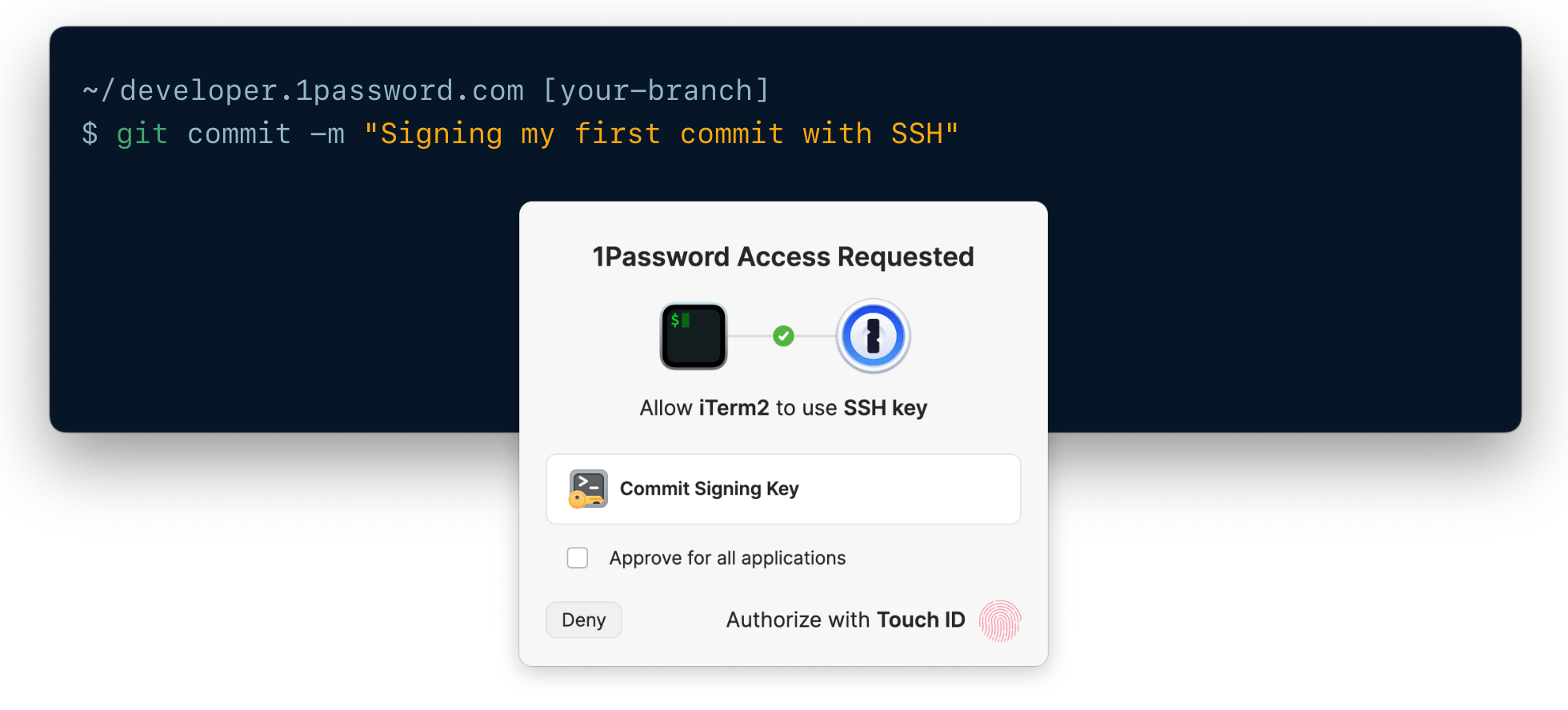
Now that you're all set up, you can commit some code:

```
git commit -m "Signing my first commit with SSH"
```

You'll be prompted to authorize your SSH key the same way you unlock the 1Password app (for example, with Touch ID or Windows Hello).

<div style={{ textAlign: "center" }}>
  <img alt="A Mac terminal showing a git commit command, overlaid with a 1Password prompt asking to authorize the use of a commit signing key with Touch ID." src="https://mintcdn.com/ab-634991b8/2GuQWN9fVwUxVlhr/static/img/ssh/git-sign.png?fit=max&auto=format&n=2GuQWN9fVwUxVlhr&q=85&s=63f86e8e340c83a4e1fedb36c48fdd8d" width="1960" height="888" data-path="static/img/ssh/git-sign.png" />
</div>

If you've chosen to use the same key to sign as you do to push and pull, you can now also push without requiring additional authorization:

```
git push
```

## Step 4: Verify your commit signature

<Tabs groupId="register-public-key">
  <Tab title="GitHub">
    If you look at your commit history on GitHub, you should see the `Verified` badge show up on your SSH-signed commits. If you select it, you can see the SSH key used to sign it.

    <Image border alt="A GitHub commit marked with the verified badge and showing the SSH public key used to sign." src="/static/img/ssh/github-verified.png" style={{ maxWidth: "400px" }} />
  </Tab>

  <Tab title="GitLab">
    If you look at your commit history on GitLab, you should see the `Verified` badge show up on your SSH-signed commits. If you select it, you can see the SSH key used to sign it.

    <Image border alt="A GitLab commit marked with the verified badge and showing the SSH public key used to sign." src="/static/img/ssh/gitlab-verified.png" style={{ maxWidth: "400px" }} />
  </Tab>

  <Tab title="Bitbucket">
    If you look at your commit history on Bitbucket, you should see a verified checkmark show up on your SSH-signed commits. If you select it, you can see the SSH key used to sign it.

    <Image border alt="A Bitbucket commit marked with the verified badge and showing the SSH public key used to sign." src="/static/img/ssh/bitbucket-verified.png" style={{ maxWidth: "400px" }} />
  </Tab>

  <Tab title="Locally">
    To verify commits locally, run the following command:

    ```shell theme={null}
    git log --show-signature
    ```
  </Tab>
</Tabs>

## Advanced configuration

### Configure commit signing in a single repository

You can enable Git commit signing with SSH for specific repositories or directories instead of globally. To do this:

1. Open the SSH key you want to use in your 1Password desktop app.
2. Select <Icon icon="ellipsis-v" /> > **Configure Commit Signing**.
3. In the next window, select **Copy Snippet**.
4. Paste the snippet in the repository's `<git-repo>/.git/config` file instead of the global `~/.gitconfig` file.

### Configure multiple commit signing setups

If you want to configure multiple commit signing setups, you can use the `includeIf` directive in your `~/.gitconfig`.

For example, to use an SSH commit signing setup with 1Password as your default configuration and a non-1Password GPG setup for the `/work/acme` subdirectory:

```toml ~/.gitconfig theme={null}
[user]
  name = Wendy Appleseed
  email = wendy@appleseed.com
  signingkey = ssh-ed25519 AAAAC3NzaC1IZDI1NTE5AAAAIFIUXAdv5sWOrfZFEPAW8liKjBW3sFxuaNITBWwtFKO

[commit]
  gpgsign = true

[gpg]
  format = ssh

[gpg "ssh"]
  program = /Applications/1Password.app/Contents/MacOS/op-ssh-sign

[includeIf "gitdir:~/work/acme/"]
  path = ~/work/acme/.gitconfig
```

```toml ~/work/acme/.gitconfig theme={null}
[user]
  email = wendy.appleseed@acme.com
  signingkey = 6A40D13BBB936F443084E8C9292E4F983136B860

[gpg]
  format = openpgp
```

In this example, every repository under `~/work/acme` will use the GPG configuration, while the SSH configuration will be used everywhere else.

### Configure commit signing in remote environments

You can [set up SSH agent forwarding](/ssh/agent/forwarding) to authenticate Git requests and sign commits in remote environments, like from a [cloud development environment](/ssh/agent/forwarding/#cde) or [remote workstation](/ssh/agent/forwarding/#remote-workstation).

## Get help

<h3 id="git-error-ssh-unsupported-format">
  If Git says that SSH is an unsupported format
</h3>

If you see the following error message, then your Git version may be outdated:

```text theme={null}
error: unsupported value for gpg.format: ssh
```

Support for SSH commit signing was added to Git in version **2.34**. Run this command to check your Git version:

```shell theme={null}
git --version
```

It's common for operating systems and Git GUI clients to ship with an outdated version of Git out of the box. To install a more up-to-date version, see the [Git install docs. <Icon icon="arrow-up-right-from-square" />](https://git-scm.com/downloads)

In the case of Git GUI clients, check the app preferences to see if they allow you to change the Git binary to a more up-to-date version.

### If your commits fail after you change your Git configuration

If you see one of the following error messages, it's likely related to your `user.signingkey` value. Make sure that's set to a valid SSH public key.

```text theme={null}
fatal: failed to write commit object
```

```text theme={null}
could not deserialize public key
```

```text theme={null}
No such file or directory
```

If your `user.signingkey` is set correctly in your `~/.gitconfig` file, check the value at the repository level by running the following command from your repo's directory:

```shell theme={null}
git config user.signingkey
```

Example of a correct output:

```text theme={null}
ssh-ed25519 AAAAC3NzaC1IZDI1NTE5AAAAIFIUXAdv5sWOrfZFEPAW8liKjBW3sFxuaNITBWwtFKO
```

If the signing key is not the SSH public key you've configured in your `~/.gitconfig`, you may have a [local override](#local-git-overrides) in your repository.

### If you see errors related to the allowed signers file

If you see the following error message, make sure you've properly configured your [allowed signers file](#step-2-register-your-public-key):

```text theme={null}
error: gpg.ssh.allowedSignersFile needs to be configured and exist for ssh signature verification
```

This error should not block you from browsing your commit log - it just prevents you from locally verifying the commit authenticity.

### If your SSH-signed commit doesn't get verified by Git, GitHub, GitLab, and/or Bitbucket

If you believe you've signed your commits through SSH but they're not showing up as verified, there are a few things that could be happening:

#### Commit author email mismatch

Commit signatures will only show up as verified if the registered public key matches the commit author email. Make sure it matches the email you've registered on [GitHub <Icon icon="github" />](https://github.com/settings/emails), [GitLab <Icon icon="arrow-up-right-from-square" />](https://gitlab.com/-/user_settings/profile), or [Bitbucket <Icon icon="arrow-up-right-from-square" />](https://id.atlassian.com/manage-profile/profile-and-visibility) in your allowed signers file.

<Note>
  **Case-sensitive email addresses**

  If your signed commits are verified locally but aren't verified on GitLab.com or Bitbucket, check for any case mismatches in your email address.

  For example, if the email address in your GitLab or Bitbucket account is `wendy@appleseed.com` but your `~/.gitconfig` file uses `Wendy@appleseed.com`, your commits will show as unverified in those accounts.
</Note>

If you have the correct email in your `~/.gitconfig`, check that the settings have correctly propagated down to the repository level as well. To validate this, run the following command from your repo's directory:

```shell theme={null}
git config user.email
```

If this is not the email you've configured in your `~/.gitconfig`, you may have a [local override](#local-git-overrides) in your repository.

#### Misconfigured public key

On GitHub, visit the [SSH key settings <Icon icon="github" />](https://github.com/settings/keys) and check that the key you've locally configured as `user.signingkey` shows up under "Signing keys".

On GitLab, visit the [SSH key settings <Icon icon="arrow-up-right-from-square" />](https://gitlab.com/-/user_settings/ssh_keys) and check that the key you've locally configured as `user.signingkey` shows up under "Your SSH keys".

On Bitbucket, visit the [SSH key settings <Icon icon="arrow-up-right-from-square" />](https://bitbucket.org/account/settings/ssh-keys/) and check that the key you've locally configured as `user.signingkey` shows up under "SSH keys".

For a local allowed signers file, make sure your public key is present and matches your email.

#### Unsupported Git client

Most Git clients support SSH commit signing out of the box, but there are [a few exceptions](/ssh/agent/compatibility/). Even though you may have configured Git correctly, a Git client that doesn't support SSH commit signing will leave your commit unsigned.

Make sure to also [check that you're on the latest version of your Git client](#git-error-ssh-unsupported-format).

#### Local Git overrides

Even though you may have configured your `~/.gitconfig` well, make sure to also check that the settings have correctly propagated down to the repository level.

To validate this, run the following command from your repo's directory:

```shell theme={null}
cat << EOF
gpg.format:      $(git config gpg.format)
user.signingkey: $(git config user.signingkey)
gpg.ssh.program: $(git config gpg.ssh.program)
commit.gpgsign:  $(git config commit.gpgsign)
EOF
```

Example of a correct output:

```text theme={null}
gpg.format:      ssh
user.signingkey: ssh-ed25519 AAAAC3NzaC1IZDI1NTE5AAAAIFIUXAdv5sWOrfZFEPAW8liKjBW3sFxuaNITBWwtFKO
gpg.ssh.program: /Applications/1Password.app/Contents/MacOS/op-ssh-sign
commit.gpgsign:  true
```

If this output does not match up with what you've configured in your `~/.gitconfig`, unset the local values:

```shell theme={null}
git config --local --unset gpg.format
git config --local --unset user.signingkey
git config --local --unset gpg.ssh.program
git config --local --unset commit.gpgsign
```

If you still end up with the wrong value somewhere, you can check where it originates from using the `--show-origin` flag:

```shell theme={null}
cat << EOF
gpg.format:      $(git config --show-origin gpg.format)
user.signingkey: $(git config --show-origin user.signingkey)
gpg.ssh.program: $(git config --show-origin gpg.ssh.program)
commit.gpgsign:  $(git config --show-origin commit.gpgsign)
EOF
```
