> ## Documentation Index
> Fetch the complete documentation index at: https://www.1password.dev/llms.txt
> Use this file to discover all available pages before exploring further.
# Autofill public keys
To use the SSH keys you saved in 1Password to connect to your favorite Git or cloud platforms, you'll need to provide your public key to those services. [Use 1Password in your browser](https://support.1password.com/getting-started-browser/) to fill your public key on those sites, anywhere you see the 1Password icon. Or copy your public key from the SSH key item in 1Password and paste it into the public key area of the website.
## Requirements
1. [Sign up for 1Password.](https://1password.com/pricing/password-manager)
2. Install and sign in to 1Password for [Mac](https://1password.com/downloads/mac), [Windows](https://1password.com/downloads/windows), or [Linux](https://1password.com/downloads/linux).
3. [Install the 1Password browser extension.](https://1password.com/downloads/browser-extension)
4. [Import or generate SSH keys in 1Password.](/ssh/manage-keys/)
## AWS CodeCommit
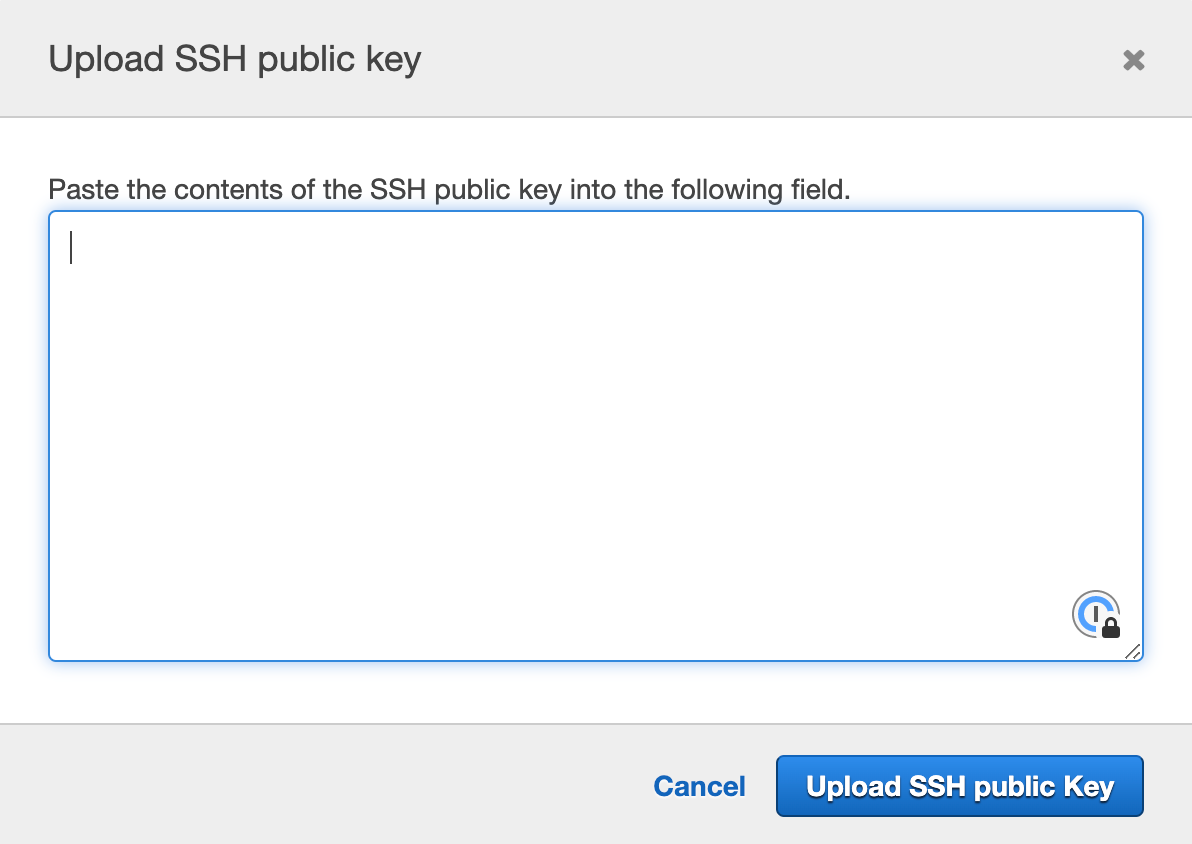
Visit the **Security credentials** tab of your [IAM user](https://console.aws.amazon.com/iam/home#/users) to add a new key:
 ## Azure DevOps
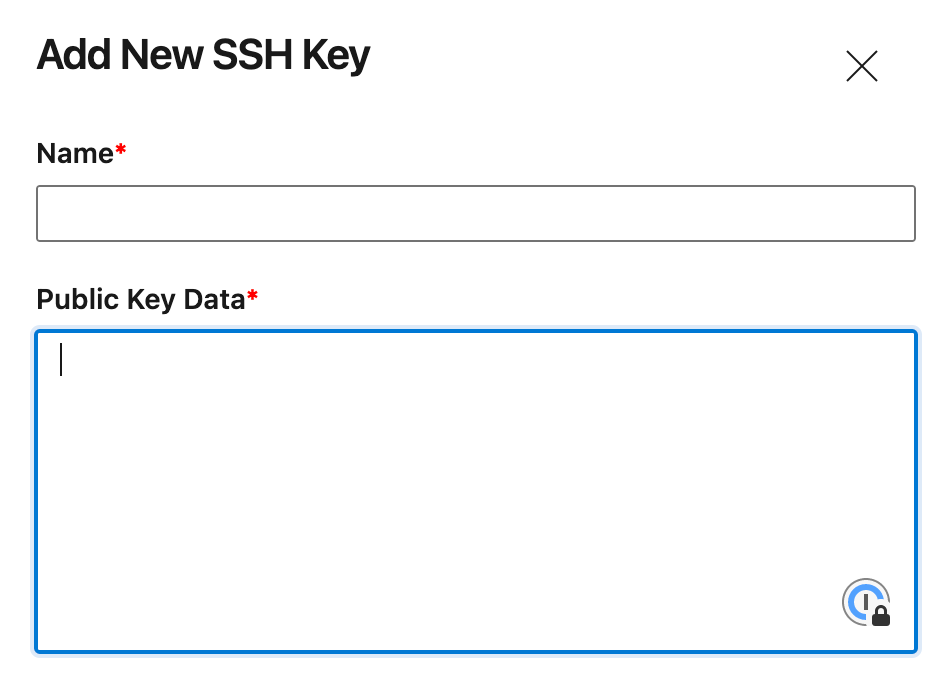
Visit the **SSH public keys** page of your user settings to add a new key:
## Azure DevOps
Visit the **SSH public keys** page of your user settings to add a new key:
 ## Bitbucket
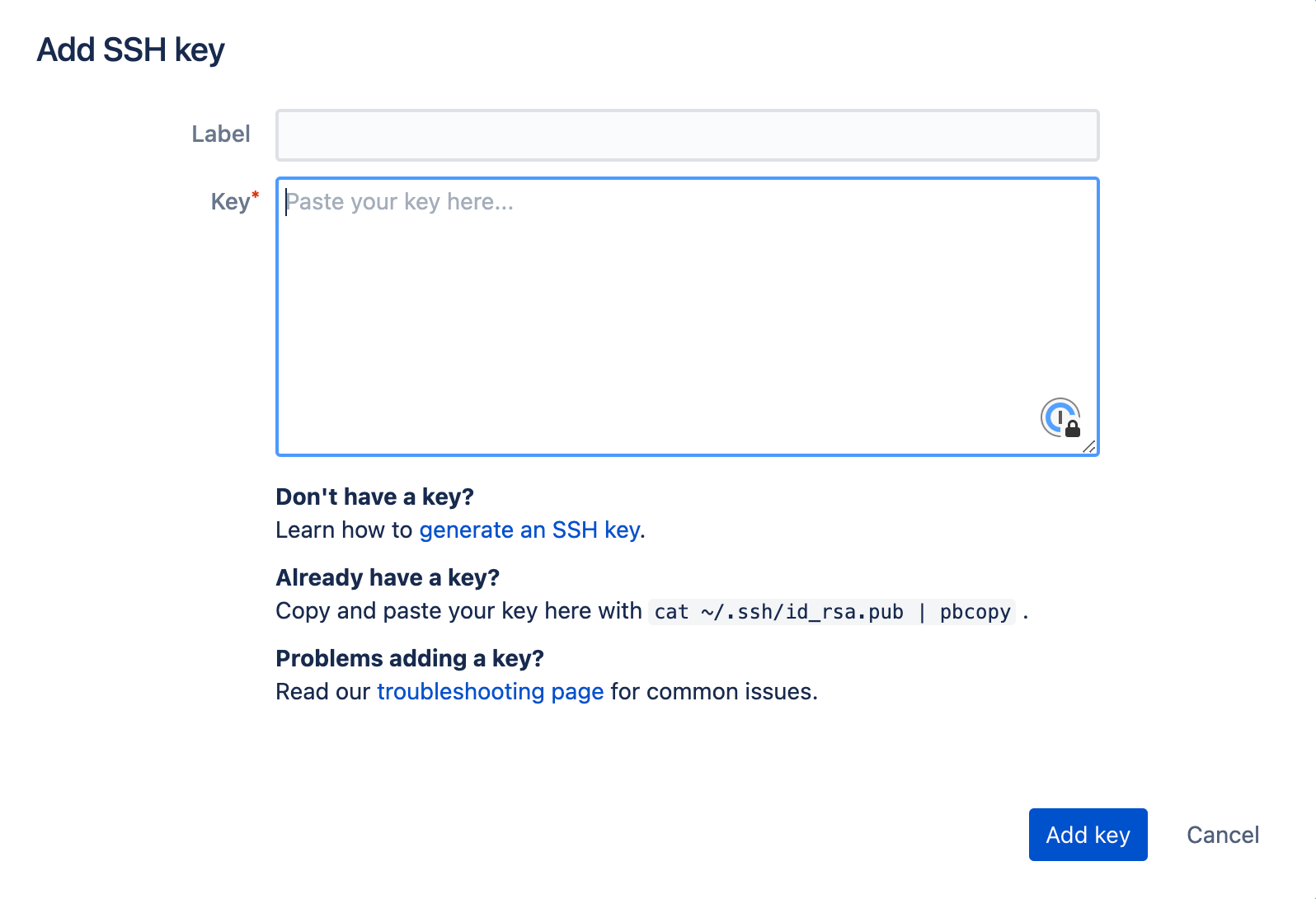
Visit the [Bitbucket SSH key settings](https://bitbucket.org/account/settings/ssh-keys/) to add a new key:
## Bitbucket
Visit the [Bitbucket SSH key settings](https://bitbucket.org/account/settings/ssh-keys/) to add a new key:
 It also works for [access keys](https://support.atlassian.com/bitbucket-cloud/docs/add-access-keys/).
## DigitalOcean
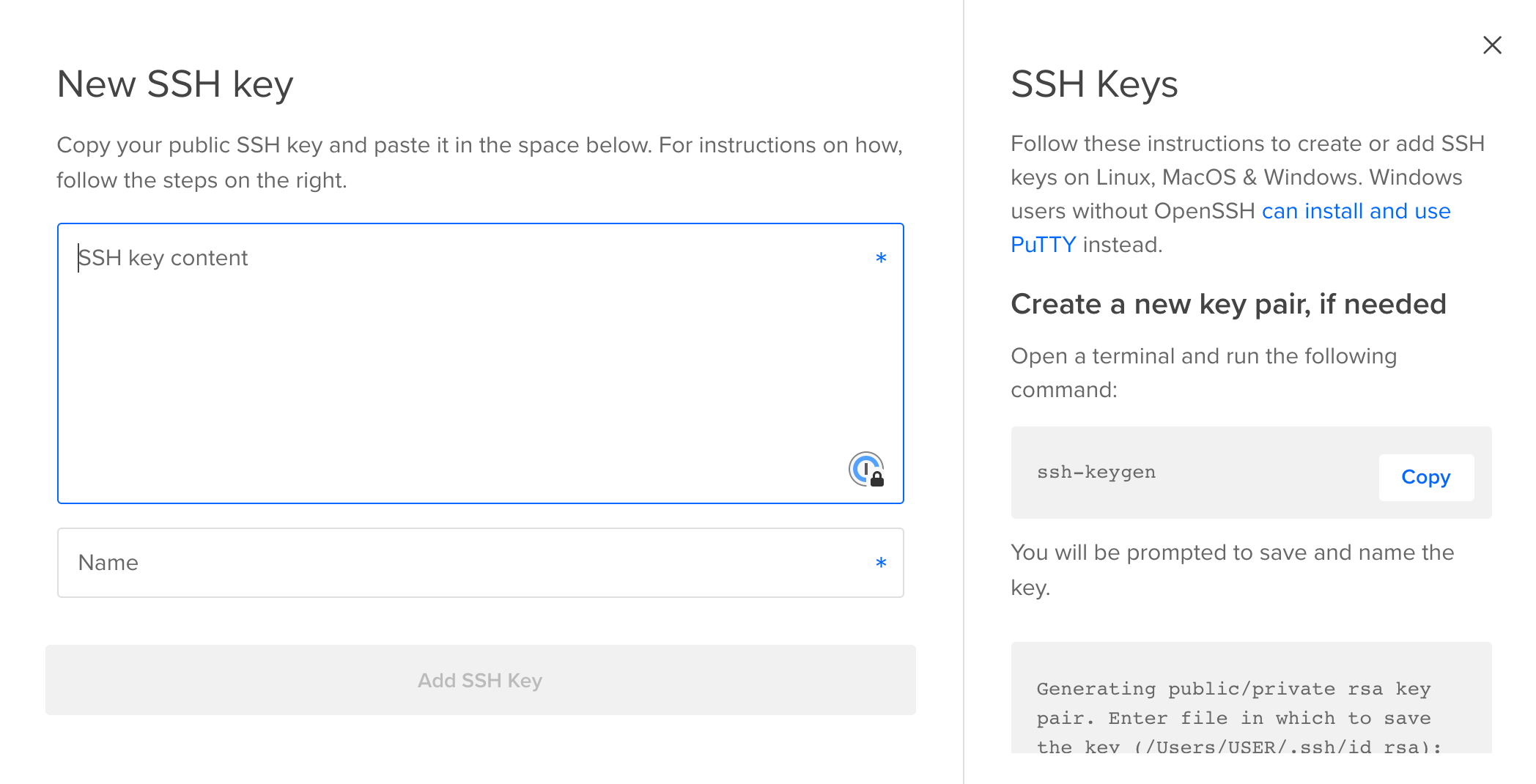
Visit your [account security settings](https://cloud.digitalocean.com/account/security) to add a new key:
It also works for [access keys](https://support.atlassian.com/bitbucket-cloud/docs/add-access-keys/).
## DigitalOcean
Visit your [account security settings](https://cloud.digitalocean.com/account/security) to add a new key:
 ## GitHub
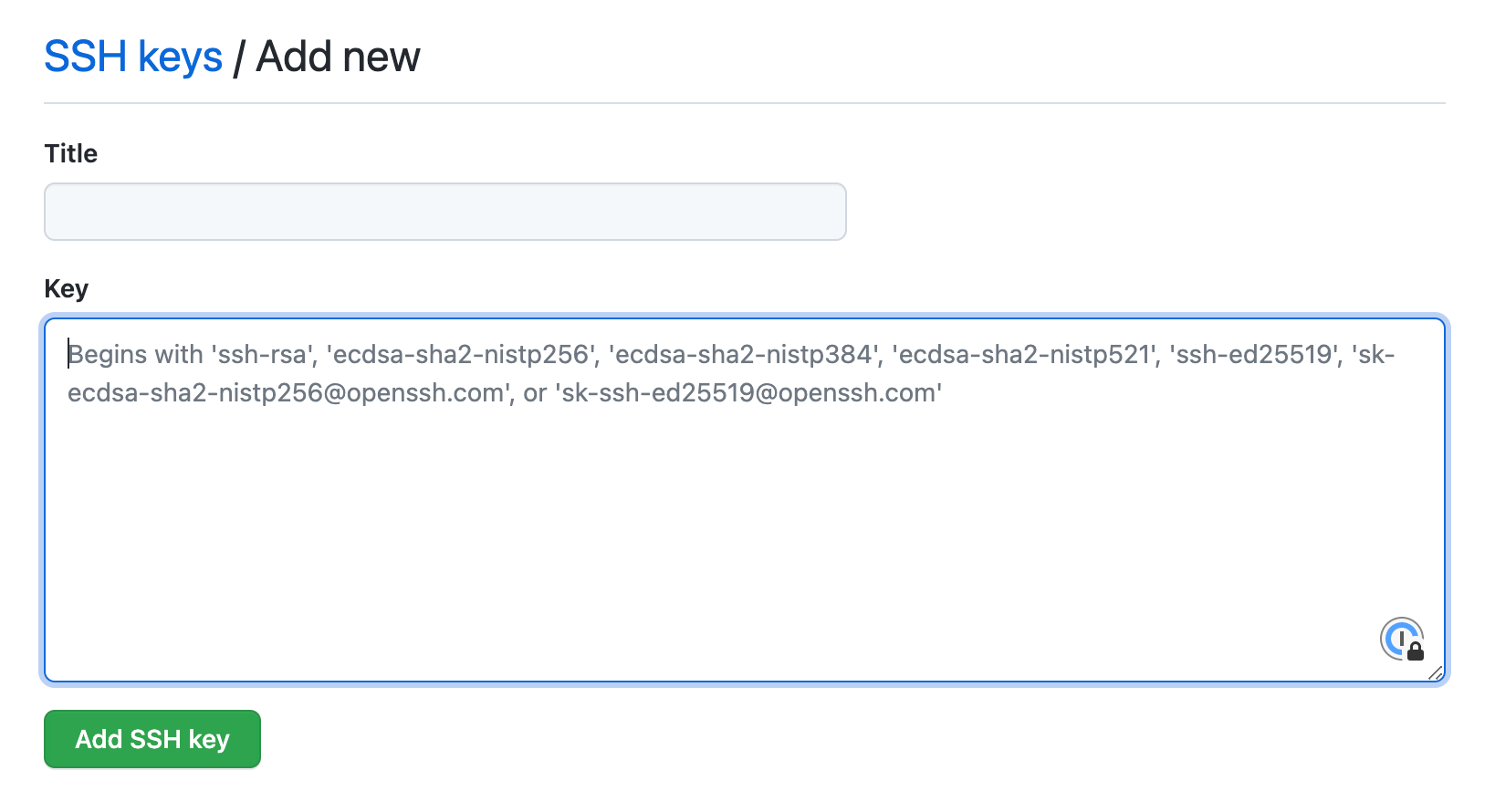
Visit the [GitHub SSH key settings](https://github.com/settings/ssh/new) to add a new key:
## GitHub
Visit the [GitHub SSH key settings](https://github.com/settings/ssh/new) to add a new key:
 You can also autofill [deploy keys](https://docs.github.com/en/developers/overview/managing-deploy-keys#deploy-keys).
## GitLab
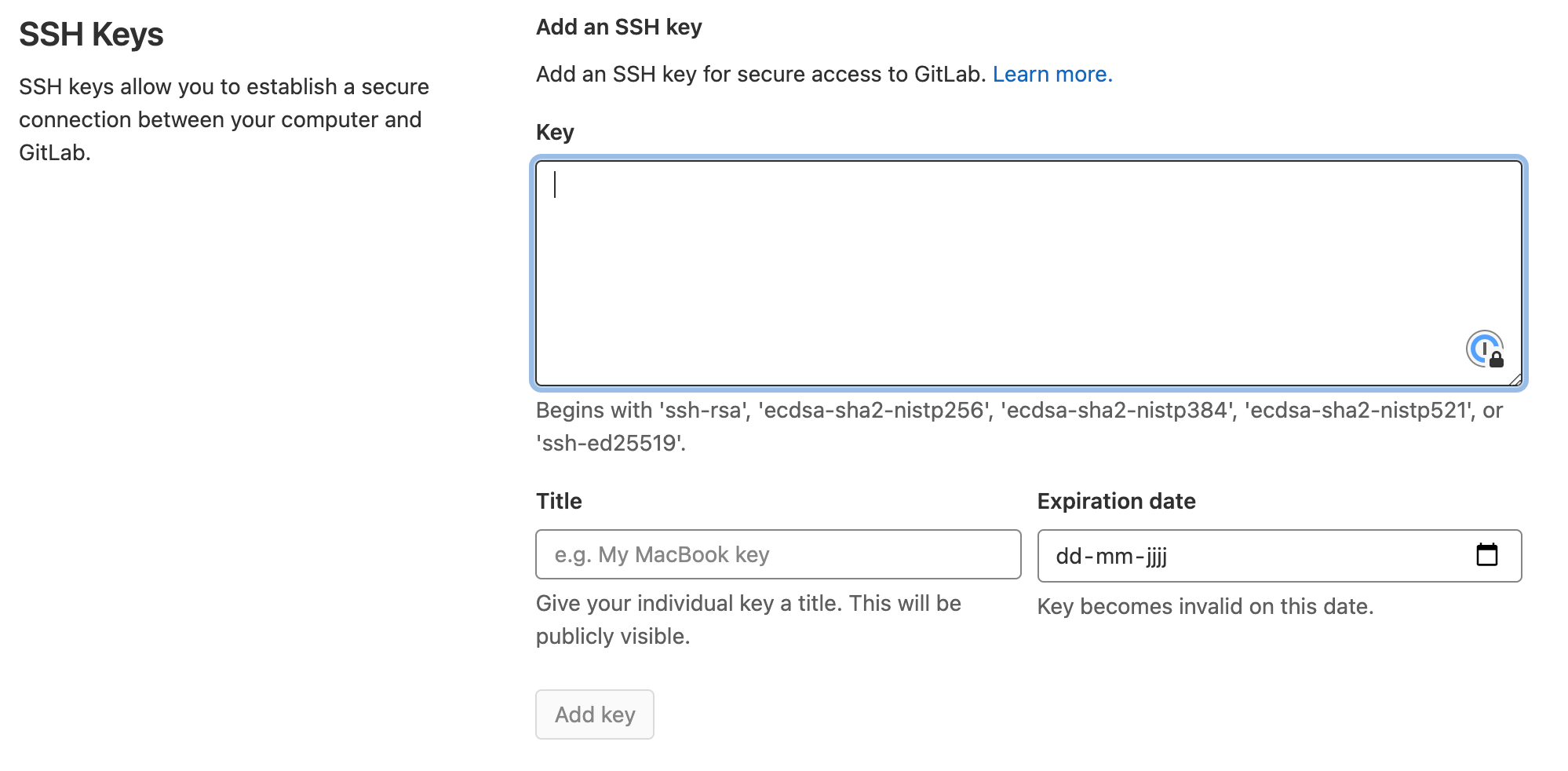
Visit the [GitLab SSH key settings](https://gitlab.com/-/user_settings/ssh_keys) to add a new key:
You can also autofill [deploy keys](https://docs.github.com/en/developers/overview/managing-deploy-keys#deploy-keys).
## GitLab
Visit the [GitLab SSH key settings](https://gitlab.com/-/user_settings/ssh_keys) to add a new key:
 It also works for [deploy keys](https://docs.gitlab.com/user/project/deploy_keys/).
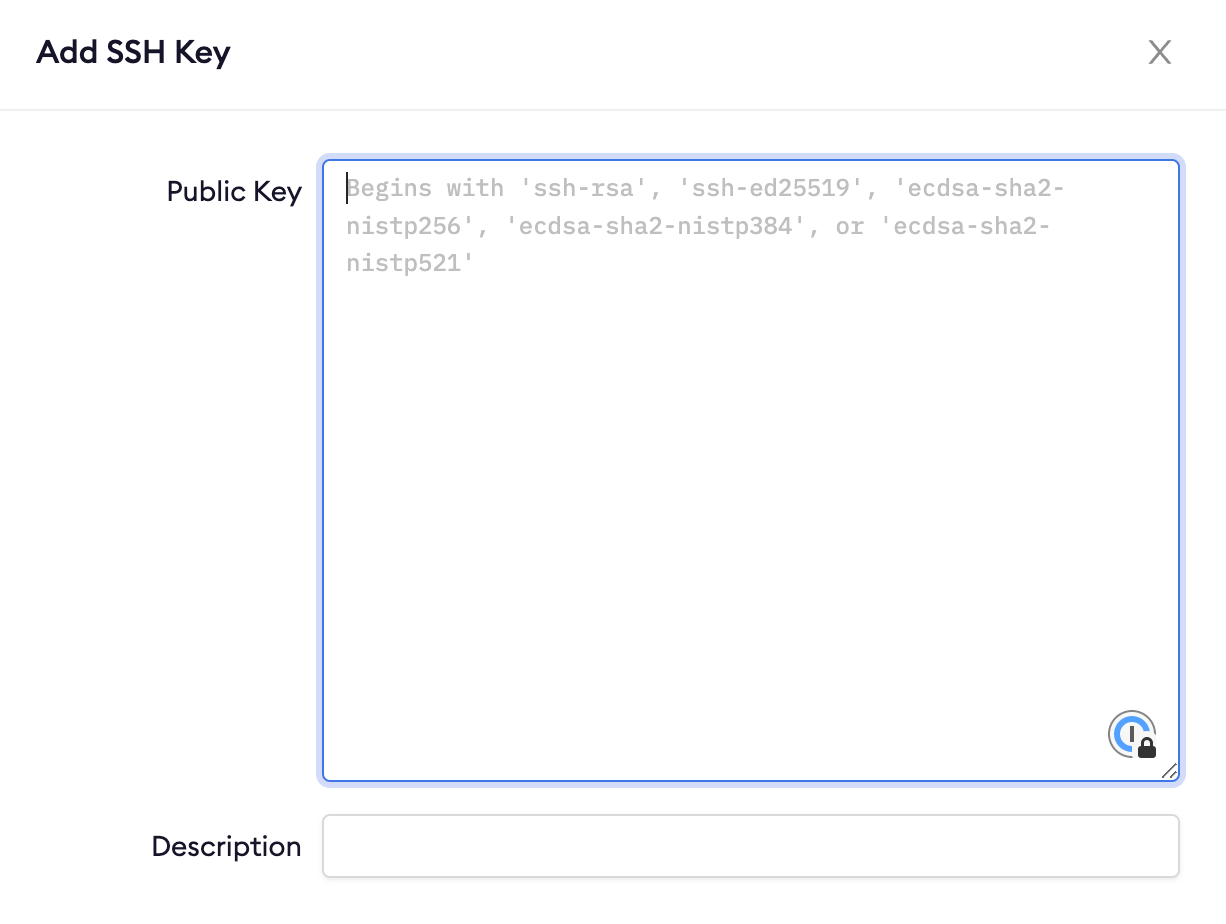
## Gitpod
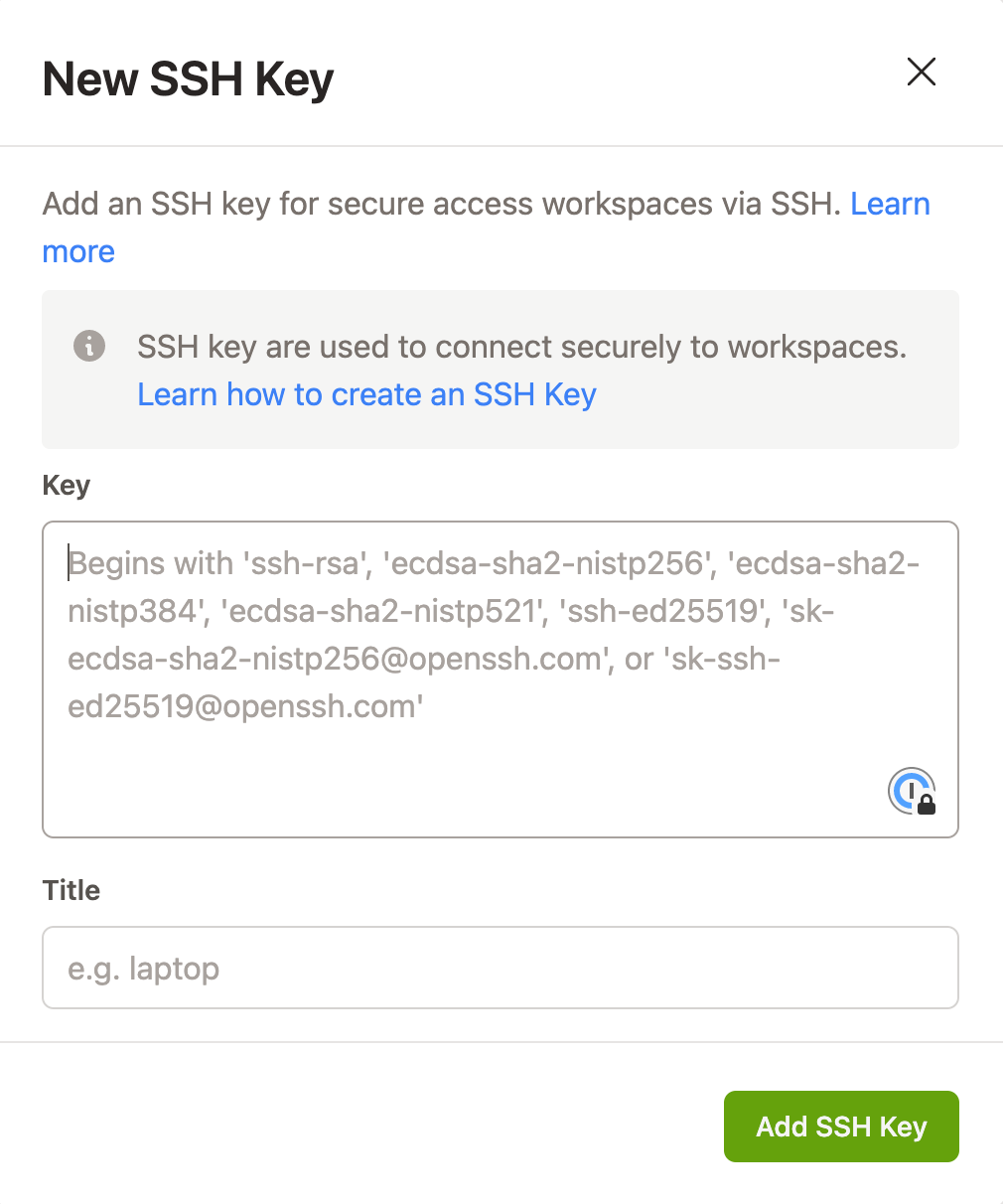
Visit the [Gitpod SSH key settings](https://gitpod.io/keys) to add a new key:
It also works for [deploy keys](https://docs.gitlab.com/user/project/deploy_keys/).
## Gitpod
Visit the [Gitpod SSH key settings](https://gitpod.io/keys) to add a new key:
 ## Google Compute Engine
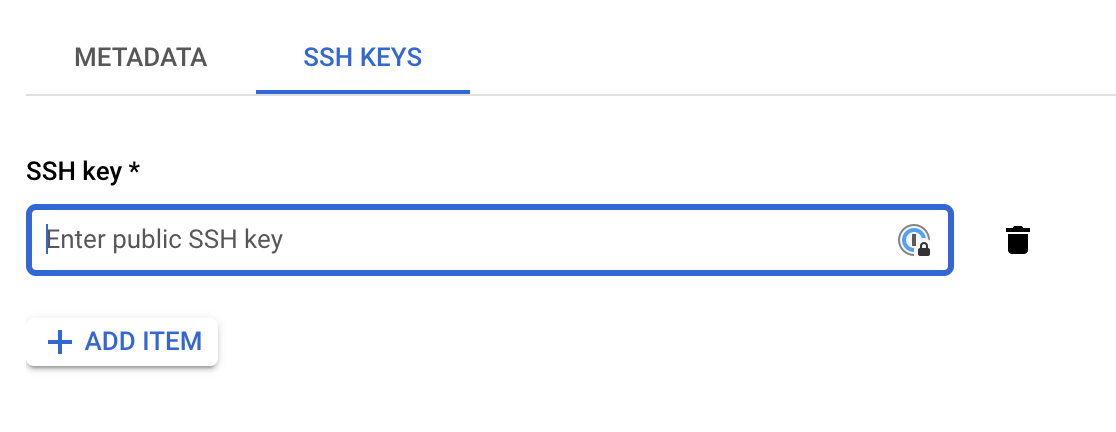
Visit the [Google Compute Engine metadata settings](https://console.cloud.google.com/compute/metadata?tab=sshkeys) to add a new key:
## Google Compute Engine
Visit the [Google Compute Engine metadata settings](https://console.cloud.google.com/compute/metadata?tab=sshkeys) to add a new key:
 ## IBM Cloud (VPC)
Visit the [**SSH keys** section](https://cloud.ibm.com/vpc-ext/compute/sshKeys) in the VPC Infrastructure console to add a new key:
## IBM Cloud (VPC)
Visit the [**SSH keys** section](https://cloud.ibm.com/vpc-ext/compute/sshKeys) in the VPC Infrastructure console to add a new key:
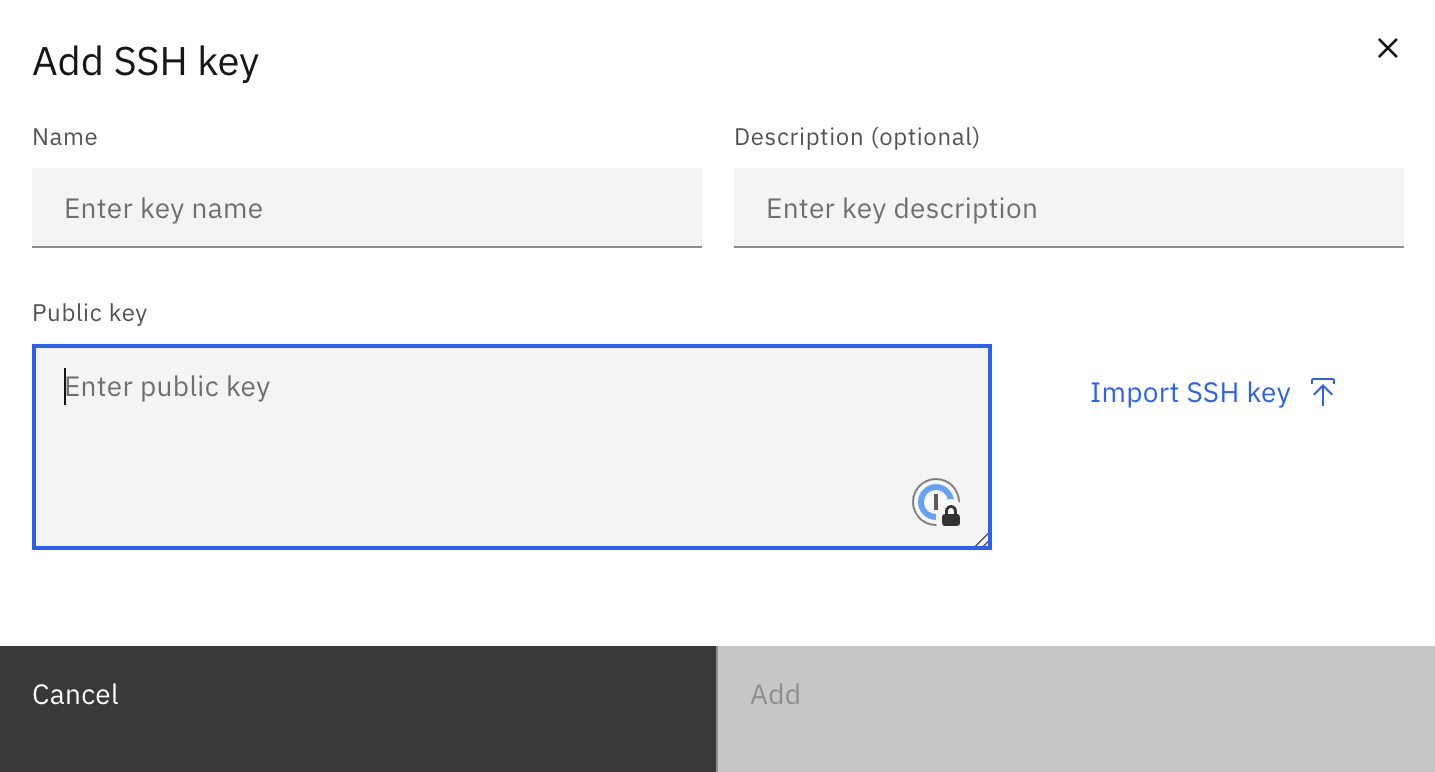
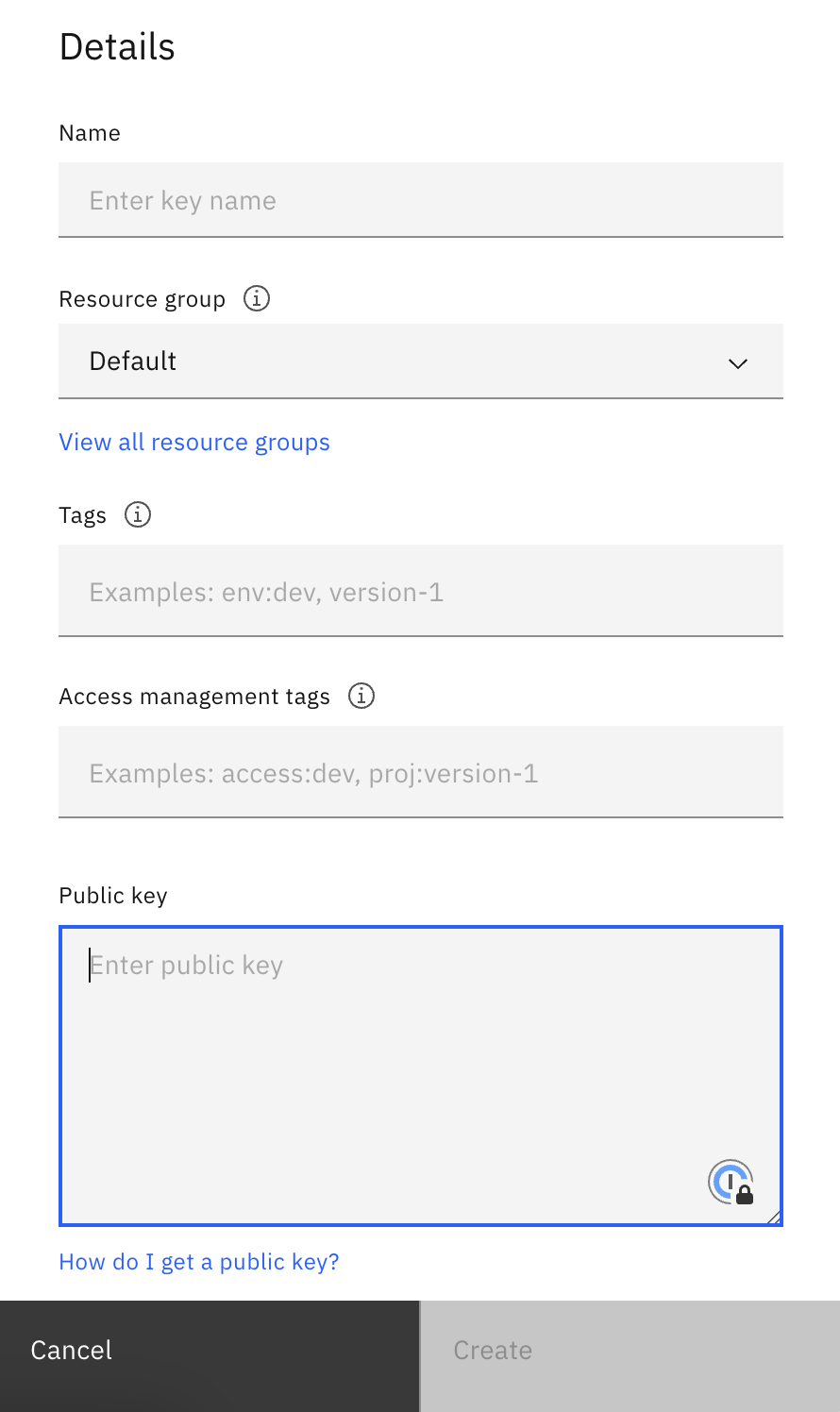 ## IBM Cloud (Classic)
Visit the [**SSH keys** section](https://cloud.ibm.com/gen1/infrastructure/ssh-keys) in the Classic Infrastructure console to add a new key:
## IBM Cloud (Classic)
Visit the [**SSH keys** section](https://cloud.ibm.com/gen1/infrastructure/ssh-keys) in the Classic Infrastructure console to add a new key:
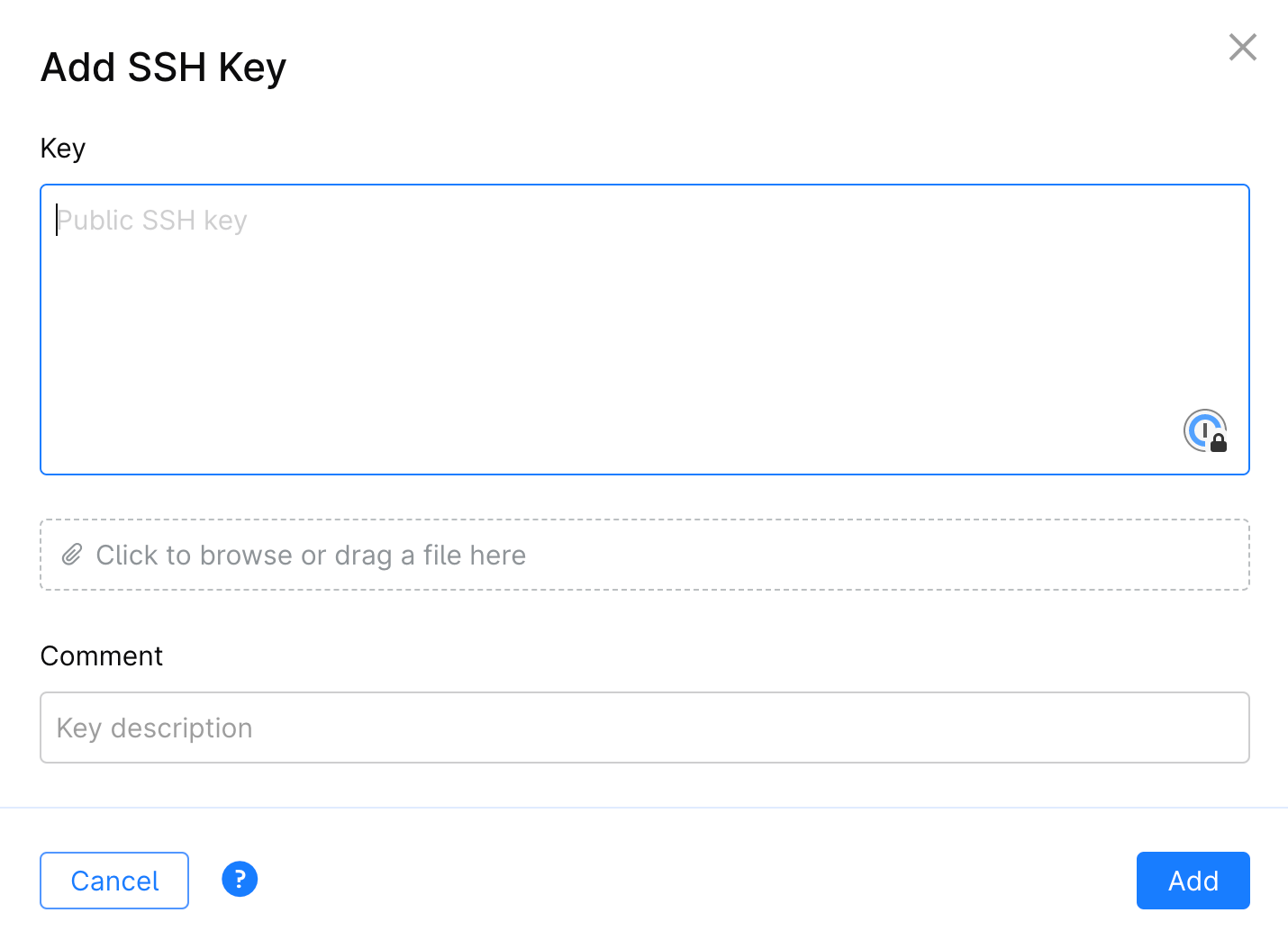
 ## JetBrains Space
Visit the **Git Keys** tab in your Space profile settings to add a new key:
## JetBrains Space
Visit the **Git Keys** tab in your Space profile settings to add a new key:
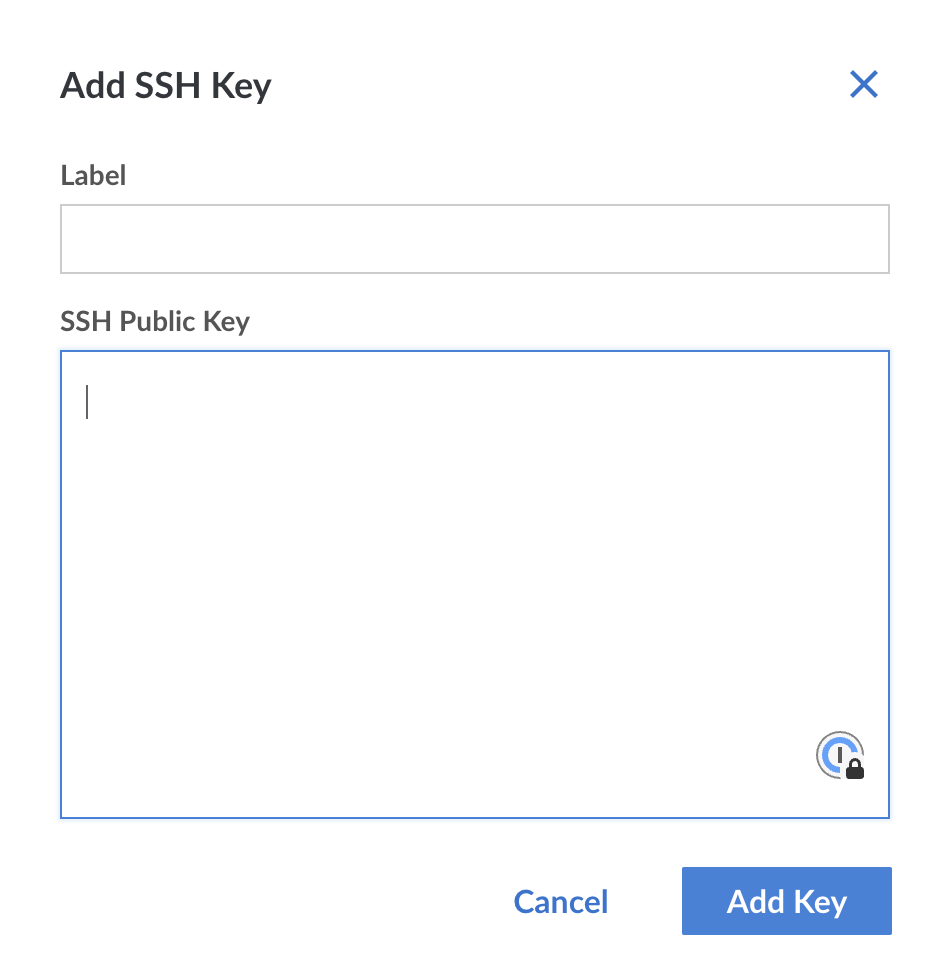
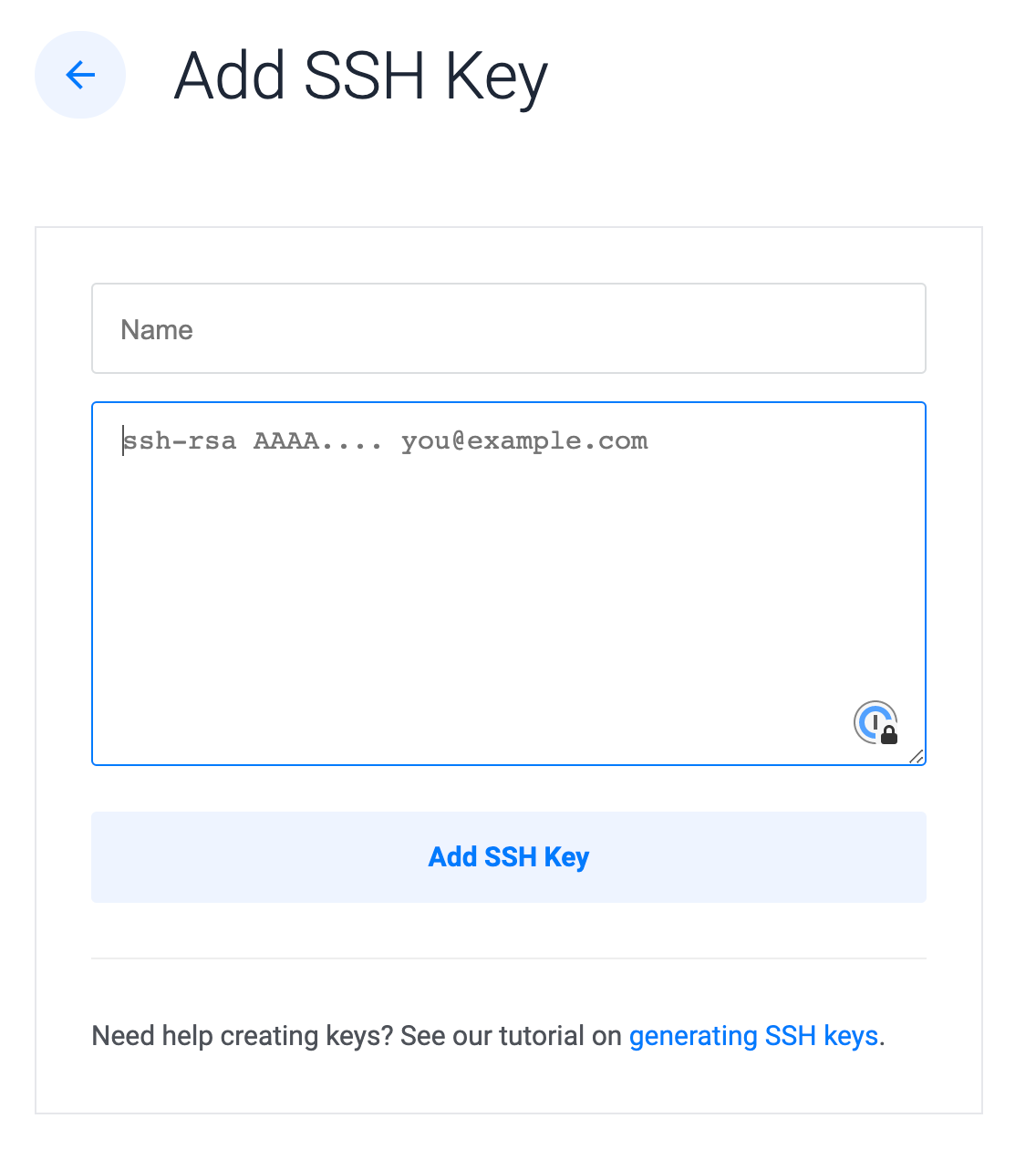
 ## Linode
Visit the [**SSH Keys** section in your profile](https://cloud.linode.com/profile/keys) to add a new key:
## Linode
Visit the [**SSH Keys** section in your profile](https://cloud.linode.com/profile/keys) to add a new key:
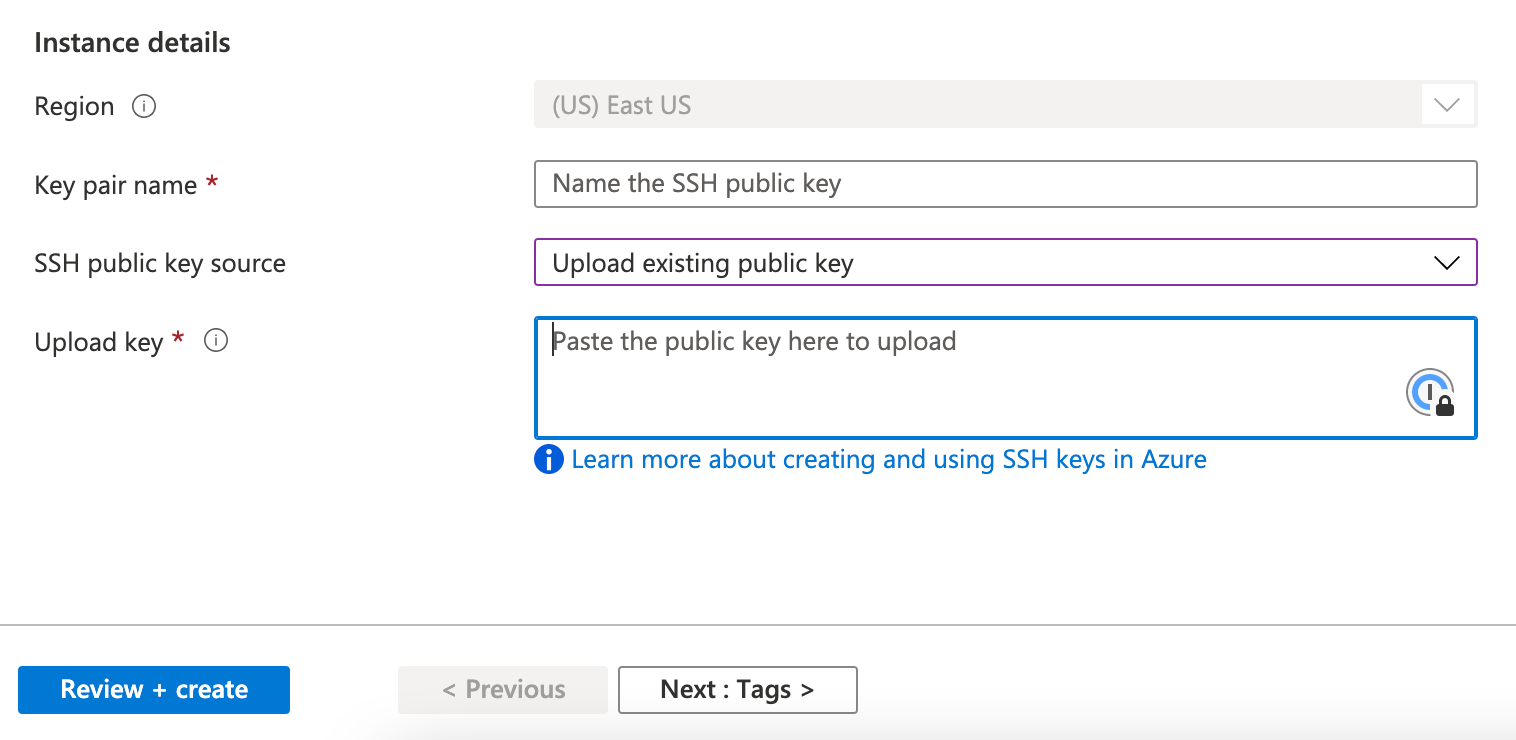
 ## Microsoft Azure
Visit the [**SSH keys** section in the Azure portal](https://portal.azure.com/#create/Microsoft.SshKey) to add a new key:
## Microsoft Azure
Visit the [**SSH keys** section in the Azure portal](https://portal.azure.com/#create/Microsoft.SshKey) to add a new key:
 ## Ngrok
Visit the [**SSH Public Keys** section in the Ngrok dashboard](https://dashboard.ngrok.com/tunnels/ssh-keys/new) to add a new key:
## Ngrok
Visit the [**SSH Public Keys** section in the Ngrok dashboard](https://dashboard.ngrok.com/tunnels/ssh-keys/new) to add a new key:
 ## Vultr
Visit the [Vultr SSH key settings](https://my.vultr.com/settings/#settingssshkeys) to add a new key:
## Vultr
Visit the [Vultr SSH key settings](https://my.vultr.com/settings/#settingssshkeys) to add a new key:
 ## Learn more
* [Manage SSH keys](/ssh/manage-keys/#generate-an-ssh-key)
* [Sign Git commits](/ssh/git-commit-signing)
* [About 1Password SSH Agent security](/ssh/agent/security/)
* [Workflow: Secure your SSH & Git workflows](/get-started/secure-ssh-git-workflows)
## Learn more
* [Manage SSH keys](/ssh/manage-keys/#generate-an-ssh-key)
* [Sign Git commits](/ssh/git-commit-signing)
* [About 1Password SSH Agent security](/ssh/agent/security/)
* [Workflow: Secure your SSH & Git workflows](/get-started/secure-ssh-git-workflows)