> ## Documentation Index
> Fetch the complete documentation index at: https://www.1password.dev/llms.txt
> Use this file to discover all available pages before exploring further.

# 1Password Developer Watchtower

export const Small = ({children}) => {
  return <small>{children}</small>;
};

<Columns cols={2}>
  <div>
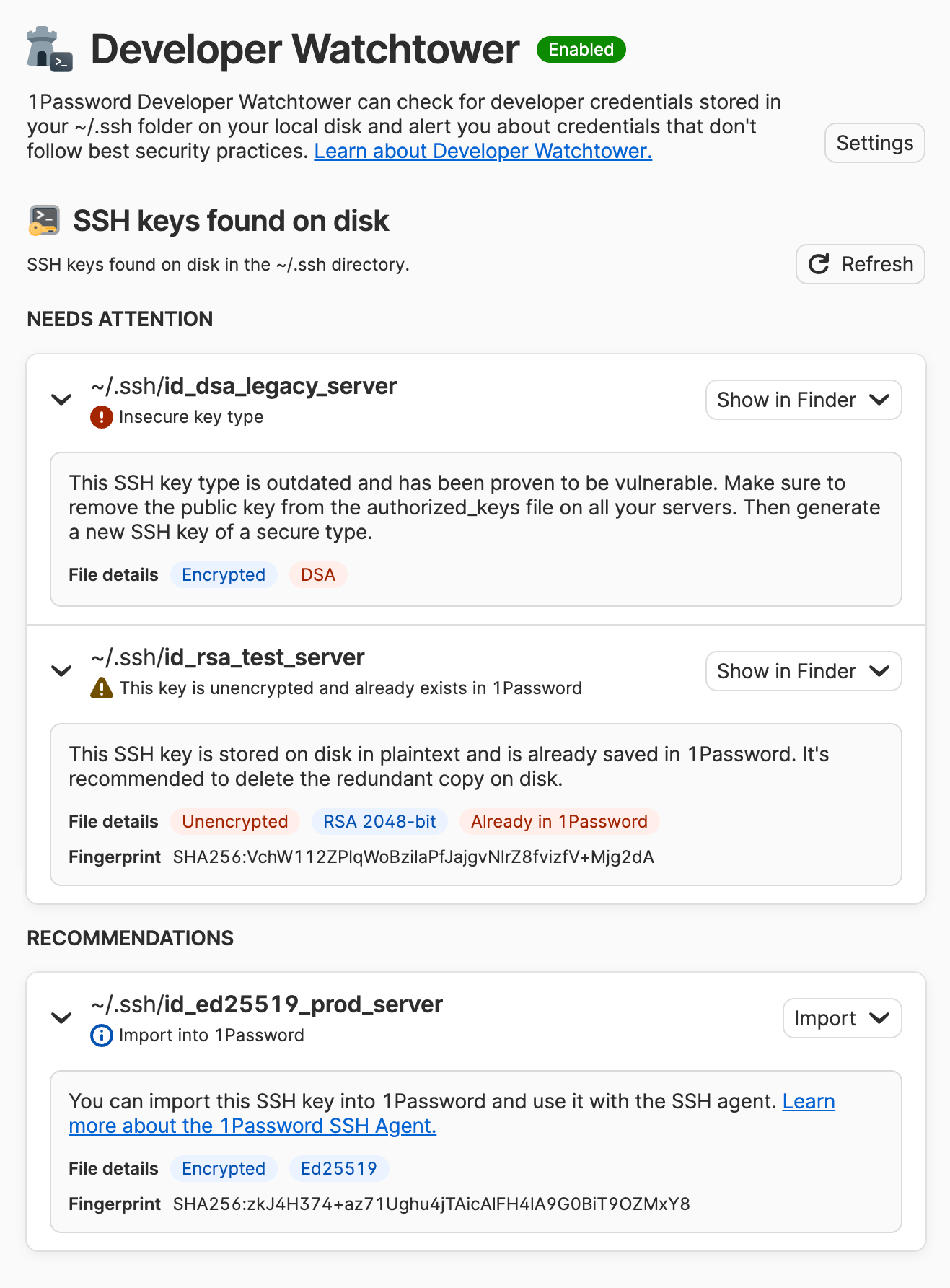
    <p>1Password Developer Watchtower can check for developer credentials stored on your local disk and alert you about credentials that don't follow best security practices, such as SSH keys stored in plaintext or that use outdated cryptography.</p>

    <p>To help you remediate any issues and mitigate security risks, Developer Watchtower provides recommendations relevant to each alert, like if you should encrypt a local SSH key or import it into 1Password.</p>

    ## Requirements

    Before you can use Developer Watchtower, you'll need to:

    * [Sign up for 1Password.](https://1password.com/pricing/password-manager)
    * Install and sign in to 1Password for [Mac](https://1password.com/downloads/mac), [Windows](https://1password.com/downloads/windows), or [Linux](https://1password.com/downloads/linux). <br /><Small>This feature is not available in 1Password for iOS or Android.</Small>
  </div>

  <div>
    <img src="https://mintcdn.com/ab-634991b8/dzX4i4DKMioaV1IG/static/img/watchtower-keys-on-disk.png?fit=max&auto=format&n=dzX4i4DKMioaV1IG&q=85&s=b58f15b9b3aa4b30809094326a9edcb3" alt="Developer Watchtower showing several discovered insecure SSH keys." width="1317" height="1785" data-path="static/img/watchtower-keys-on-disk.png" />
  </div>
</Columns>

## Set up 1Password Developer Watchtower

### Step 1: Turn on 1Password Developer

1. Open and unlock the 1Password desktop app.
2. Select your account or collection at the top of the sidebar and choose **Settings** > [**Developer**](onepassword://settings/developers).
3. Turn on **Show 1Password Developer experience**.

### Step 2: Check for developer credentials on disk

1. Select **Developer** in the sidebar of the 1Password desktop app.
2. Select **View Developer Watchtower**.
3. Turn on **Check for developer credentials on disk**.

Then [view your results](#step-3-view-your-results-in-developer-watchtower) in Developer Watchtower.

1Password only uses your local disk to check for developer credentials, and no one at 1Password can see or access your data. Learn more [Watchtower privacy](https://support.1password.com/watchtower-privacy/).

### Step 3: View your results in Developer Watchtower

1Password will list any credentials it finds on disk under one of the following categories, according to the attributes with the highest security impact:

* **Needs attention**: Credentials that are known to be vulnerable and pose some level of security risk.
* **Recommendations**: Credentials that could benefit from additional key management.

Select an item in the list to reveal information about the credential along with recommendations and suggested actions. Select the item's action menu to see options to show the credential in your file manager, copy relevant metadata, delete the SSH key from disk, and more.

<Note>
  SSH keys are the only developer credentials currently supported in Developer Watchtower, so your results won't include other credentials you may have stored on your local disk.
</Note>

## SSH keys found on disk

1Password checks your local disk for SSH keys in the following location and formats:

| Location                              | Credential type                                       |
| ------------------------------------- | ----------------------------------------------------- |
| `~/.ssh` (up to 3 nested directories) | SSH private keys in OpenSSH, PKCS#8, or PKCS#1 format |

1Password doesn't follow symlinks or traverse file systems (for example, an external drive mounted at `~/.ssh/other` will be skipped). Files over 1 MiB (mebibyte) in size are also skipped.

If any SSH keys are found within these parameters, they'll be added to Developer Watchtower to alert you to security issues and provide recommendations to improve your SSH key management.

### SSH key alerts

| Alert message                                                                           | Description                                                     | Recommended Action                                                                                                                                                                                                                  |
| --------------------------------------------------------------------------------------- | --------------------------------------------------------------- | ----------------------------------------------------------------------------------------------------------------------------------------------------------------------------------------------------------------------------------- |
| <Icon icon="exclamation-circle" iconType="solid" color="#ff0000ff" /> Insecure key type | An SSH key in an outdated format that's known to be vulnerable. | Remove the public key from the `authorized_keys` file of any server and service you've used it with. Then generate a new, secure SSH key in 1Password and delete the insecure key file from disk. [Learn more.](#insecure-key-type) |
| <Icon icon="warning" iconType="solid" color="#FFA500" /> This key is unencrypted        | An SSH key stored in plaintext on disk.                         | Import the key into 1Password and remove the unencrypted copy from your disk, or use the `ssh-keygen` command to encrypt the file on disk. [Learn more.](#unencrypted-key)                                                          |
| <Icon icon="info-circle" color="#3b66bc" /> Already exists in 1Password                 | An SSH key you've already saved in 1Password.                   | Delete the redundant copy of your SSH key on disk and keep the key you've already secured in 1Password. [Learn more.](#already-exists-in-1password)                                                                                 |
| Unsupported key                                                                         | An SSH key that isn't supported in 1Password.                   | Generate a new SSH key in 1Password if you want to use it with the 1Password SSH Agent. [Learn more.](#unsupported-keys)                                                                                                            |

<h4 id="insecure-key-type">
  <Icon icon="exclamation-circle" size="18px" iconType="solid" color="#ff0000ff" /> Insecure key type
</h4>

An insecure SSH key is a critical security issue that needs to be addressed. Insecure keys are vulnerable to being cracked, which can provide attackers with the ability to infiltrate and compromise servers. Insecure keys include:

* DSA keys
* RSA keys less than 2048 bits in strength

[OpenSSH <Icon icon="arrow-up-right-from-square" />](https://lists.mindrot.org/pipermail/openssh-unix-announce/2024-January/000156.html) is removing support for these insecure key types, along with major developer platforms like [GitHub <Icon icon="github" />](https://github.blog/2021-09-01-improving-git-protocol-security-github/) and GitLab.

If Developer Watchtower alerts you to an insecure SSH key, it's imperative that you remove the SSH key file from your disk *and* from the `authorized_keys` file of every server it's used with.

First, remove the insecure key from the `authorized_keys` file of every server, or from any service, where it's used. Next, [generate a new, secure SSH key in 1Password](/ssh/manage-keys#generate-an-ssh-key) and use the new key to replace the insecure key anywhere it was used. Then, in Developer Watchtower, select the action menu for the insecure key and choose **Delete SSH key from disk** to permanently remove the key from disk.

<h4 id="unencrypted-key">
  <Icon icon="warning" color="#FFA500" size="18px" iconType="solid" /> Unencrypted key
</h4>

A private key file stored in plaintext is a security vulnerability and provides [an easy target for malware. <Icon icon="arrow-up-right-from-square" />](https://www.scmagazine.com/news/github-npm-registry-abused-to-host-ssh-key-stealing-malware) Encrypting your SSH private keys with passphrases provides another layer of protection and is a common practice supported by SSH clients.

If Developer Watchtower alerts you to an unencrypted key on your local disk, you can choose one of the following options from the action menu:

* **Import**: When you import an SSH key into 1Password, it's [automatically encrypted for you](https://support.1password.com/1password-security/#encryption). After you import the key into 1Password, you can permanently remove the redundant copy from your disk. Select the action menu for the unencrypted key in Developer Watchtower and choose **Delete SSH key from disk**.
* **Copy Encryption Command**: If you prefer to keep a copy on disk, you should encrypt the key file with a passphrase. This option copies the `ssh-keygen` command to your clipboard, including the path to your key. You can run the command in your terminal app:

  ```shell theme={null}
  ssh-keygen -pf path/to/your/key
  ```

  The `-pf` flag prompts you to create a passphrase and specify the private key file you want to encrypt.

<h4 id="already-exists-in-1password">
  <Icon icon="info-circle" size="18px" color="#3b66bc" /> Already exists in 1Password
</h4>

1Password compares the public fingerprint of the SSH key on your local disk with the fingerprints of your SSH Key items in 1Password to determine if you've already saved the key there.

If Developer Watchtower indicates that a key in your local `~/.ssh` folder has already been saved 1Password, you can remove the redundant copy of the SSH key on disk. Select the item's action menu and choose **Delete SSH key from disk** to permanently remove the key from disk.

#### Unsupported keys

An SSH key that isn't [supported in 1Password](/ssh/manage-keys#supported-ssh-key-types) can't be imported. 1Password supports the following key types and formats:

* Ed25519 keys
* RSA 2048, 3072, and 4096-bit keys

If Developer Watchtower lets you know that a key on your local disk is unsupported, consider [generating a new SSH key](/ssh/manage-keys#generate-an-ssh-key) if you want to use it with the [1Password SSH Agent](/ssh/agent).

You may also be able to convert some keys to a format 1Password does support. For example, 1Password doesn't support keys in the PuTTY format (`.ppk`), but [PuTTYgen <Icon icon="arrow-up-right-from-square" />](https://www.puttygen.com/) lets you export your PPK keys into the OpenSSH format.

## Ignore files

If you want 1Password to ignore specific files in your `~/.ssh` folder when checking for developer credentials, you can create a `.ignore` file in your SSH folder. Add entries to the `~/.ssh/.ignore` file to specify any files 1Password should ignore. For example:

```text Example entries in ~/.ssh/.ignore file theme={null}
test_key
*_development
```