

As of Feb 27, 2025, all 1Password customers have unlimited access to Connect.
A Connect server is a type of Secrets Automation workflow that allows you to securely access your 1Password items and vaults in your company’s apps and cloud infrastructure using a private REST API provided by 1Password Connect Server.
You can use 1Password.com or the Connect REST API to:
- Control which team members and applications have access to which Connect server access tokens.
- Monitor and audit access and item usage.
- Secure applications by choosing when Connect server access tokens expire.
- Create and revoke Connect server access tokens.

Manage permissions
With 1Password Business or 1Password Teams, you can manage Connect server permissions with groups, or more granularly, with environments. This allows for enforcement of security best practices. Learn more about Connect security.Manage global permissions
Groups allow you to specify one or more users who can access Connect servers.
To assign groups (such as Owners and Administrators) to manage Connect servers:
- Sign in to your account on 1Password.com.
- Select Developer in the sidebar.
- Select Permissions at the top of the page, then select Secrets Automation.
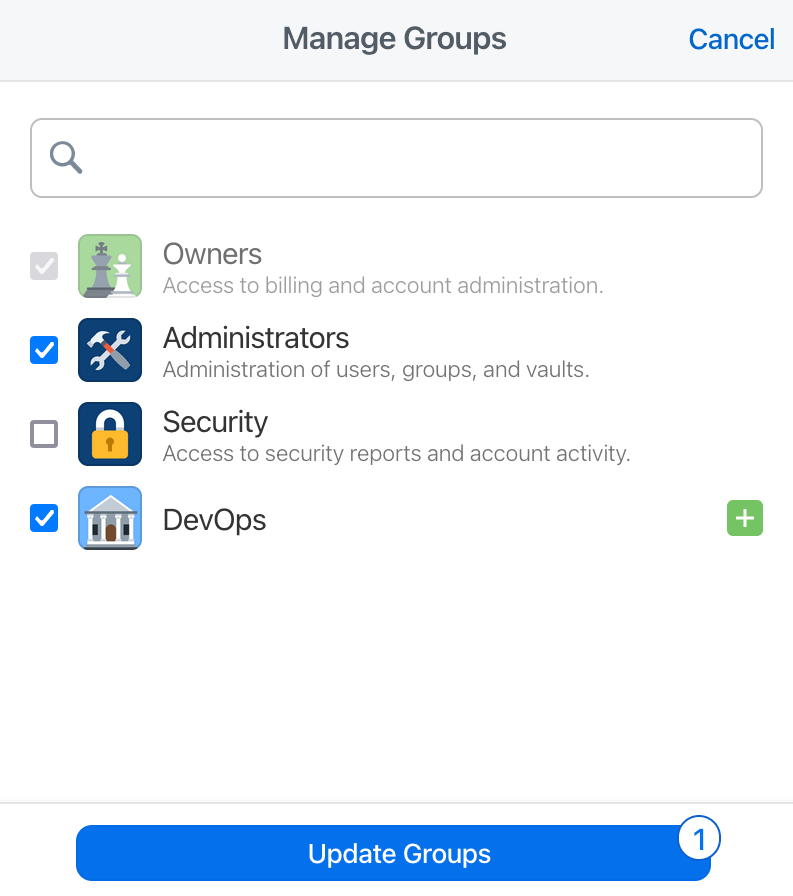
- In the Managers section, select Manage, then choose the groups you want to manage Connect servers.
- Select Update Groups.
Manage environment permissions
Environments allow you to override global permissions (with groups) for a specific Connect server environment. To assign groups (such as Owners and Administrators) to manage a specific Connect server:- Sign in to your account on 1Password.com.
- Select Developer in the sidebar.
- Select Permissions at the top of the page, then select Secrets Automation.
- In the Environments section, select Manage.
- In the Permissions section, select Manage, then choose the groups you want to manage Connect servers in the environment.
- Select Update Groups.
Manage access tokens
You can use Connect server access tokens to authenticate with your Connect server in your applications and services.- Create an access token.
- Set an access token expiration.
- Revoke an access token.
- Rename an access token.
Create a token
To create a Connect server access token:- Sign in to your account on 1Password.com.
- Select Developer in the sidebar.
- Select Connect servers at the top of the page, then choose the Secrets Automation environment where you want to create an access token.
- Select New Token.
- Follow the onscreen instructions to issue the token.
Set a token expiration
When you create a Connect server access token, you can set the token’s expiration time to 30, 90, or 180 days. When the expiration time elapses, 1Password revokes the token. To create a token with an expiration date:- Sign in to your account on 1Password.com.
- Select Developer in the sidebar.
- Select Connect servers at the top of the page, then choose the Secrets Automation environment where you want to create an access token.
- Select New Token.
- Set the “Expires After” to 30 days, 90 days, or 180 days.
- Follow the onscreen instructions.
Revoke a token
To revoke a Connect server access token:- Sign in to your account on 1Password.com.
- Select Developer in the sidebar.
- Select Connect servers at the top of the page, then choose the Secrets Automation environment where you want to manage access tokens.
- Select next to the token you want to revoke, then select Revoke.
Rename a token
To rename a Connect server access token:- Sign in to your account on 1Password.com.
- Select Developer in the sidebar.
- Select Connect servers at the top of the page, then choose the Secrets Automation environment where you want to manage access tokens.
- Select next to the token you want to rename, then select Rename and enter a new name.
Grant or revoke access to vaults
To grant or revoke access to vaults:
- Sign in to your account on 1Password.com.
- Select Developer in the sidebar.
- Select Connect servers at the top of the page, then choose the Secrets Automation environment where you want to grant or revoke access to vaults.
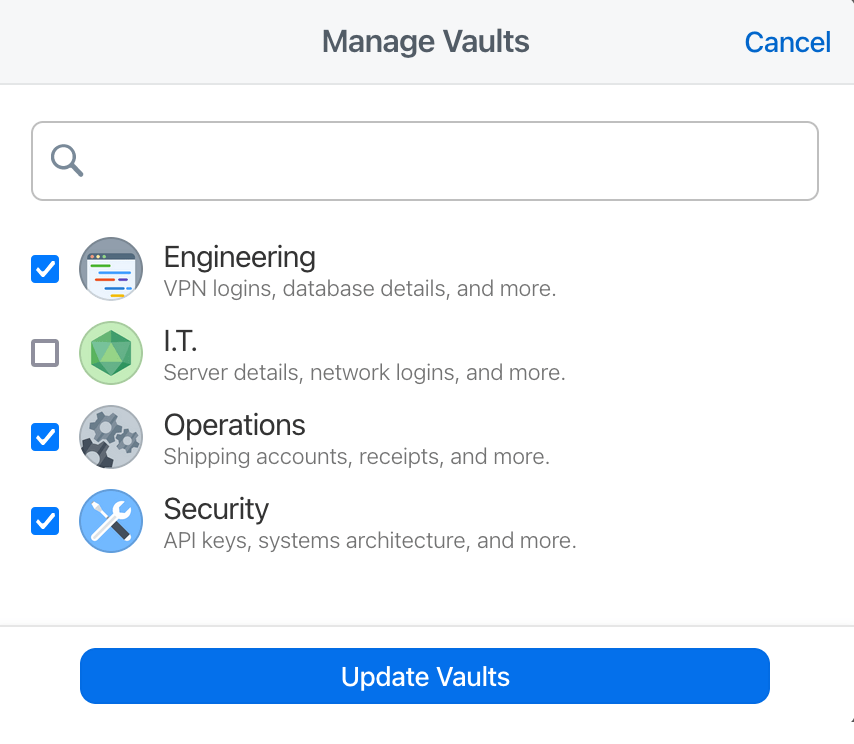
- In the Vaults section, select Manage and choose the vaults you want to add or remove.
- Select Update Vaults.
Monitor item usage
Connect servers send reports about item usage to the 1Password server every time an item is accessed so you can monitor item usage.Item usage information might take a few hours to sync with 1Password.com.
- Sign in to your account on 1Password.com.
- Select Developer in the sidebar.
- Select Connect servers at the top of the page, then choose the Secrets Automation environment (Connect server) you want to monitor.
- Under Version, select More Actions > View Item Usage Report.
About Connect server item usage
Items accessed through a Connect server update specific fields in the following manner:- The Action field in the report always shows Display.
- The Used by field always includes the name of the Connect server (not the Connect server access token).