

- Connect to SSH hosts directly from 1Password, without manually entering commands in the terminal.
- Match your SSH keys to specific hosts to make sure the correct key is used for each connection.
- Avoid server key limitations when managing multiple SSH keys.
ssh:// URLs to your SSH Key items.
Requirements
- Sign up for 1Password.
- Install and sign in to 1Password for Mac, Windows, or Linux.
- Import or generate SSH keys in 1Password.
- Set up the 1Password SSH Agent.
Manage your SSH Bookmarks
You can use and manage SSH Bookmarks for hosts that use keys available to the 1Password SSH Agent. If you’re signed in to multiple accounts in the 1Password desktop app, make sure to unlock the accounts where you’ve stored the keys for your SSH hosts.Create a bookmark
Create bookmarks for your frequently used SSH hosts from the SSH Agent activity log or in an SSH Key item.From the activity log
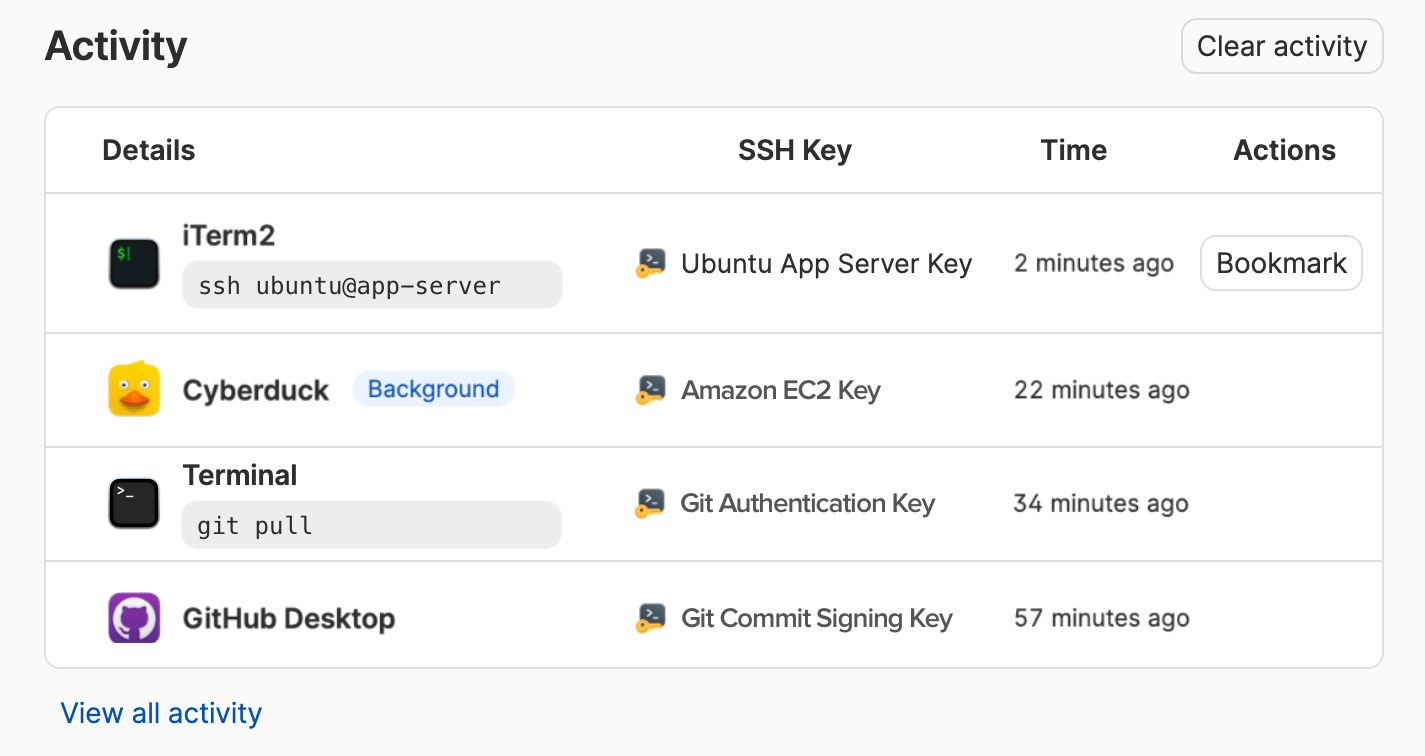
If you’ve recently used 1Password to authorize anssh command run from the terminal (like ssh user@hostname), you can create a bookmark from the SSH Agent activity log.
- Open and unlock the 1Password desktop app.
- Select Developer in the sidebar.
- Select View SSH Agent, then select the Activity tab.
- Select Bookmark in the Actions column for an SSH host.
In an SSH Key item
To create a bookmark manually, you can add the SSH host URL to an SSH Key item in 1Password.- Find the SSH Key item for the host you want to bookmark, then select Edit.
- Add a custom field with the SSH host URL (a field label isn’t required).
SSH host URLs must start with
ssh://and can use the hostname or IP address of the SSH host. - Select Save.
Host block in your ~/.ssh/config file with a custom alias (for example, Host my-host-alias), you can also bookmark the alias instead of the actual hostname or IP address. For example:
- Hostname:
ssh://user@example.org,ssh://test-server.example.com - IP address:
ssh://admin@192.0.2.255, (IPv4),ssh://user@2001:DB8:a8b0:5678::200c(IPv6) - Host alias:
ssh://my-host-alias
Connect to a bookmarked host
You can connect to your bookmarked SSH hosts from the Bookmarks section of the 1Password app.- Open and unlock the 1Password desktop app.
- Select Developer in the sidebar.
- Select View SSH Agent, then select the Bookmarks tab.
- Select Connect on a bookmarked host. 1Password will launch the terminal, which initiates a connection to the SSH host.
- Authorize the connection, if prompted.
Edit a bookmark
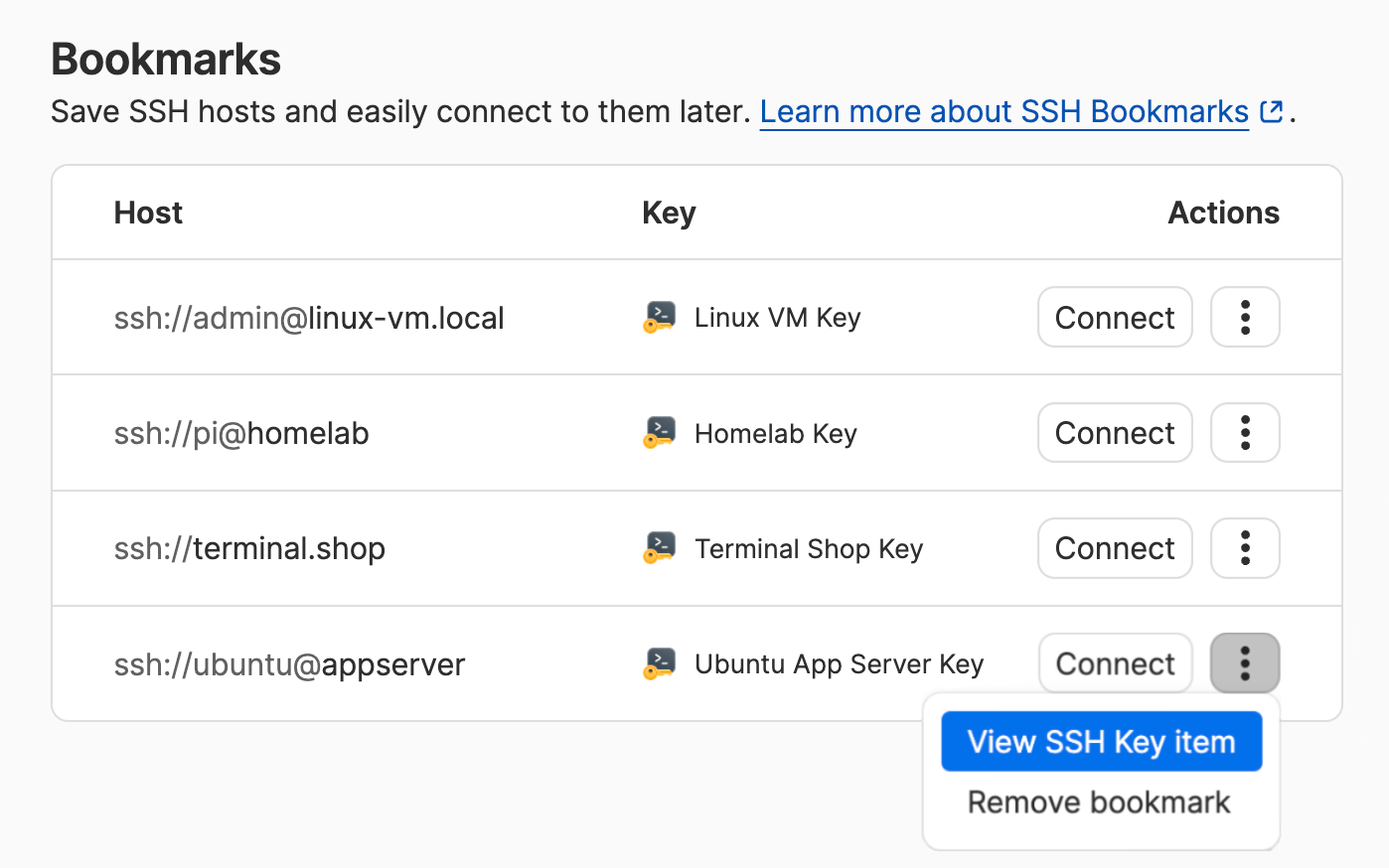
From the Bookmarks section of the SSH Agent developer page:- Select > View SSH Key item in the bookmark’s Actions menu.
- Select Edit, then update the host URL field.
- Save your changes.
Remove a bookmark
From the Bookmarks section of the SSH Agent page, select > Remove bookmark in the bookmark’s Actions menu. You can also remove a bookmark by editing the SSH Key item. Remove the SSH host URL from the item, or delete the item if you no longer need the SSH key. Using either method removes an SSH Bookmark from your Bookmarks list, the SSH Key item, and the 1Password SSH configuration file, if you turned on that feature.SSH Bookmarks config file
1Password can automatically manage an SSH config file (~/.ssh/1Password/config) that matches bookmarked SSH hosts with the corresponding SSH key. You can include this file in your main SSH config file (~/.ssh/config). This also prevents you from running into the six-key server limit.
Note that generating SSH configuration files will store your unencrypted SSH host URLs and SSH public keys for your bookmarks on disk. Your private keys will remain safe in 1Password.
Generate the 1Password config file
This feature is turned off by default, so you’ll need to turn on the setting in 1Password:- Open the 1Password desktop app and navigate to Settings > Developer.
- Go to the Advanced section for the SSH Agent (you may need to select the section to expand it).
- Select Generate SSH config files with bookmarked hosts.
~/.ssh/1Password/ that includes:
~/.ssh/1Password/configfile: An SSH configuration file that maps SSH hosts to their corresponding keys.*.pubfiles: Individual public key files for each bookmarked host, named using the SSH key’s public fingerprint.
Use the configuration file
To start using the 1Password configuration file, you’ll need to include it in your main SSH config file. Add the following line to the top of your~/.ssh/config file:
~/.ssh/1Password/config file. Any time you create, edit, or remove an SSH Bookmark, 1Password automatically updates the configuration file.
If you want to override any of the rules from the 1Password configuration file, you can do so by editing your SSH configuration file. Copy the relevant Match Host block from the 1Password-generated ~/.ssh/1Password/config file into your ~/.ssh/config file. Then edit the configuration values in the block to your preferred values.
If you turn off the setting to generate configuration files, 1Password will remove the ~/.ssh/1Password directory and all generated files.
Terminal for SSH connections
1Password will use your system’s default terminal application to launch SSH connections without additional setup, or you can choose your preferred terminal option in the settings.- Mac
- Windows
- Linux