

Requirements
Before you get started, you’ll need to:- Sign up for 1Password.
- Install and sign in to 1Password for Mac, Windows, or Linux.
- Update to Git 2.34.0 or later.
- Import or generate SSH keys in 1Password.
- Set up the 1Password SSH Agent.
Step 1: Configure Git commit signing with SSH
To automatically configure Git commit signing with SSH globally:
- Open the SSH key you want to use in your 1Password desktop app.
- Select > Configure Commit Signing.
- In the next window, select Edit Automatically.
- Set
gpg.formattossh. - Set
user.signingkeyto the public key you chose to sign commits with. - Set
commit.gpgsigntotrueso you don’t need to include the-Sflag with each commit. (optional) - Set
gpg.ssh.programto the SSH signer binary provided by 1Password, so you don’t have to setSSH_AUTH_SOCKyourself. (optional)
Step 2: Register your public key
Now that you’ve configured SSH commit signing locally, you’ll need to register your public key so that others can verify the authenticity of your commits.- GitHub
- GitLab
- Bitbucket
- Locally
To allow GitHub to verify your commits, visit the GitHub SSH key settings to register your SSH key for commit signing. You can use the 1Password browser extension to automatically fill in the public key and key title.
Make sure you set the “Key type” to Signing key to allow your SSH key to be used for signing commits.
Step 3: Commit and push your code
Now that you’re all set up, you can commit some code: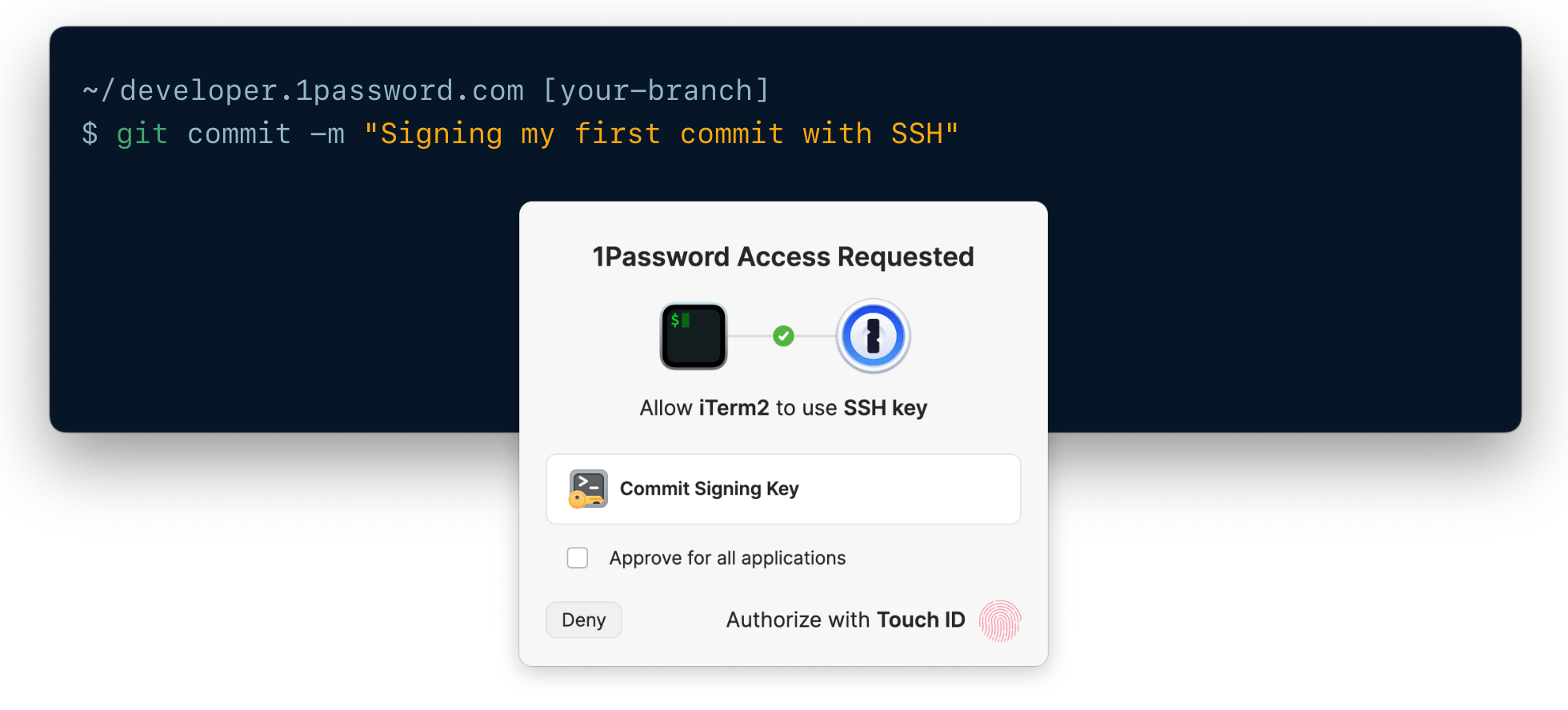
Step 4: Verify your commit signature
- GitHub
- GitLab
- Bitbucket
- Locally
If you look at your commit history on GitHub, you should see the
Verified badge show up on your SSH-signed commits. If you select it, you can see the SSH key used to sign it.Advanced configuration
Configure commit signing in a single repository
You can enable Git commit signing with SSH for specific repositories or directories instead of globally. To do this:- Open the SSH key you want to use in your 1Password desktop app.
- Select > Configure Commit Signing.
- In the next window, select Copy Snippet.
- Paste the snippet in the repository’s
<git-repo>/.git/configfile instead of the global~/.gitconfigfile.
Configure multiple commit signing setups
If you want to configure multiple commit signing setups, you can use theincludeIf directive in your ~/.gitconfig.
For example, to use an SSH commit signing setup with 1Password as your default configuration and a non-1Password GPG setup for the /work/acme subdirectory:
~/.gitconfig
~/work/acme/.gitconfig
~/work/acme will use the GPG configuration, while the SSH configuration will be used everywhere else.
Configure commit signing in remote environments
You can set up SSH agent forwarding to authenticate Git requests and sign commits in remote environments, like from a cloud development environment or remote workstation.Get help
If Git says that SSH is an unsupported format
If you see the following error message, then your Git version may be outdated:If your commits fail after you change your Git configuration
If you see one of the following error messages, it’s likely related to youruser.signingkey value. Make sure that’s set to a valid SSH public key.
user.signingkey is set correctly in your ~/.gitconfig file, check the value at the repository level by running the following command from your repo’s directory:
~/.gitconfig, you may have a local override in your repository.
If you see errors related to the allowed signers file
If you see the following error message, make sure you’ve properly configured your allowed signers file:If your SSH-signed commit doesn’t get verified by Git, GitHub, GitLab, and/or Bitbucket
If you believe you’ve signed your commits through SSH but they’re not showing up as verified, there are a few things that could be happening:Commit author email mismatch
Commit signatures will only show up as verified if the registered public key matches the commit author email. Make sure it matches the email you’ve registered on GitHub , GitLab , or Bitbucket in your allowed signers file.Case-sensitive email addressesIf your signed commits are verified locally but aren’t verified on GitLab.com or Bitbucket, check for any case mismatches in your email address.For example, if the email address in your GitLab or Bitbucket account is
wendy@appleseed.com but your ~/.gitconfig file uses Wendy@appleseed.com, your commits will show as unverified in those accounts.~/.gitconfig, check that the settings have correctly propagated down to the repository level as well. To validate this, run the following command from your repo’s directory:
~/.gitconfig, you may have a local override in your repository.
Misconfigured public key
On GitHub, visit the SSH key settings and check that the key you’ve locally configured asuser.signingkey shows up under “Signing keys”.
On GitLab, visit the SSH key settings and check that the key you’ve locally configured as user.signingkey shows up under “Your SSH keys”.
On Bitbucket, visit the SSH key settings and check that the key you’ve locally configured as user.signingkey shows up under “SSH keys”.
For a local allowed signers file, make sure your public key is present and matches your email.
Unsupported Git client
Most Git clients support SSH commit signing out of the box, but there are a few exceptions. Even though you may have configured Git correctly, a Git client that doesn’t support SSH commit signing will leave your commit unsigned. Make sure to also check that you’re on the latest version of your Git client.Local Git overrides
Even though you may have configured your~/.gitconfig well, make sure to also check that the settings have correctly propagated down to the repository level.
To validate this, run the following command from your repo’s directory:
~/.gitconfig, unset the local values:
--show-origin flag: