

Approve an SSH request
When you run an SSH or Git command, 1Password will ask you to allow your terminal or other SSH client to use your SSH key. The authorization prompt indicates which application is requesting permission to use which SSH key, and you’ll always have the option to deny the request. You can approve the request using the authentication option indicated on the prompt (for example, Touch ID, Windows Hello, or your account password). The authorization method will vary depending on your device, operating system version, and 1Password settings. If 1Password is locked, you’ll also be prompted to unlock the app so the SSH agent can access your private keys.
If the SSH key you’re approving belongs to an account that uses 1Password Unlock with SSO, you may be redirected to the sign-in page for your identity provider. You’ll then need to sign in using the credentials for your provider account to authorize the request.
After approving the request, you can continue using the same SSH key for that application without being prompted again until 1Password locks or quits. You can also adjust your authorization settings to prompt more or less frequently.
Learn more about the 1Password SSH Agent authorization model.
Adjust your authorization settings
There are several options you can choose from to determine what usage you’re approving for each key and how long the agent remembers your SSH key approval. These options determine when the SSH agent will ask you to approve SSH requests. To adjust your authorization settings, open 1Password, then select your account or collection at the top of the sidebar and select Settings > Developer. In the advanced settings for the SSH agent, you can choose the options that best suit your needs. You can change your settings at any time.Choose when 1Password asks for approval
Use the Ask approval for each new setting to choose what usage you’re approving when you authorize an SSH request.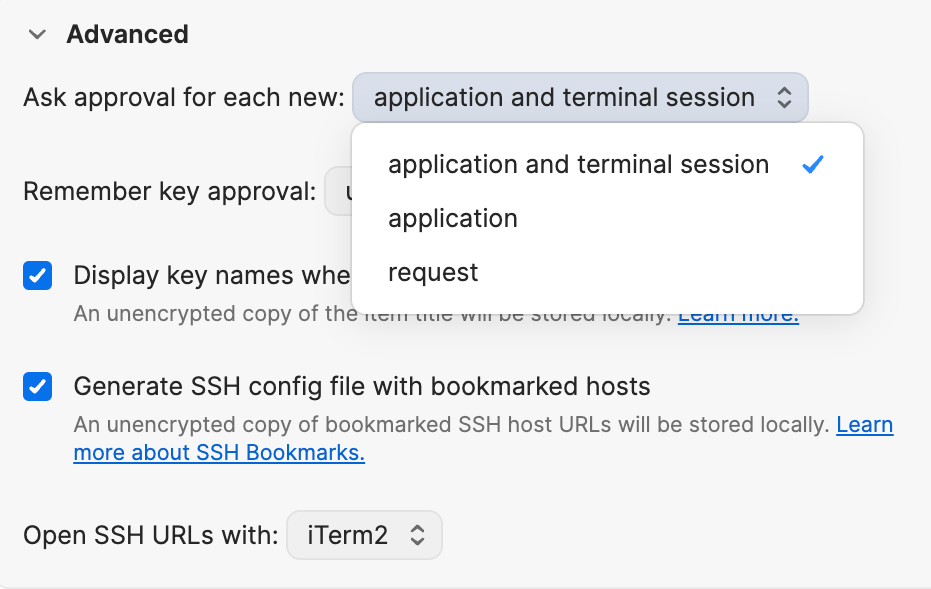
- For each new application (default): You’ll be asked to authorize SSH requests from each new application to use a specific SSH key.
- For each new application and terminal session: Similar to the first option, you’ll be asked to authorize SSH requests from each new application to use a specific SSH key. If the application is a terminal emulator or an IDE with a built-in terminal, you’ll also be asked to authorize requests for each new terminal tab in that application.
- For each new request: You’ll be asked to authorize every new SSH request, even if it comes from an application or terminal session you’ve already approved. Each approval only authorizes a single request, so the agent doesn’t remember your key approvals with this option.
Choose how long 1Password remembers your approval
Use the Remember key approval setting to choose how long 1Password will remember your key approval.The “Remember key approval” setting isn’t available if you’ve configured 1Password to ask for approval for each new request. Because each approval only authorizes a single request, there’s no key approval for the agent to remember.
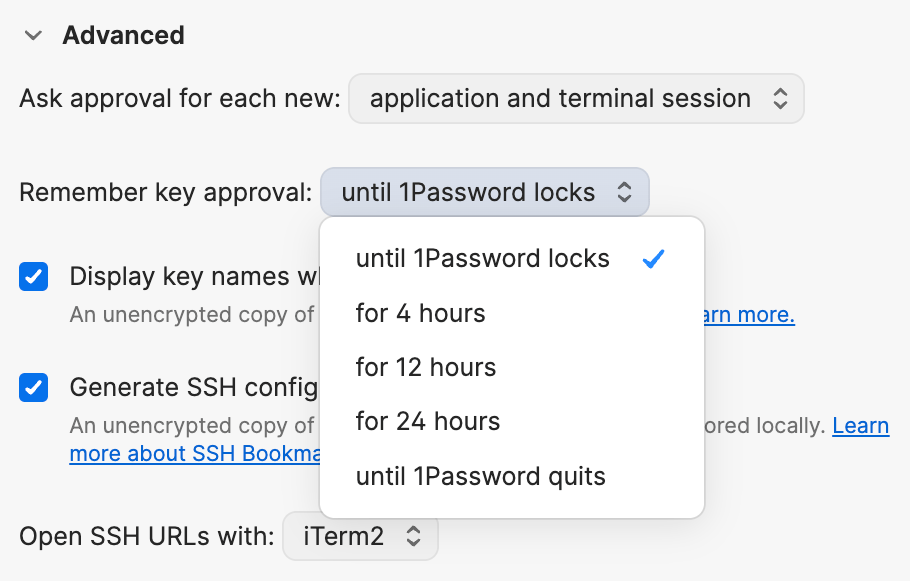
- Until 1Password locks (default): Every time 1Password locks, your key approvals are wiped from the agent’s memory and you’ll be asked to reauthorize any previously approved SSH clients to use your keys. For example, if you approve the terminal application to use your SSH key for GitHub, then 1Password locks, you’ll need to reapprove any new requests from the terminal to use your GitHub SSH key when 1Password unlocks. Learn how to change your 1Password lock settings.
- Until 1Password quits: Every time 1Password quits, your key approvals are wiped from the agent’s memory. Any agent sessions and background processes will also end. To use the SSH agent to authorize any new requests to use your SSH keys, you’ll need to reopen 1Password.
- For a set amount of time: You can choose from 4, 12, or 24 hours. If you select one of these options, your key approvals will remain in the agent’s memory for that duration, even when 1Password is locked. You won’t need to reauthorize new requests from the same applications to use the same SSH keys you’ve already approved, but you’ll be prompted to unlock 1Password so the SSH agent can access your private key.
Approve a key for all applications
Every authorization prompt for a client to use an SSH key includes the option to approve the use of that key for all applications. To turn on this option, select the checkbox to Approve for all applications.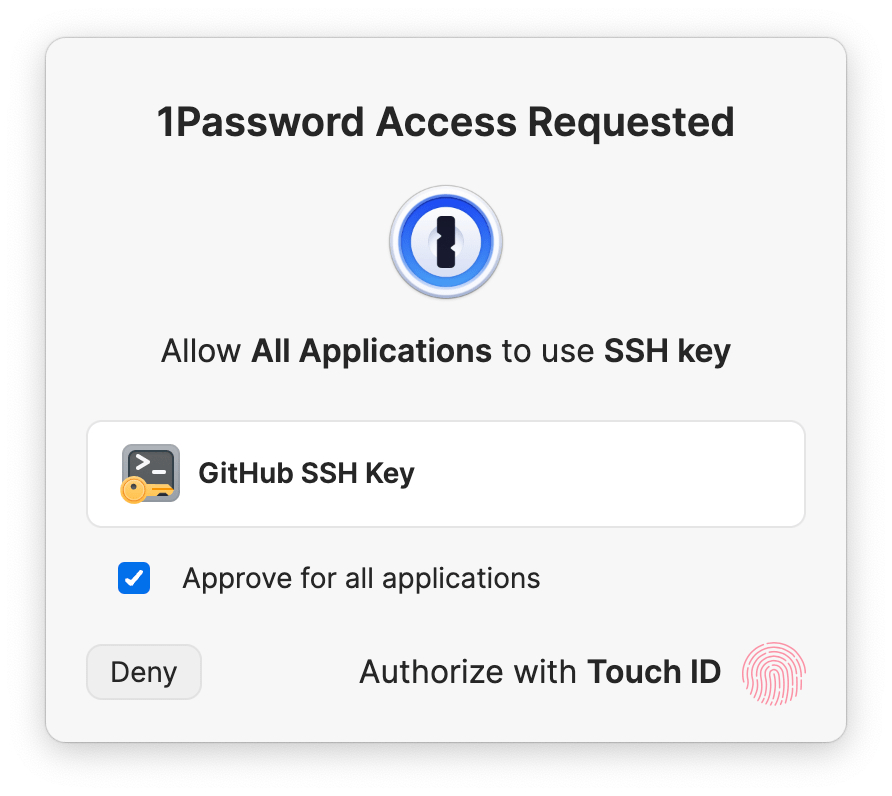
Suppressing background requests
It’s very common for IDEs and Git GUI clients to periodically rungit fetch in the background on currently open repositories. This feature is often enabled by default and may result in unexpected authorization prompts from 1Password, especially if you’re unaware of an application’s auto-fetch behavior.
1Password helps to suppress prompts if it detects that the app or window the request originated from is not in the foreground. The 1Password icon in your device’s menu bar, taskbar, or system tray will display an indicator dot when a prompt has been suppressed. If you need to access the prompt, select the 1Password icon and select SSH request waiting. The authorization prompt will be brought to the foreground.