

Differences with the OpenSSH agent
The standard OpenSSH agent (ssh-agent) that comes preinstalled on most operating systems requires you to add keys to the agent (ssh-add) every time it launches. After you’ve added your SSH keys, any process can use any key that the OpenSSH agent is managing. It’s then up to you to remove those keys when they’re not needed anymore.
The 1Password SSH Agent uses a different approach and asks for your consent before an SSH client or terminal session can use your key. Because of this, there’s no concept of adding or removing keys like with the OpenSSH agent.
When you turn on the SSH agent from the 1Password preferences or settings, every eligible key saved in 1Password becomes available to use for SSH, but your private keys will never be used without your consent.
Authorization model
The authorization model for the 1Password SSH Agent is built on the idea that you should be able to control which processes are allowed to use which private keys. When an SSH client or terminal session on your system makes a request through the SSH agent to use one of your keys, 1Password will ask if you want to approve the request. The authorization prompt indicates which process is requesting permission to use which SSH key. After you approve the request, a session is established between the key and the process the SSH command was run from (a process can be a terminal window or tab, an IDE, or a GUI application, like a Git or SFTP client).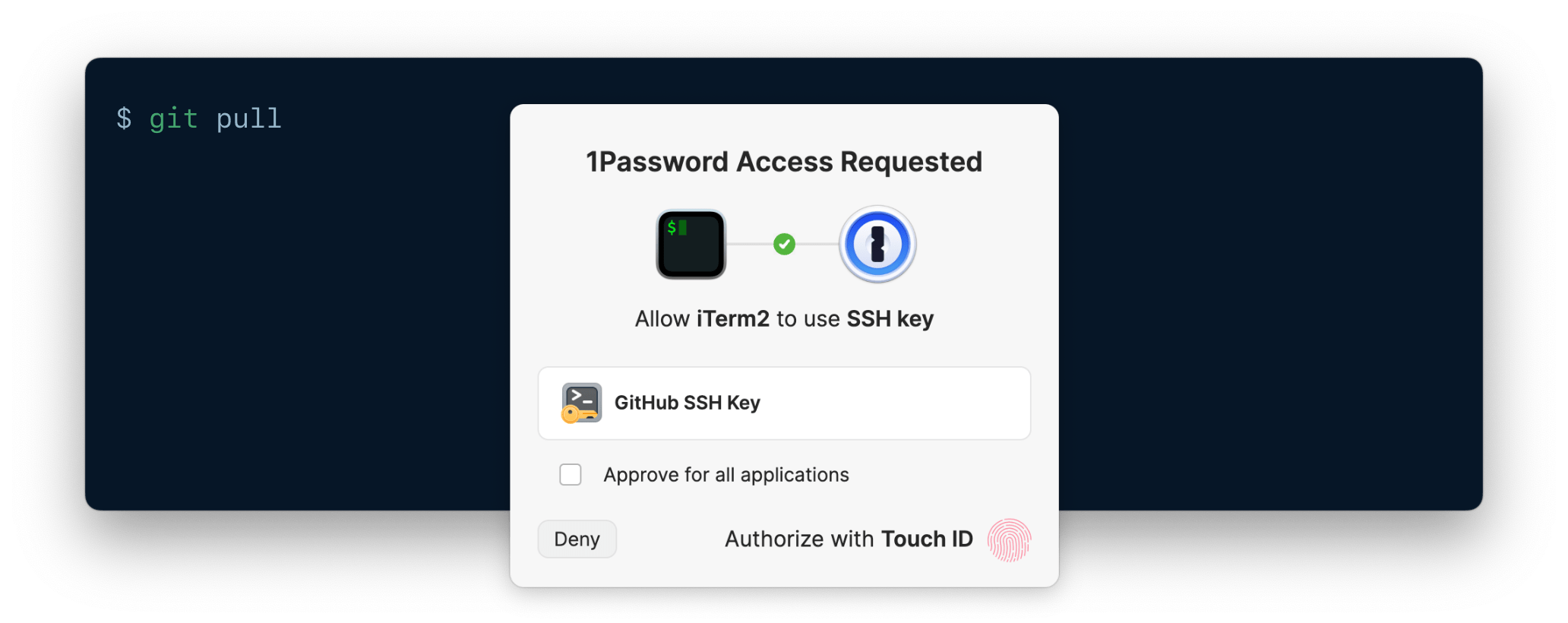
git pull command from the terminal for one of your SSH keys, 1Password won’t prompt you to approve your following git push because the session is already approved. If you’ve configured 1Password to ask for approval for each new request, no session is established and you’ll be asked to approve every request individually.
When 1Password is locked, the SSH agent continues to run in the background and will prompt you if an SSH client tries to use one of your keys. If you’ve already authorized the client to use your key for a set amount of time (for example, four hours) instead of when 1Password locks, your approval will still be in the agent’s memory and you’ll only be prompted to unlock 1Password. The SSH agent doesn’t keep your private keys in memory when 1Password is locked, only your authorization, so the app needs to be unlocked for the agent to access your private keys.
Authorization options
The authorization model for the 1Password SSH Agent allows for some flexibility, so you can set it up to best suit your needs at any given time. You’ll always be asked to authorize the use of each private key, but you can adjust options like how long an SSH agent session lasts (how long the agent remembers your key approval). This could be until 1Password locks or quits, or until a set amount of time has passed. You can also choose what usage you’re approving for each key, which determines when the SSH agent will ask you to approve requests. Usage options you can choose include:- Per key, per application (default): When you approve an SSH key request, you authorize a specific application (including all of its subprocesses) to use a specific SSH key. Your authorization grants access to the SSH key within that agent session, or until the application quits.
- Per key, per application, per terminal session: When you approve an SSH key request, you authorize a specific application (including all of its subprocesses) to use a specific SSH key, but with an additional restrictions. If the application is a terminal emulator or an IDE with a built-in terminal, your authorization only applies to a specific tab. Each new terminal tab in that application requires separate approval to use that key. Your authorization grants access to the SSH key within that agent session, or until the application or terminal session quits.
- Per key, per request: When you approve an SSH key request, you authorize only that single request. No agent session is established and the agent doesn’t remember your key approval, so you’ll be asked to approve every new SSH request, even from applications or terminal sessions you’ve previously approved.
- Per key, once for every process running on the user’s system: You can see this option on a per-request basis for a specific SSH key by selecting the Approve for all applications checkbox on the authorization prompt. This temporarily authorizes all processes running under the current OS user to use that key for the duration of the agent session. Access is only restricted by file permissions on the agent socket or named pipe. This option doesn’t affect your other settings.