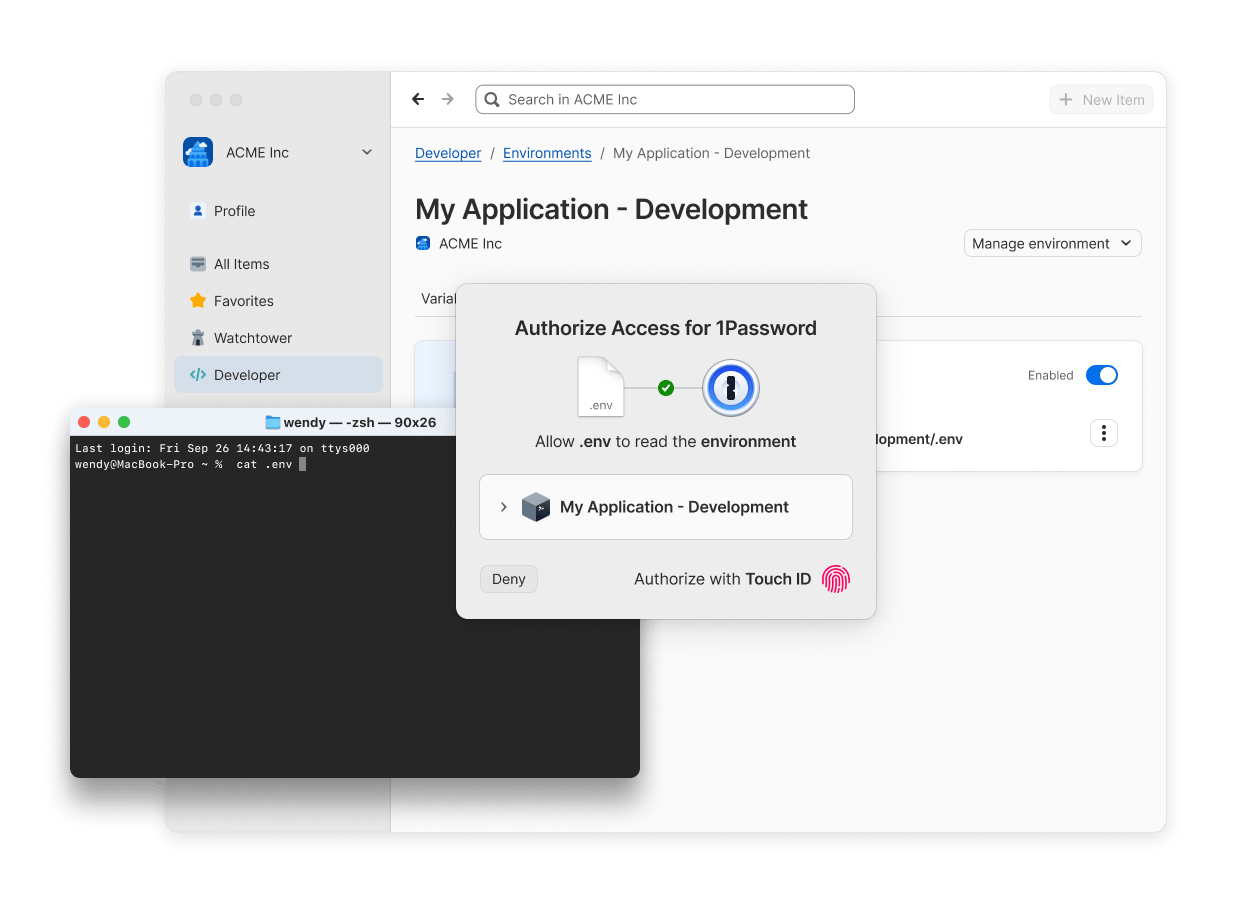
Hardcoded plaintext secrets in source code, config files, environment files, and shell profiles are one of the most common causes of credential leaks. 1Password developer tools make it easy to access your secrets where you need them without exposing them in plaintext. Store your credentials in 1Password, then securely load them in your terminal, IDE, app, CI/CD pipelines, or anywhere else in your code.Documentation Index
Fetch the complete documentation index at: https://www.1password.dev/llms.txt
Use this file to discover all available pages before exploring further.
Environments (beta)

- Local development: Use 1Password CLI to pass the variables stored in an Environment to applications or scripts at runtime, or create a locally mounted
.envfile for tools that expect an environment file on disk. - AI-assisted coding: Keep plaintext secrets out of an LLM’s context using a locally mounted
.envfile that your IDE can read without storing the plaintext contents on your device. Use 1Password hooks to validate your setup before the agent executes shell commands. - Containerized apps: Use 1Password SDKs to retrieve Environment variables directly in your application container’s code, or use 1Password CLI to load variables into an init container or sidecar at runtime.
- CI/CD pipelines: Use 1Password CLI to load the right set of variables into your pipeline for the current development stage by pointing to the Environment your pipeline needs. Authenticate with a service account for automated, least privilege access.
.env files directly into 1Password, and you can share your Environments with your team members for quick and secure collaboration.
Get started
Create and manage Environments.
Access secrets through local .env files
Sync an Environment to a local .env file.
Programmatically read Environments
Fetch variables from Environments with 1Password CLI or SDKs.
Sync secrets to AWS Secrets Manager
Centralize secrets management and simplify your AWS Secrets Manager workflow.
You can also replace hardcoded secrets in your code using secret references.
Shell plugins
- Cloud provider CLIs: Authenticate
awsand other cloud provider CLIs with 1Password instead of storing access keys in~/.aws/credentialsor shell profiles. - Version control: Use the GitHub or GitLab shell plugins to authenticate
ghorglabwithout storing plaintext tokens in your environment. - Local development tools: Authenticate package managers and development CLIs like Homebrew without storing credentials in config files.
Choose your configuration
Use the tables below to find the best tools and authentication method for your specific use case. Every scenario includes a recommended tool and authentication method.Tool options
- 1Password Environments: Best for managing project secrets in 1Password and eliminating plaintext secrets in code.
- 1Password CLI: Best for quick testing, shell scripts, CI/CD pipelines, Infrastructure as Code, build tools and task runners. Environments require the latest CLI beta.
- 1Password SDKs: Best for native integrations with Go, Python, or JavaScript applications. Environments require the latest SDK beta.
- 1Password Shell Plugins: Best for securing command-line tools and adding convenient biometric authentication to any CLI.
- 1Password Connect server: Securely access secrets in your company’s apps and cloud infrastructure using a private REST API.
Authentication options
- 1Password desktop app: Authenticate locally in the same way you unlock your 1Password desktop app, like with biometrics or your 1Password account password. Requires minimal setup with no token management and enables human-in-the-loop approval for sensitive workflows.
- 1Password Service Accounts: Authenticate using a token scoped to specific vaults or Environments, with no user interaction required. Best for headless servers, automated workflows, and shared building. Service accounts can’t access your built-in Personal, Private, or Employee vault.
- Connect server token: Authenticate with your Connect server host and token.
Scenarios
Local development
| Use case | Recommended tool | Authentication method | Why this approach |
|---|---|---|---|
| Local development on your machine | Environments + CLI/SDK or local .env file | Desktop app | Use 1Password CLI or SDKs to load your project secrets from an Environment directly into your application at runtime, or use a locally mounted .env file if your app expects an environment file. Authenticate with the 1Password desktop app for quick setup with no token management required. |
| AI-assisted coding | Environments + Local .env file | Desktop app | Use locally mounted .env files to provide secrets to your IDE without storing them on disk, keeping them out of LLM context. Then use 1Password hooks to validate your setup before the agent executes commands. |
| Build tools and task runners | Environments + CLI | Desktop app or Service account | 1Password CLI integrates easily with build tools like make, gradle, or npm scripts. Use the 1Password desktop app for interactive developer builds, or service accounts for shared builds. |
| Replacing hardcoded secrets in existing config files or scripts | Environments + CLI | Desktop app or Service account | Template your config file with environment variables instead of plaintext secrets, then use 1Password CLI to load the secrets from an Environment at runtime. Authenticate with the 1Password desktop app for personal scripts. Use service accounts for CI/CD, shared builds, or automated access. |
| Securing third-party CLI tools | Shell plugins | Desktop app | Shell plugins bring the biometric unlock options available in the 1Password desktop app to dozens of command-line tools, so there are no tokens to manage and credentials are never stored in shell profiles or config files. |
| Using a CLI tool with multiple accounts or environments | Shell plugins | Desktop app | Shell plugins allow you to seamlessly switch between different credentials for different accounts and development contexts. |
Production environments
| Use case | Recommended tool | Authentication method | Why this approach |
|---|---|---|---|
| CI/CD pipelines (GitHub Actions, GitLab CI, etc.) | Environments + CLI or CI/CD integrations | Service account | Use Environments to pass project variables into CI/CD pipelines that support shell commands. This allows you to organize and switch between secrets by development context. Use CI/CD integrations to load secrets into your pipeline using secret references. Service accounts provide non-interactive authentication for automated workflows and can be scoped to only the Environments or vaults your pipeline needs. |
| Application runtime or server-side applications | Environments + SDKs | Service account | 1Password SDKs offer native language integration with better error handling and type safety. Service accounts enable secure, automated access without user interaction and headless server authentication. |
| Docker containers and Kubernetes | Environments + SDK or CLI | Service account | Service accounts work well in containerized environments. Choose 1Password SDKs for application containers, or choose 1Password CLI for init containers or sidecars. |
| Infrastructure as Code | Environments + CLI or Terraform/Pulumi integrations | Service account | 1Password CLI can be easily invoked from IaC tools. Service accounts enable automated infrastructure provisioning. |
Secrets management
| Use case | Recommended tool | Authentication method | Why this approach |
|---|---|---|---|
| Secrets rotation | Environments + CLI/SDK | Service account | When you update an Environment, the change is automatically reflected in your code at runtime. Use a service account for automated or scheduled rotation workflows. |
| Accessing secrets in company apps and cloud infrastructure | CLI or Connect SDK | Connect server | Connect server hosts a private REST API in your own infrastructure, enabling unlimited re-requests after the initial fetch and reducing dependency on the availability of the 1Password API. |