

plugins.sh file, then you’ll be prompted to authenticate the GitHub CLI with biometrics.
Requirements
- Sign up for 1Password.
- Install and sign in to 1Password for Mac or Linux.
- Install 1Password CLI 2.9.0 or later.
- Integrate 1Password CLI with the 1Password app.
- Install the GitHub CLI .
- Bash
- Zsh
- fish
Before you begin: Create and save a GitHub personal access token
Before you can use 1Password to authenticate the GitHub CLI, you’ll need to create a GitHub personal access token. 1Password authenticates the GitHub CLI with your personal access token instead of a username and password. If you use GitHub Enterprise Server, create the token on your own GitHub host rather than on github.com. If you’ve already created a personal access token, skip to Step 1. If you haven’t created a personal access token yet, you can create one and use the 1Password browser extension to quickly save it in 1Password:- Open and unlock 1Password in your browser.
- Follow the steps to create a GitHub personal access token.
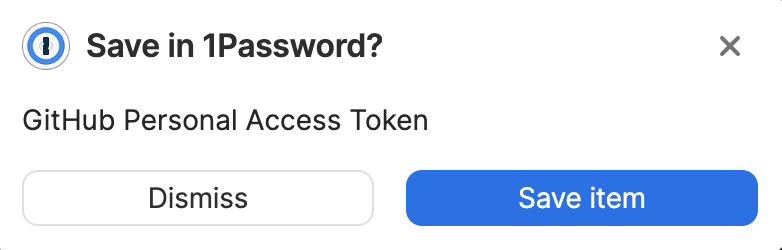
- Select Save item when 1Password asks if you want to save an item for the GitHub personal access token.
- Choose the vault where you want to save the item, edit the item’s name and details, then select Save item.
Step 1: Configure your default credentials
If you use a single GitHub account, select Use as global default on my system. This will set your personal access token as the default in all terminal sessions and directories. If you use multiple GitHub accounts, learn how to use directory-specific defaults for context switching.Authenticate with GitHub Enterprise
If your personal access token is for GitHub Enterprise rather than github.com, enter the hostname you use to reach GitHub in the optional Host field when you import or create the item, for examplegithub.example.com or company.ghe.com. Leave the field empty if you use github.com.
The plugin provisions your token to the environment variables the GitHub CLI expects for that host:
- github.com and GitHub Enterprise Cloud: Your token is provisioned as
GH_TOKENandGITHUB_TOKEN. - GitHub Enterprise Server: Your token is provisioned as
GH_ENTERPRISE_TOKENandGITHUB_ENTERPRISE_TOKEN, along withGH_HOSTso the GitHub CLI knows which host to authenticate to.
Step 2: Source the plugins.sh file
To make the plugin available, source your plugins.sh file. For example:
The file path for your op folder may vary depending on your configuration directory. op plugin init will output a source command with the correct file path.
If this is your first time installing a shell plugin, you’ll also need to add the source command to your RC file or shell profile to persist the plugin beyond the current terminal session. For example:
Step 3: Use the CLI
Step 4: Remove imported credentials from disk
After saving your GitHub credentials in 1Password, you can remove all local copies you previously had stored on disk.Next steps
1Password Shell Plugins support more than 60 third-party CLIs. To see a list of supported CLIs:
To choose another plugin to get started with:
To use shell plugins for seamless context switching, learn how to configure a plugin in multiple environments or with multiple accounts.
Get help
Reference
1Password authenticates with GitHub by injecting environment variables with the credentials required by the plugin commands directly from your 1Password account.
If you saved your GitHub credentials in 1Password manually rather than using op plugin to import a new item, make sure that your field names match the table below.
If the item doesn’t contain a field with the required name, you’ll be prompted to rename one of the existing fields.
The environment variables your token is provisioned to depend on the value of the Host field. github.com and GitHub Enterprise Cloud (Host empty,github.com, or a *.ghe.com hostname):
GH_HOST is only set if you entered a Host value other than github.com.