

Requirements
- Sign up for 1Password.
- Install and sign in to 1Password for Mac or Linux.
- Install the latest beta build of 1Password CLI (
2.19.0-beta.01or later). - Integrate 1Password CLI with the 1Password app.
- Install Terraform CLI .
- Bash
- Zsh
- fish
Step 1: Configure your default credentials
To get started with the Terraform shell plugin, run:Step 1.1: Import or select an item
Import a new item
If you haven’t saved a credential in 1Password yet, select Import into 1Password. Enter a name for the new 1Password item and select the vault where you want to save it. If 1Password detects the credential in your local development environment, you’ll be automatically prompted to import it.Select an existing item
If you’ve already saved a credential in 1Password, select Search in 1Password. Select the item from the list of suggested items. If you don’t see the item you want, select Expand search to browse all items in your account.Step 1.2: Set default credential scope
After you finish selecting your credentials, you’ll be prompted to configure when to use them.- Prompt me for each new terminal session will only configure the credentials for the duration of the current terminal session. Once you exit the terminal, the defaults will be removed.
- Use automatically when in this directory or subdirectories will make the credentials the default in the current directory and all of its subdirectories, as long as no other directory-specific defaults are set in them. A terminal-session default takes precedence over a directory-specific one.
- Use as global default on my system will set the credentials as the defaults in all terminal sessions and directories. A directory-specific default takes precedence over a global one.
Step 2: Source the plugins.sh file
To make the plugin available, source yourplugins.sh file. For example:
op folder may vary depending on your configuration directory. op plugin init will output a source command with the correct file path.
If this is your first time installing a shell plugin, you’ll also need to add the source command to your RC file or shell profile to persist the plugin beyond the current terminal session. For example:
Step 3: Use the CLI
The next time you use Terraform CLI with one of the providers you configured credentials for, you’ll be prompted to authenticate with biometrics or system authentication.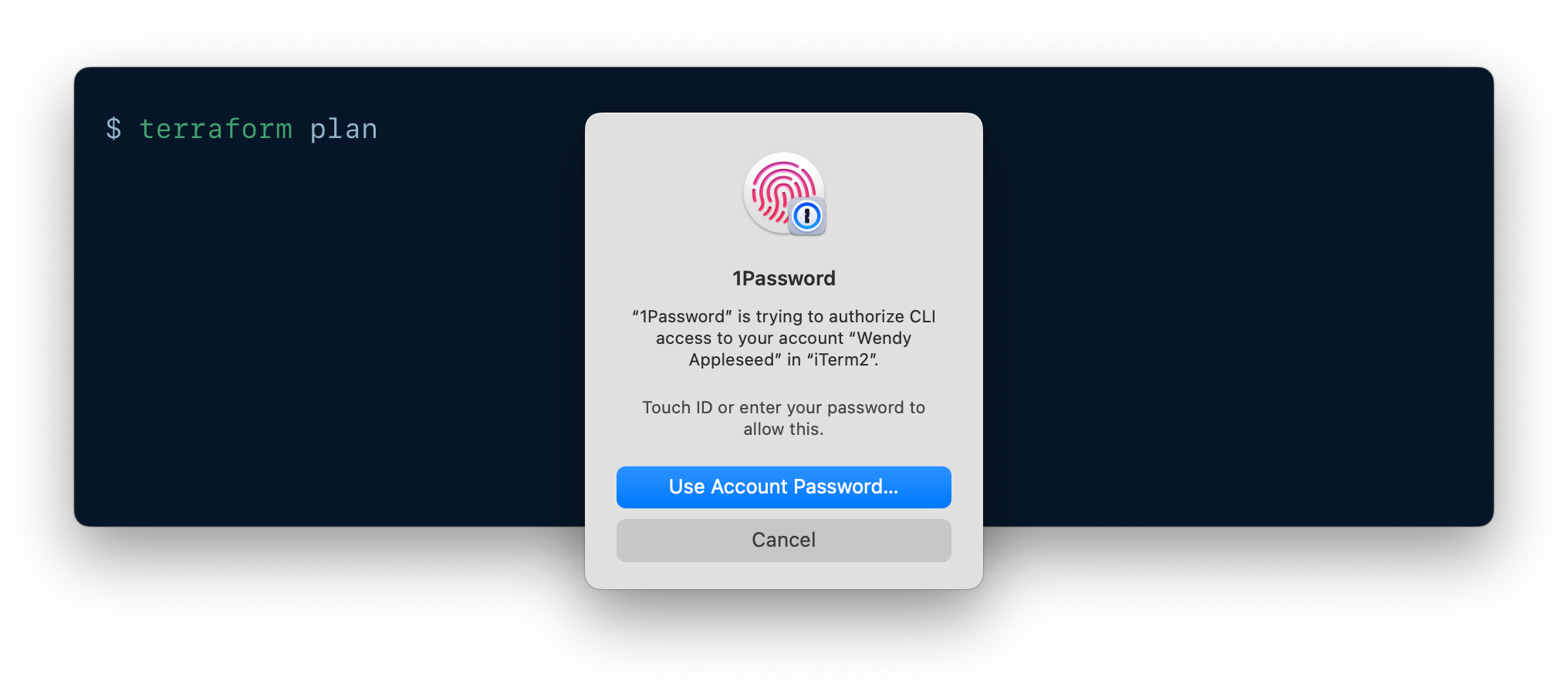
Step 4: Remove imported credentials from disk
After saving your credentials in 1Password, you can remove all local copies you previously had stored on disk, like in your provider configurations .Next steps
1Password Shell Plugins support more than 60 third-party CLIs. To see a list of supported CLIs:
To choose another plugin to get started with:
To use shell plugins for seamless context switching, learn how to configure a plugin in multiple environments or with multiple accounts.
Get help
Inspect your configuration
To inspect your current Terraform configuration: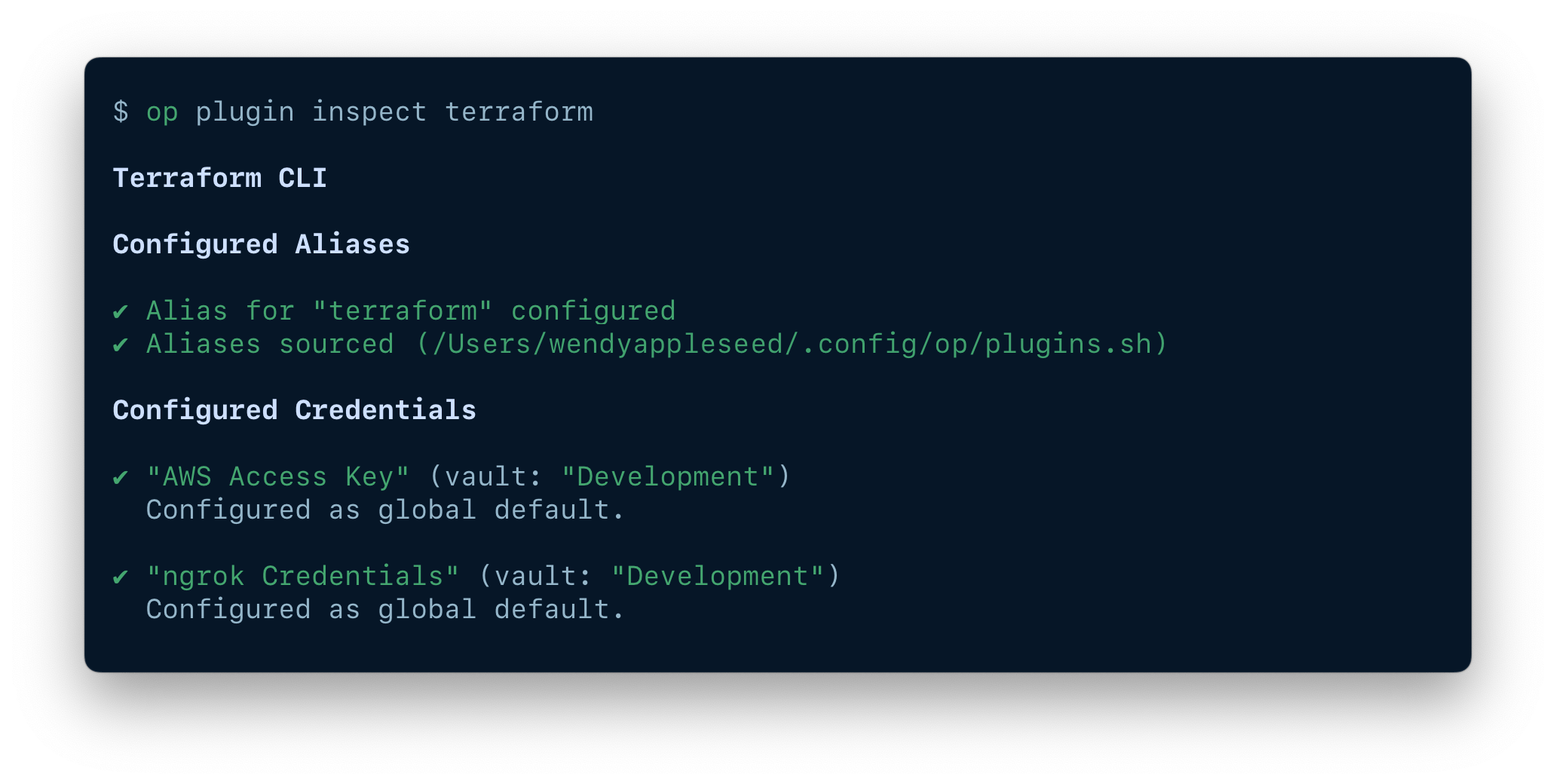
Clear your credentials
To reset the credentials used with Terraform CLI:- Terminal session default
- Directory default, from the current directory to
$HOME - Global default
$HOME/projects/awesomeProject and you have a terminal session default, directory defaults for $HOME and $HOME/projects/awesomeProject, and a global default credential configured, you would need to run op plugin clear terraform four times to clear all of your defaults.
To clear your global default credentials, terminal session default, and the defaults for your current directory at the same time, run op plugin clear terraform —all.
Reference
1Password authenticates to Terraform providers by provisioning the credentials required by the plugin commands directly from your 1Password account. If you saved your provider credentials manually rather than usingop plugin to import a new item, you might be prompted to rename your item’s fields to match the item structure required by the credential schema.